Self-service account management
Users with the Account Trustees privilege can use self-service requests to onboard, update, and offboard accounts managed by Bravura Privilege . Users with the Requesters privilege can view and request access to accounts, provided they are on the same team as the account being onboarded.
Accounts can be migrated to another team, and can be changed from a team account to a personal admin account, or vice versa.
Account trustees have access to the following pre-defined requests:
In order to manage accounts, a system needs to be onboarded .
Onboarding an account
Users assigned as Account Trustees can use the Account: Onboard request to onboard an account to a team.
Click below to view a demonstration of onboarding a Windows account to a team.
Click below to view a demonstration of onboarding a Linux account to a team.
To onboard an account to a team:
From the home page, click Manage resources.
Click Account: Onboard.
Select a managed account.
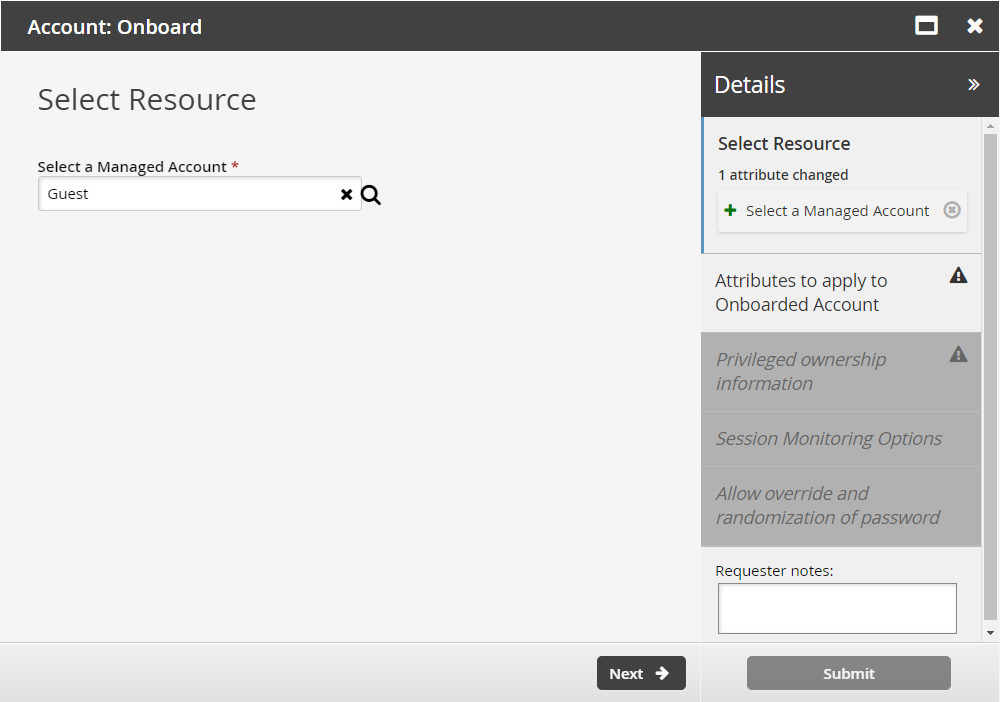
Click Next .
Select the:
Managed System Policy ID The ID of the policy used to manage the account
Disclosure option Select the appropriate checkboxes for the disclosure methods by which the team can access the account.
Maximum Concurrent Checkout The number of concurrent checkouts for the account. If unspecified, this is set to 1.
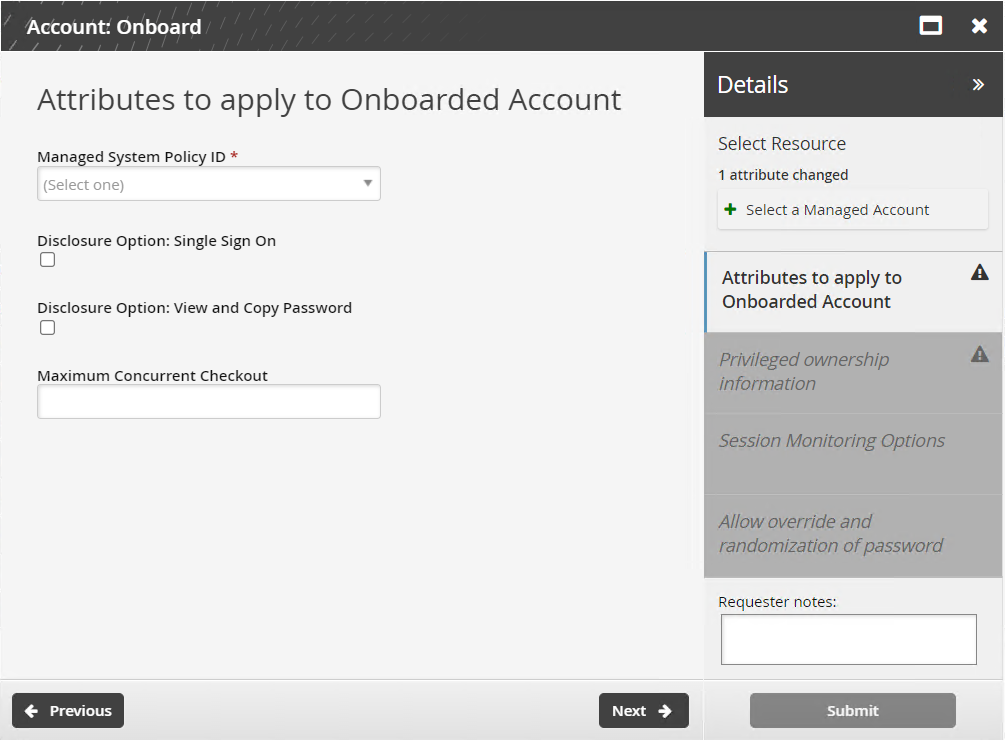
Click Next .
Select the Account Team that will access the account.
Click Next .
If the disclosure method was by direct connection, determine whether sessions will be monitored by:
Clipboard
Keystroke
Screen
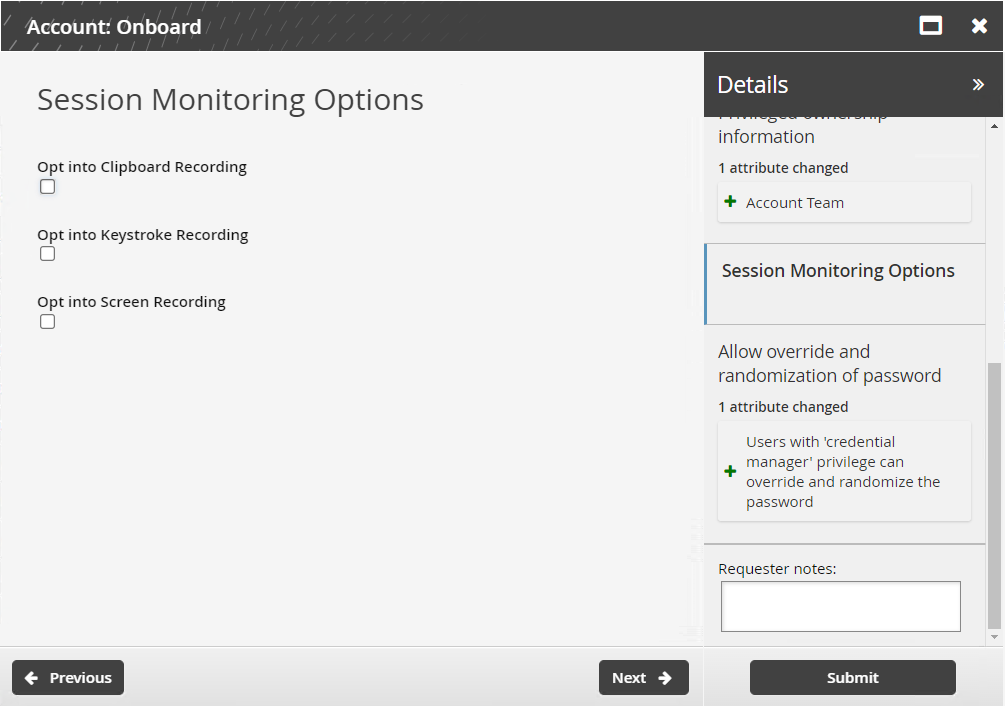
Click Next .
Select the Users with 'credential manager' privilege can override and randomize the password checkbox if you want to allow users with the credential manager role to override and randomize checked-out passwords
Passwords will always be randomized on check-in. This option provides the user with buttons to override or randomize on demand.
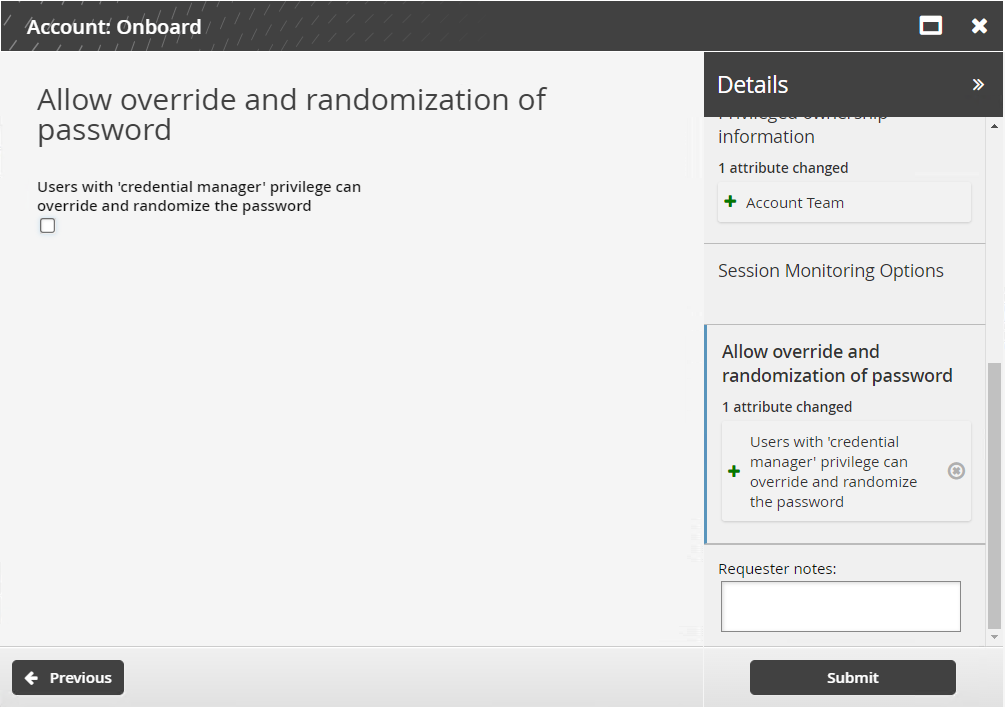
Click Submit.
Bravura Security Fabric notifies authorizers to review the request if required.
Click the View request link at the top of the page to view the status of the request.
API automation for account onboard
Once the API has been configured (See "SOAP API" in Bravura Security Fabric Remote API (api.pdf) and your script has been authenticated to the API (Login or LoginEx API calls), the WF API calls can be used to create an API request.
Use the WFPDRSubmit function to create a workflow request and submit the request for publishing.
When submitting a request, use “ONBOARD_ACCOUNT” as the PDR ID. The request uses the following attributes:
attrkey | value |
|---|---|
HOSTID | The ID of the system on which the account resides. |
ACCOUNT | The ID of the account to be onboarded. |
MSP_ID | The managed system policy the account will be binded to. |
MA_TEAM | The team that the account will be assigned to. |
REQUEST_TEAM | The team in which its account trustee(s) will be used to authorize the request. This value is required, but not enforced for this request. See REQUEST_TEAM attribute for more information. |
DISCLOSURE_METHOD_DIRECT | T to enable direct connection disclosures for the account, F to disable. |
DISCLOSURE_METHOD_VIEW_COPY | T to enable display and copy disclosures for the account, F to disable. |
SESSMON_KEYSTROKE | T to enable keystroke recording for direct connections, F to disable. |
SESSMON_CLIPBOARD | T to enable clipboard recording for direct connections, F to disable. |
SESSMON_SCREENSHOT | T to enable screen recording for direct connections, F to disable. |
MA_PWD_OVERRIDE | T to allow credential managers to randomize or override account during check-out, F to disallow. |
MA_RES_CHECKOUT_LIMIT | The number of concurrent checkouts for the account. |
ACCOUNT and HOSTID attributes are required. Note that those are not automatically populated from SELECT_MA. This will be accomplished in a future version(s)
Important
If an attribute value contains a comma, you must enclose the value in triple quotes (""") to prevent the CSV parser from splitting it into multiple values. For example, an OU path such as OU=Groups,DC=corp,DC=domain must be written as """OU=Groups,DC=corp,DC=domain""" in the CSV file.
ONBOARD_ACCOUNT batch request sample
"ACCOUNT","HOSTID","MSP_ID","MA_TEAM","SESSMON_CLIPBOARD","SESSMON_KEYSTROKE","SESSMON_SCREENSHOT","MA_PWD_OVERRIDE","DISCLOSURE_METHOD_DIRECT","DISCLOSURE_METHOD_VIEW_COPY","MA_RES_CHECKOUT_LIMIT"
"account01","D39B55F07A6A487AABE4BD8C9EC1679C","ONBOARDED_ACCOUNTS","TEAM-000000","T","T","T","T","T","T","1"
The REQUEST_TEAM attribute is the team in which its system trustee(s) will be used to authorize the request. This can be a different value depending on which PDR is used. In some cases, the value is auto filled and in other cases, a value is not required.
PDR ID | API submittable | REQUEST_TEAM required | REQUEST_TEAM auto-filled |
|---|---|---|---|
BATCH_REQUEST | No | N/A | N/A |
CREATE_LARGE_CREDENTIAL | No | N/A | N/A |
UPDATE_LARGE_CREDENTIAL | No | N/A | N/A |
WEBAPP_DISCLOSURE_CREATE | No | N/A | N/A |
WEBAPP_DISCLOSURE_DELETE | Yes | No | N/A |
WEBAPP_DISCLOSURE_UPDATE | No | N/A | N/A |
TEAM-CREATE | Yes | Yes | Yes |
TEAM-DELETE | Yes | Yes | Yes |
TEAM-MEMBERS | Yes | Yes | Yes |
TEAM-UPDATE | Yes | Yes | Yes |
CREATE_VAULT_SYSTEM | Yes | Yes | Not required |
ARCHIVE_VAULT_SYSTEM | Yes | Yes | Yes |
UPDATE_VAULT_SYSTEM (1 - same team) | Yes | Yes | Yes |
UPDATE_VAULT_SYSTEM (2 - transfer) | Yes | Yes | Yes |
CREATE_VAULT_ACCOUNT (1 - team vault) | Yes | Yes | Yes |
CREATE_VAULT_ACCOUNT (2 - system vault - same team) | Yes | Yes | Yes |
CREATE_VAULT_ACCOUNT (3 - system vault - different team) | Yes | Yes | Yes |
ARCHIVE_VAULT_ACCOUNT | Yes | Yes | Yes |
UPDATE_VAULT_ACCOUNT (1 - team vault) | Yes | Yes | Yes |
UPDATE_VAULT_ACCOUNT (2 - system vault - same team) | Yes | Yes | Yes |
UPDATE_VAULT_ACCOUNT (3 - system vault - transfer) | Yes | Yes | Yes |
ONBOARD_SYSTEM | Yes | Yes, but not enforced | No |
ARCHIVE_ONBOARDED_SYSTEM | Yes | Yes, but not enforced | No |
UPDATE_ONBOARDED_SYSTEM | Yes | No | If the destination team is unset or the destination team is the same as the source team |
ONBOARD_ACCOUNT | Yes | Yes, but not enforced | No |
OFFBOARD_ACCOUNT | Yes | Yes | Yes |
UPDATE_ONBOARDED_ACCOUNT | Yes | Yes, but not enforced | No |
CREATE_PAMUTIL_API_USER | Yes | No | Not required |
 improper display of the team in update/archive when the destination team's vault trustee is not in a team owning the vault system. This will be fixed in a future release.
Example: Onboard accounts using batch request
Onboarding accounts can take a significant amount of time when done manually. For this reason, Bravura Security has implemented a bulk request submission component to enable managed system onboarding in bulk using a CSV file containing system details.
This example demonstrates steps of installing the batch request component, building a CSV input file, and then using the CSV file to onboard multiple managed accounts.
Install Functional.hid_batch_request_submit
Log in to the Bravura Security Fabric as superuser.
click Manage components.
Search for Functional.hid_batch_request_submit.
Select the component and click Install .
See Managing components for more on component installation.
Create a CSV file with batch information
Create a CSV file as shown in API automation for account onboard .
Run the batch Pre-Defined Request (PDR)
Log in as a profile with permissions to onboard systems to a team.
Click Manage Resources.
Click on the Submit a request batch via CSV PDR.
Select "Account: Onboard" under .
Enter the batch request reason (Optional).
Select your CSV Request file.
Click on Submit .
Confirm the requests have gone through
Log in as a profile with permissions to onboard systems.
Click Requests > All.
Find the most recent batch request and select it.
Click the request link on the top right corner.
On the request details page, select the check box for Operations .
The status should report 0 failed. If this is not the case you will need to troubleshoot the issues logged in idmsuite.log .
Updating an account
Users assigned as account trustees can use the Account: Update request to migrate an account to another team, update other account attributes, or change a team account to a personal admin account or vice versa. For an account trustee to migrate accounts, they must also be an account trustee for another team.
From the home page, click Manage resources.
Select the Account: Update request.
Select a managed account.
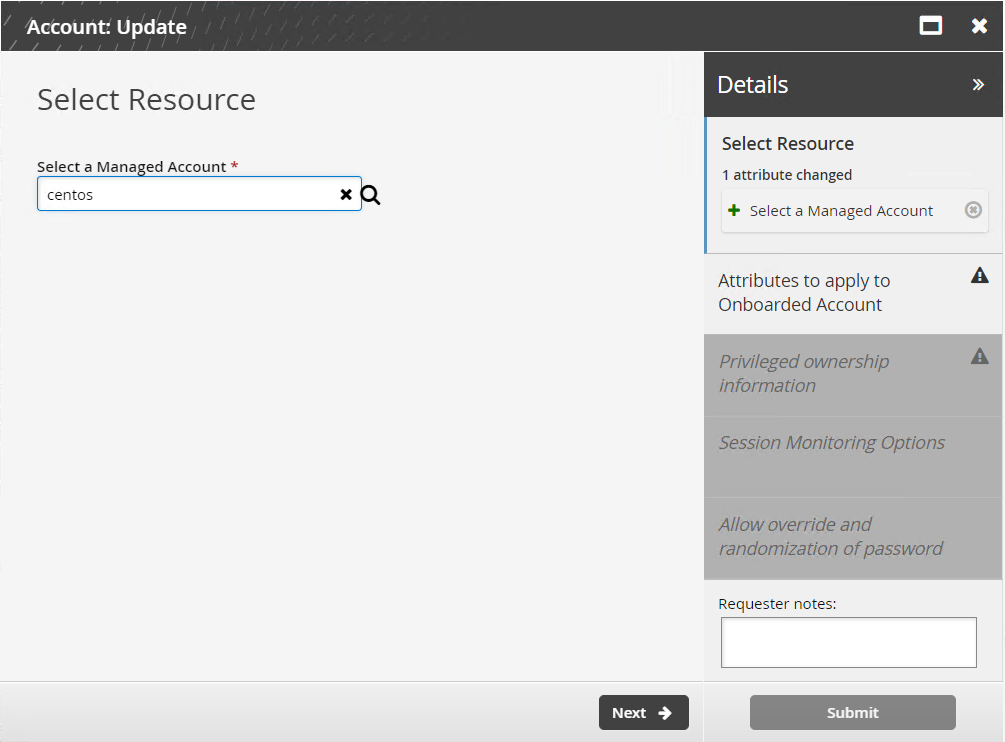
Click Next .
Select the Disclosure method.
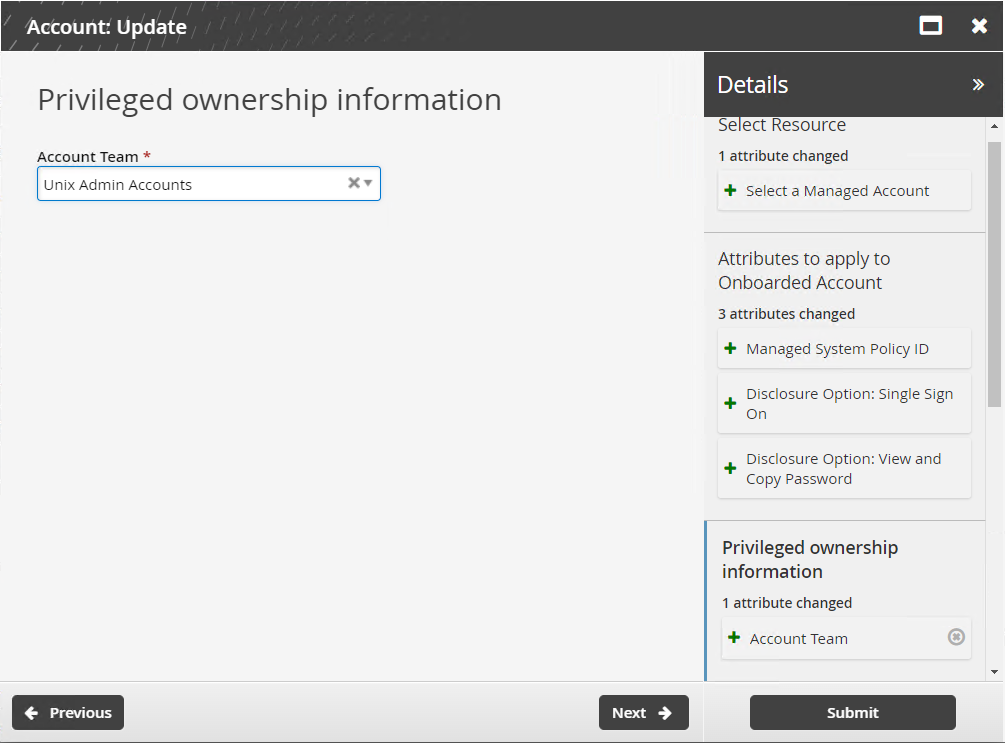
Click Next .
Select the Account Team.
Click Next .
If the disclosure method was by direct connection, determine whether sessions will be monitored by:
Clipboard
Keystroke
Screen
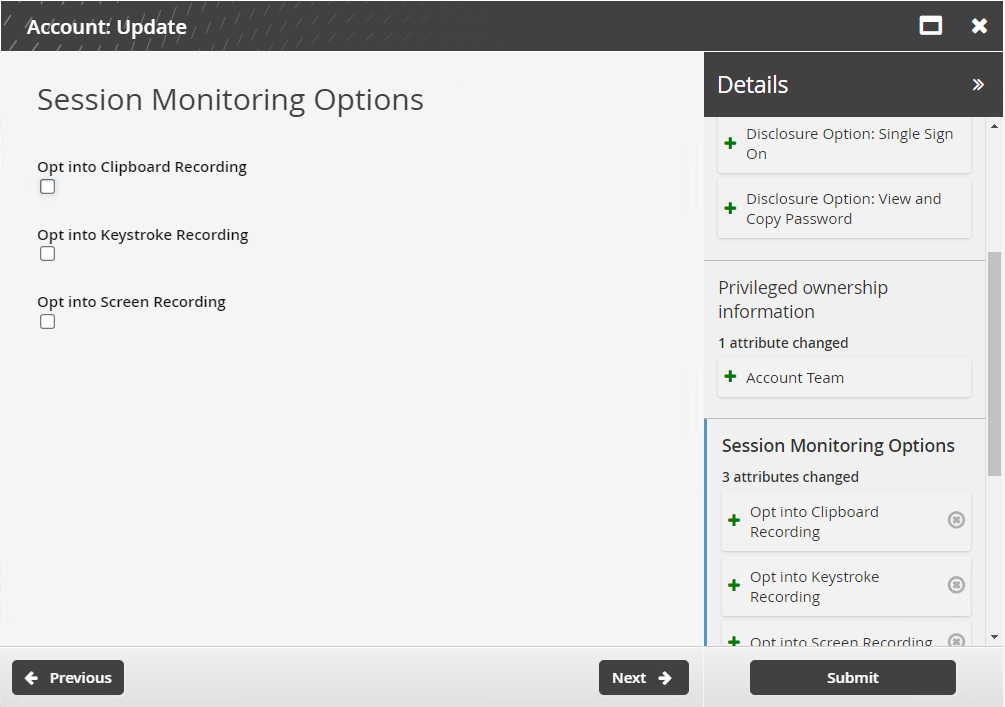
Click Next .
Select the Users with ’credential manager’ privilege can override and randomize the password checkbox if you want to allow users with the credential manager role to override and randomize checked-out passwords.
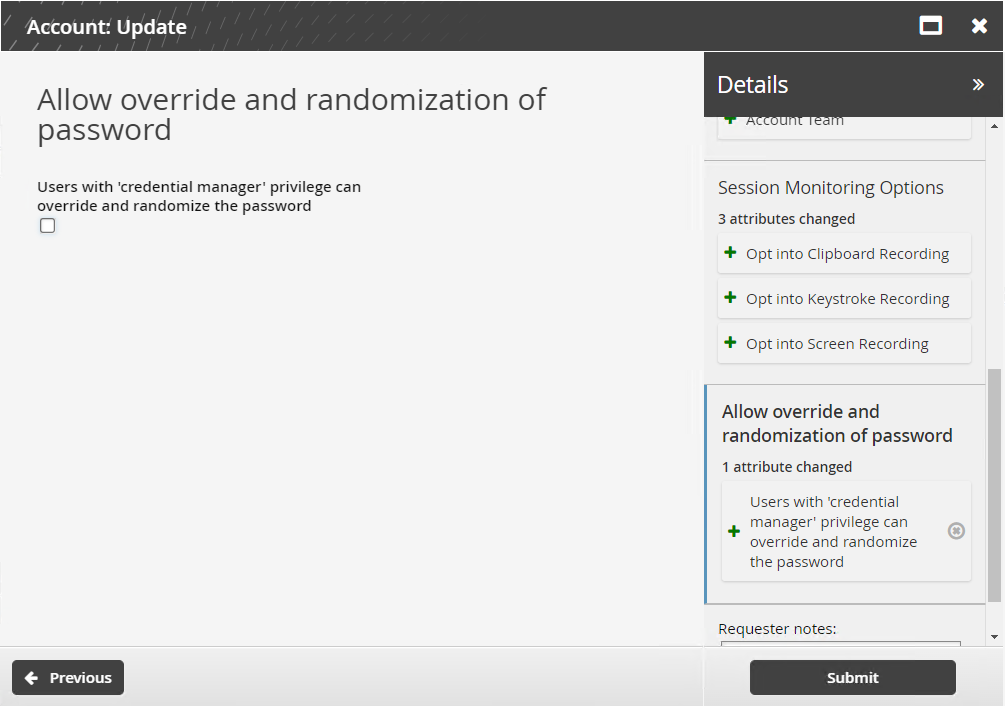
Click Submit.
Bravura Security Fabric notifies authorizers to review the request if required.
Click the View request link at the top of the page to view the status of the request.
API automation for account update
Once the API has been configured (See "SOAP API" in Bravura Security Fabric Remote API (api.pdf) and your script has been authenticated to the API (Login or LoginEx API calls), the WF API calls can be used to create an API request.
Use the WFPDRSubmit function to create a workflow request and submit the request for publishing.
When submitting a request, use ”UPDATE_ONBOARDED_ACCOUNT” as the PDR ID. The request uses the following attributes:
attrkey | value |
HOSTID | The ID of the system on which the account resides. |
ACCOUNT | The ID of the account. |
MSP_ID | The managed system policy the account will be binded to. |
MA_TEAM | The team that will account will be assigned to. |
REQUEST_TEAM | The team in which its account trustee(s) will be used to authorize the request. See REQUEST_TEAM attribute for more information. |
DISCLOSURE_METHOD_DIRECT | T to enable direct connection disclosures for the account, F to disable. |
DISCLOSURE_METHOD_VIEW_COPY | T to enable display and copy disclosures for the account, F to disable. |
SESSMON_KEYSTROKE | T to enable keystroke recording for direct connections, F to disable. |
SESSMON_CLIPBOARD | T to enable clipboard recording for direct connections, F to disable. |
SESSMON_SCREENSHOT | T to enable screen recording for direct connections, F to disable. |
MA_PWD_OVERRIDE | T to allow credential managers to randomize or override account during check-out, F to disallow. |
MA_RES_CHECKOUT_LIMIT | The number of concurrent checkouts for the account. |
UPDATE_ONBOARDED_ACCOUNT batch request sample:
"ACCOUNT","HOSTID","MSP_ID","MA_TEAM","REQUEST_TEAM","SESSMON_CLIPBOARD",
"SESSMON_KEYSTROKE","SESSMON_SCREENSHOT","MA_PWD_OVERRIDE",
"DISCLOSURE_METHOD_DIRECT","DISCLOSURE_METHOD_VIEW_COPY","MA_RES_CHECKOUT_LIMIT"
"account01","D39B55F07A6A487AABE4BD8C9EC1679C","ONBOARDED_ACCOUNTS","TEAM-000000",
"TEAM-000000","F","F","F","F","F","F","F","2"
The REQUEST_TEAM attribute is the team in which its system trustee(s) will be used to authorize the request. This can be a different value depending on which PDR is used. In some cases, the value is auto filled and in other cases, a value is not required.
PDR ID | API submittable | REQUEST_TEAM required | REQUEST_TEAM auto-filled |
|---|---|---|---|
BATCH_REQUEST | No | N/A | N/A |
CREATE_LARGE_CREDENTIAL | No | N/A | N/A |
UPDATE_LARGE_CREDENTIAL | No | N/A | N/A |
WEBAPP_DISCLOSURE_CREATE | No | N/A | N/A |
WEBAPP_DISCLOSURE_DELETE | Yes | No | N/A |
WEBAPP_DISCLOSURE_UPDATE | No | N/A | N/A |
TEAM-CREATE | Yes | Yes | Yes |
TEAM-DELETE | Yes | Yes | Yes |
TEAM-MEMBERS | Yes | Yes | Yes |
TEAM-UPDATE | Yes | Yes | Yes |
CREATE_VAULT_SYSTEM | Yes | Yes | Not required |
ARCHIVE_VAULT_SYSTEM | Yes | Yes | Yes |
UPDATE_VAULT_SYSTEM (1 - same team) | Yes | Yes | Yes |
UPDATE_VAULT_SYSTEM (2 - transfer) | Yes | Yes | Yes |
CREATE_VAULT_ACCOUNT (1 - team vault) | Yes | Yes | Yes |
CREATE_VAULT_ACCOUNT (2 - system vault - same team) | Yes | Yes | Yes |
CREATE_VAULT_ACCOUNT (3 - system vault - different team) | Yes | Yes | Yes |
ARCHIVE_VAULT_ACCOUNT | Yes | Yes | Yes |
UPDATE_VAULT_ACCOUNT (1 - team vault) | Yes | Yes | Yes |
UPDATE_VAULT_ACCOUNT (2 - system vault - same team) | Yes | Yes | Yes |
UPDATE_VAULT_ACCOUNT (3 - system vault - transfer) | Yes | Yes | Yes |
ONBOARD_SYSTEM | Yes | Yes, but not enforced | No |
ARCHIVE_ONBOARDED_SYSTEM | Yes | Yes, but not enforced | No |
UPDATE_ONBOARDED_SYSTEM | Yes | No | If the destination team is unset or the destination team is the same as the source team |
ONBOARD_ACCOUNT | Yes | Yes, but not enforced | No |
OFFBOARD_ACCOUNT | Yes | Yes | Yes |
UPDATE_ONBOARDED_ACCOUNT | Yes | Yes, but not enforced | No |
CREATE_PAMUTIL_API_USER | Yes | No | Not required |
improper display of the team in update/archive when the destination team's vault trustee is not in a team owning the vault system. This will be fixed in a future release.
Offboarding an account
Users assigned as account trustees can use the Account: Offboard request to offboard an account.
When you offboard an account, all historical password data associated with the account is still available. Historical data is only deleted if the managed system is also offboarded.
From the home page, click Manage resources.
Select the Account: Offboard request.
Select a managed account.
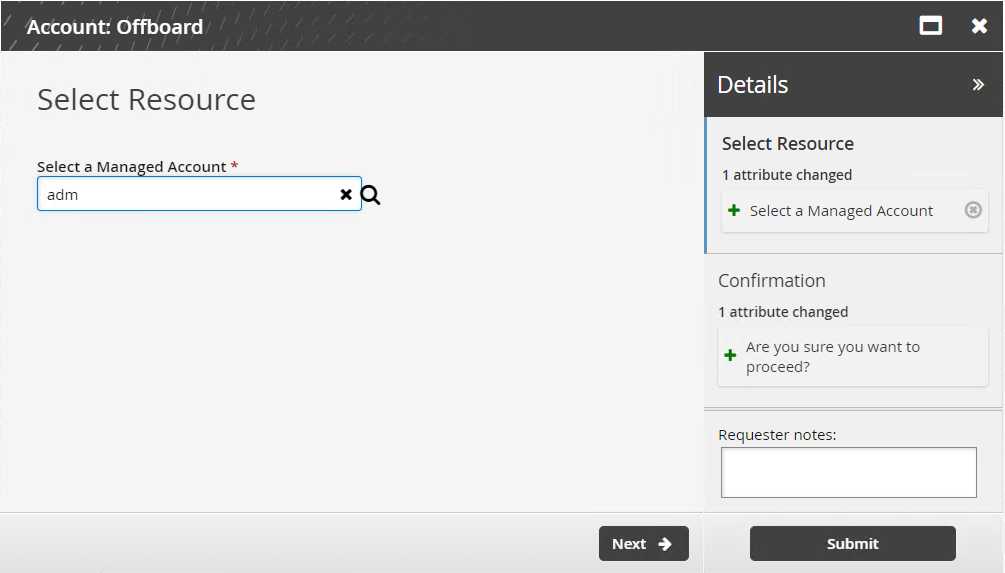
Click Next .
Confirm that you want to proceed.
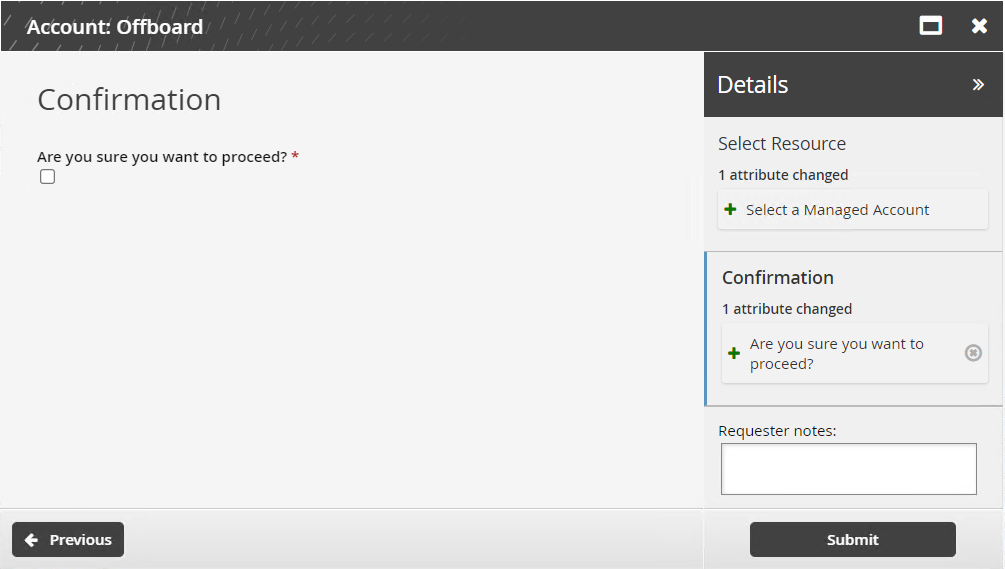
Click Submit.
Bravura Security Fabric notifies authorizers to review the request if required.
Click the View request link at the top of the page to view the status of the request.
API automation for account offboard
Once the API has been configured (See "SOAP API" in Bravura Security Fabric Remote API (api.pdf) and your script has been authenticated to the API (Login or LoginEx API calls), the WF API calls can be used to create an API request.
Use the WFPDRSubmit function to create a workflow request and submit the request for publishing.
When submitting a request, use ”OFFBOARD_ACCOUNT” as the PDR ID. The request uses the following attributes:
attrkey | value |
|---|---|
HOSTID | The ID of the system on which the account resides. |
ACCOUNT | The ID of the account. |
CONFIRM_ACTION | T to confirm, F to cancel. |
OFFBOARD_ACCOUNT batch request sample:
"ACCOUNT","HOSTID","CONFIRM_ACTION"
"account01","D39B55F07A6A487AABE4BD8C9EC1679C","T"