Account sets
Bravura Privilege provides a convenient way for IT staff to perform actions on multiple machines at one time. For example, staff can apply a patch to multiple file servers, or install a new application on a farm of web servers.
To help keep manual effort to a minimum, Bravura Privilege allows users to:
Select multiple accounts to check out across multiple systems.
Check out multiple accounts in a single operation.
Run a specified command or script on the checked out accounts.
Collect program output and/or log files from multiple systems.
The following sections show you how to manage and monitor account sets and command execution.
Use cases
The following use cases represent a few possible scenarios.
Use case: Automate simple maintenance tasks on multiple servers
Quite often, administrators must perform a simple set of maintenance tasks across multiple servers. These tasks might include:
Updating Configuration
Restarting Services
Applying Patches
Note
Ensure the targets are configured to run the commands. For example, to run a PowerShell script on an NT target, ensure Bravura Security Fabric can communicate to the NT systems through PowerShell. This may include enabling remote access and running commands on the client such as:
Set-ExecutionPolicy RemoteSigned -Force
Set-Item wsman:\\localhost\\Client\\TrustedHosts -value *
If they need to perform these tasks on hundreds or thousands of servers, this process could take an extremely long time to perform, and is very tedious. Instead of doing the steps above over and over for each machine, the administrator could use account set access to:
Search for managed accounts on the machines that require attention, saving this as an account set.
Check out administrative access to the account set.
Once approved and checked out, specify a series of commands to run on each machine.
Execute the operation on every machine asynchronously with a single button press.
View the results of the operation to ensure all actions were successful.
Under the covers, Bravura Privilege automatically performs the manual tasks of connecting, running and disconnecting from every selected machine.
Sample commands
Sample command to copy a file to your remote server in PowerShell:
net use "\\[COMPUTER]\c$" "[PASSWORD]" /USER:"[USERNAME]" /persistent:no
Copy-Item [PACKAGEPATH]\* \\[COMPUTER]\c$\installer
net use "\\$ComputerName\c$" /USER:"$Username" /delete
Sample command to deploy a script remotely in PowerShell:
$pw = convertto-securestring -AsPlainText -Force -String "[PASSWORD]"
$credentials = new-object -typename System.Management.Automation.PSCredential

 -argumentlist "[USERNAME]",$pw
invoke-command -ComputerName [COMPUTER] -Credential $credentials -scriptblock

 { [STATEMENT TO EXECUTE] }
Sample command to restart a service remotely in PowerShell:
$service = Get-WmiObject -Class Win32_Service -Filter "Name = '$ServiceName'"
$service | restart-service -Force
Sample command to install a utility in PowerShell:
[PACKAGEPATH]\package.exe
Use case: Query Status of Multiple Servers
This use case is similar to Use case: Automate simple maintenance tasks on multiple servers; however, instead of collecting logs, the administrator collects the output of the commands that were run. This would allow administrators to run commands such as ”report status” and collect standard output data for analysis.
Use case: Perform interactive maintenance on multiple servers
In this case, an administrator needs to perform the same maintenance actions on multiple servers; however, the action cannot be performed without human intervention. The search and check-out process for this use case would be the same as Use case: Automate simple maintenance tasks on multiple servers . However, instead of specifying a list of commands to run, the administrator could instead launch N (where N = some configurable value) interactive sessions, such as:
Remote Desktop Sessions
SSH Sessions
SQL Studio/Developer Sessions
These would all show up as separate windows on the authorized user’s desktop. The administrator could then perform the required maintenance, closing the sessions as they finish; for example:
The Remote desktop/ Remote App RDP access disclosure plug-in has been configured to allow the user to override the domain and hostname.
An administrator checks out an account set.
The administrator selects one managed account from the account set.
The administrator can edit the hostname and domain and run many RDP sessions, all on different servers.
The administrator then uses a different managed account in the account set to run more RDP sessions on different servers again.
If more than one account in an account set is selected, the Run command is the only access disclosure plug-in available.
See Access disclosure plugins for information on the various access disclosure plug-ins.
Getting started
Who can manage account sets
End users who can request check-out of managed accounts in a managed system policy can create account sets.
Creators can delete their own account sets without additional privileges.
End users who can request check-out of managed accounts in a managed system policy can use all shared account sets in this managed system policy , but cannot delete the account sets that they did not create.
Users can be assigned ”Modify all account sets in this policy” ACL in any managed system policy . This will allow them to search and delete account sets created by others as well as themselves.
Product administrators can be assigned the ”Manage account sets” privilege, and can manage account sets via the Manage the system (PSA) module.
When checking out multiple accounts in a single operation, the accounts have to have the same primary managed system policy . This is to eliminate conflicts with access controls or other settings.
Requirements
Before an account set can be created the following requirements must be met:
Configure at least one managed system policy.
See Managed System Policies for details.
Manage accounts on a managed system policy .
See Managed Accounts .
If users are to be able to run commands on one or more accounts in the account set, configure the Run command control (
pswcmdrun) on the managed system policy .See Defining access disclosure plugins for more information.
Navigation steps
Product administrators can manage account set access from the Manage the system (PSA) module by clicking Manage the system > Privileged access > Account sets.
From the menu you can:
Alternatively, end users can manually select and request access to multiple accounts via the Privileged access app. The request is automatically saved as an account set.
Add an account set
Navigate to the Account sets page.
Click Access management.
Click Add new…
Type an ID and Description .
Select a Managed system policy.
If you do not want other users to request or use the account set, deselect the Share this account set with all users option.
This is enabled by default in the administrative menu.
The share option enables the account set to be seen by all users who have the ”Request check out of managed accounts” privilege on the managed system policy .
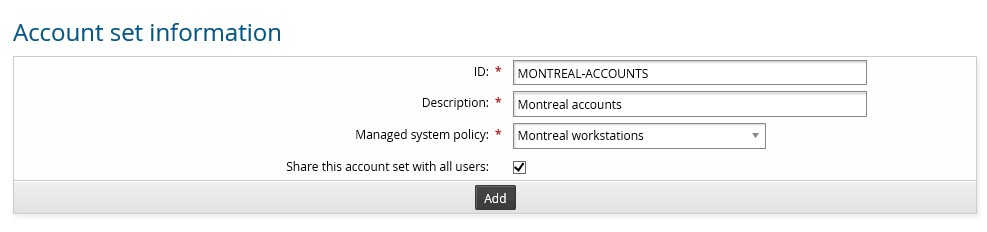
Click Add.
Next:
Once the account set has been created you can explicitly attach accounts to an account set and create account inclusion rules for an account set .
Manage existing account sets
Product administrators assigned the ”manage account sets” privilege can view, modify, and delete account sets, regardless of whether its creator has shared them with other users or not.
To manage account sets:
Navigate to the Account sets page.
Click Access management.
Search to display existing account sets.
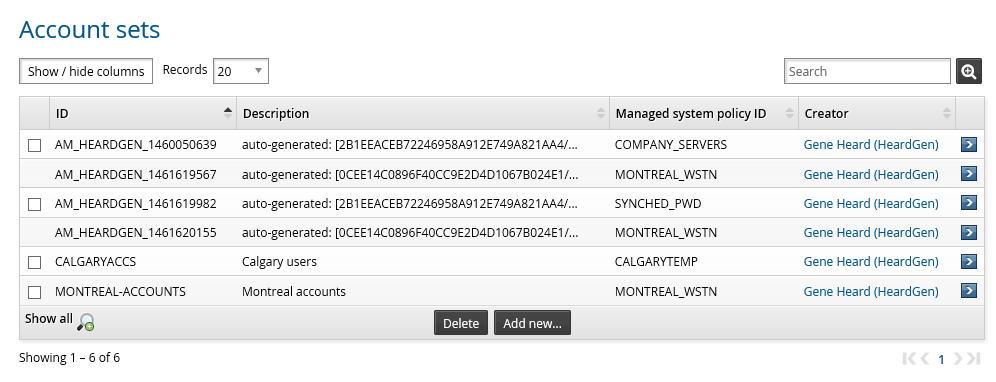
Once you have found the account set you want to manage you can:
Enable the checkbox to the left of the account set and press Delete to delete it.
Select the account set to make changes.
Once the account set has been selected you can explicitly attach accounts to an account set and create account inclusion rules for an account set .
Explicitly attach accounts to an account set
Explicitly-attached accounts are included in the account set regardless of the account inclusion rules.
To explicitly select managed accounts to include in an account set:
Navigate to the Account sets page
Click Access management.
Click the Explicitly attached accounts tab.
Click Select…
Select the checkboxes for the accounts you want to include. Alternatively, you can search for accounts.
Click Select .
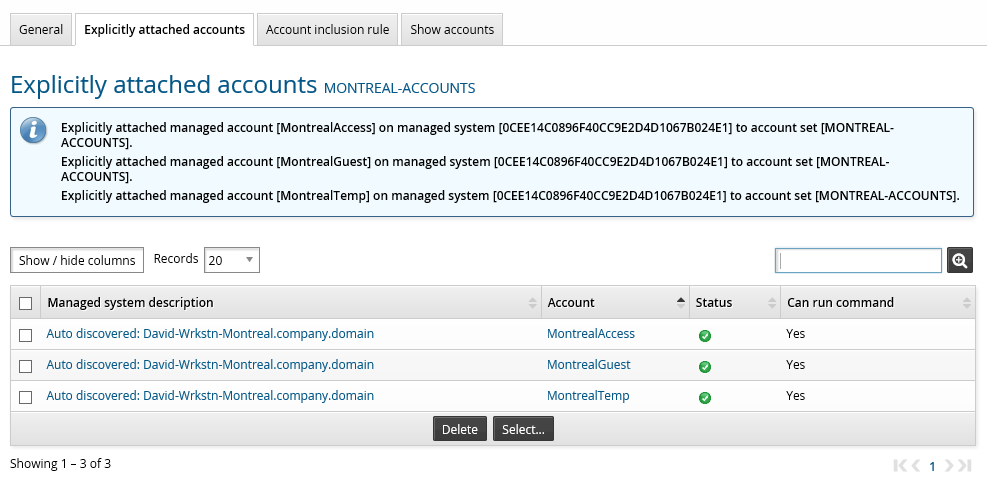
The accounts you selected should now be displayed on the page.
Create account inclusion rules for an account set
You can define an account set using expressions known as inclusion rules. You can include accounts solely using this method, or in conjunction with explicitly attached accounts. The accounts are determined at request time, and are based on the accounts that are currently managed.
To add a new account inclusion rule:
Navigate to the Account sets page.
Click Access management.
Select the account set to configure.
Click the Account inclusion rule tab.
Specify a unique ID and enter a description.
Enable Include all accounts if you want to be able to request access to all accounts managed by the managed system policy .
Select the Combining conditions option to match all or any condition.
Click Add.
To define the conditions for the rule:
On the Account inclusion rule tab, click the Conditions sub tab.
Click Add new…
Enter an ID and optionally a Description.
Select Enable to include the conditions in this rule.
Select the computer or account Attribute that the conditions will evaluate.
The attributes must be listed from the managed system before they can be used in an evaluation.
Choose an Attribute type :
Computer: the attribute comes from discovered systems.
Account: the attribute comes from discovered accounts.
Choose a Comparison method that will be used to compare the value with the system attributes.
Select the Value type.
Optional: Determine whether to Perform the comparison case-sensitively .
Specify the Value used to compare with the system attributes.
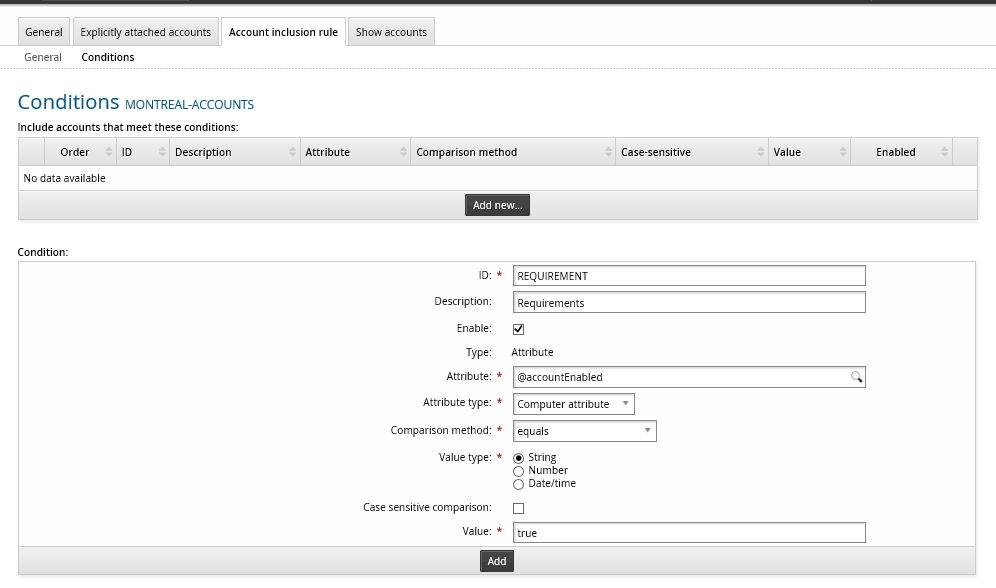
Click Add.
Repeat this process until you have defined all conditions.
To use the account set see the Requesting / Checking Out Privileged Access in the User guide.
View command execution status
You can check on command execution status and retrieve the log files generated from the command execution from the menu.
To view command execution results and download log files:
Navigate to the Account sets page
Click Command execution status.
Search to see results.
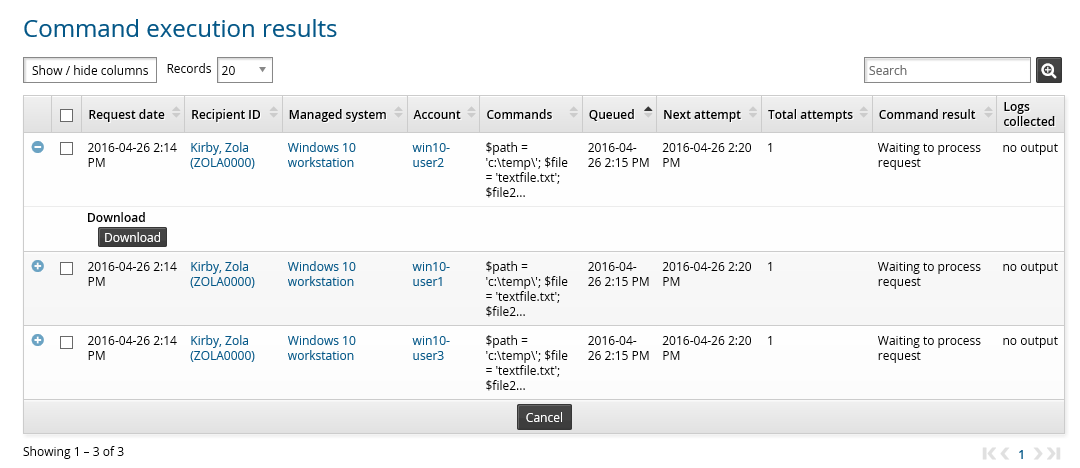
Click Download if a log file is available.
Manage commands
You can edit and delete previously used commands.
Navigate to the Account sets page
Click Command management to see available commands.
Bravura Privilege displays the Account set commands page.
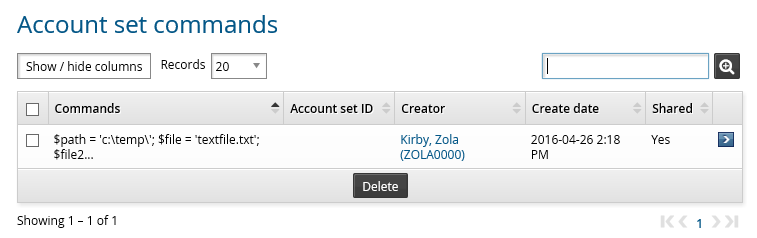
Select a command to edit it.
Select commands and click Delete to delete them.
Configuration options
Command execution log files
A log file can be generated when a command is executed with the Retrieve command output and save on server option enabled on the pswcmdrun access disclosure plugin page.
Log files are saved in the maqcmd directory. See Controlling user access request capabilities to learn how to configure this plugin.
Use the RES MAQ CMDFILE CLEANUP INTERVAL system variable (Manage the system > Privileged access > Options > General > Account access request) to control the number of days before log files are deleted from the server. This excludes commands that are executed with the Never delete command output file from server option.
See Configuring account access check-out options for more account access request options.
Profile and request attributes
There are two built-in profile and request attributes available for account set requests:
MAQ_COMMAND | Account set commands. |
MAQCMD_SCOPE | Used to limit the commands that can be executed. |
Both of these attributes are members of the Commands for account set access (MAQBASEATTR) group.
Members of the MAQBASEATTR attribute group appear on the request details page when a user requests account set access that includes one or more accounts that can run commands.
If the only two members of this attribute group are MAQ_COMMAND and MAQCMD_SCOPE and a request is submitted that does not contain an account that can run commands, the MAQBASEATTR group will not appear on the request details page.
However, if another attribute is a member of the MAQBASEATTR group, this group will appear on the request page, whether the request includes accounts that can run the commands or not. For example, you may create a custom attribute to collect extra information about the request.
Troubleshooting
Windows servers / workstations
If you are attempting to run commands on Windows servers or workstations:
Ensure you have prepared the product server and the NT target server for remote management. See Windows Server in the Connector Pack documentation.
If you receive any error messages see ”Troubleshooting” in the Windows Server documentation..
Connector log
The connector log is retrieved for a run command operation by default. You can customize the log within the command. For example:
$path = 'c:\\temp\\';$file = 'textfile.txt';$file2 = csvfile.csv';New-Item-path $path -Name $file -Value 'Test of creating a new txt file using the New-Item cmdlet. ' -ItemType file -force;$A = Get-Date; Add-Content $path$file2 $A; $commandOutput='Command Direct Out goes here'; $commandFile='output file content goes here';
Ensure the command is entered as a single line.