Target system groups
The target system groups menu allows you to apply:
Password policy
Web-based password change restrictions
Password synchronization rules
By default, all target systems belong to the default target system group and are subject to a single, global set of password strength rules. You may want to add additional groups to:
Apply different password policies to sets of target systems.
You may want to do this if some target systems have incompatible password strength rules or if some target systems require stronger passwords than others.
You can also apply different password policies within a target system group by linking user classes to policies.
Apply different synchronization rules.
You can require passwords for all members in a group to be synchronized or force users to choose a different password for each member of a group of target systems.
Restrict the access rights of groups of help desk users to specific target systems.
Best practice
Bravura Security recommends that all target systems belong to a single target system group and are subject to a single password policy. Synchronizing passwords significantly reduces help desk call volume. Even passwords on systems notorious for "weak” passwords, such as mainframes, can be made strong with a good combination of password strength rules. Forcing users to change passwords often also strengthens security. Grouping target systems is usually only done for legacy applications or to comply with internal policy.
Add target systems to groups on the Target system information page (Manage the System > Resources > Target systems). You can see which target systems belong to a group by clicking the Members tab on the page.
Add a target system group
To add a target system group:
Click Manage the system > Resources > Target system groups.
Click Add new...
Type a unique ID and a Description.
The target system group identifier must contain only letters, digits, dashes, and underscores. It may not contain spaces. The description is displayed to end users.
If required, type a URL to a web page related to the group. Users can open the URL by clicking the group description text wherever the text appears in the user interface.
Determine Web password change restrictions.
See Applying web password change restrictions for details.
Select the Synchronization rules to apply to this group.
See Applying synchronization rules for details.
Use the Default password policy drop-down menu to select a pre-defined policy that a new password must pass.
Click Add.
You can now:
Define user-class selected password policies to apply different password policies to different sets of users.
Assign target systems to the group on the page in Bravura Security Fabric.
Note
If you change target system group configuration, you must run auto discovery for the changes to take effect.
Applying web password change restrictions
You can apply web password change rules globally, to the default group, or to groups of target systems, to control how passwords on member systems are related (must be the same, can be the same, must be different) and how much control the user should have over this.
In the simplest scenario, users have passwords on a single target system group where synchronization is required. For users, the procedure is as simple as choosing a new password. In more complex scenarios, where varied policies are enforced, users may need to select the target system group before proceeding to the web page.
To apply web password change restrictions:
Click Manage the system > Resources > Target system groups then select the target system group you want to modify.
In the Web password change restrictions section select one of the following:
Any number of accounts can be selected for a password change
The user can choose which target systems (one, some, all) to change his password on. The password is changed and synchronized only for the selected target systems.
By default, the Change passwords page is displayed with all accounts selected, and users must deselect the account if they do not want the password changed. You can change this behavior in the Change passwords (PSS) module settings .
All accounts are selected for a password change
The user can only select the whole target system group. Individual target systems cannot be chosen. The password is changed and synchronized for all target systems belonging to the target system group.
Only one account can be selected for a password change
The user can only select one target. The password is only changed for that target. This forces users to choose a different password for each target system in the group. By default, no account is selected.
See also
Target Systems to learn how to configure individual settings for individual target systems, including whether to allow password changes on a target system, or whether to display a target system on the page.
Applying synchronization rules
You can apply password synchronization globally, to the default group, or groups of target systems. To apply synchronization rules:
Click Manage the system > Resources > Target system groups then select the target system group you want to modify.
In the Synchronization rules section, select:
Synchronize passwords within this group to apply transparent synchronization to the target system group. When the user changes a password natively on a target system, the change is propagated to other target systems in the group.
Select Password unique to this group to ensure that the user’s password for target systems in this group are different from passwords used for other target system groups. Passwords used in other groups cannot be used for this group.
For this setting to take effect, the not be an old password password policy rule must be enabled for all other target system groups.
Applying password policies by user class
You can use user classes to apply different password policies for segments of the user population on the same target system group; for example to apply stricter rules to Active Directory administrators than to regular users on the same domain. The rules are applied whenever a user changes passwords using the web interface or transparent synchronization is triggered.
To add user-class-selected password policies:
Click Manage the system > Resources > Target system groups then select the target system group you want to modify.
Select the Password policies tab.
Click Select to define a user-class-selected password policy:
Select a Password policy from the drop down list.
Define user classes:
Select existing user classes: Click Select… and enable the checkboxes for the user classes you want to add, then click Select.
Create new user classes: Click
 Add new… .
If required, configure Participant mapping for each user class that you add.
If your membership criteria includes multiple user classes, define whether users are required to match All of the user classes or Any of the user classes.
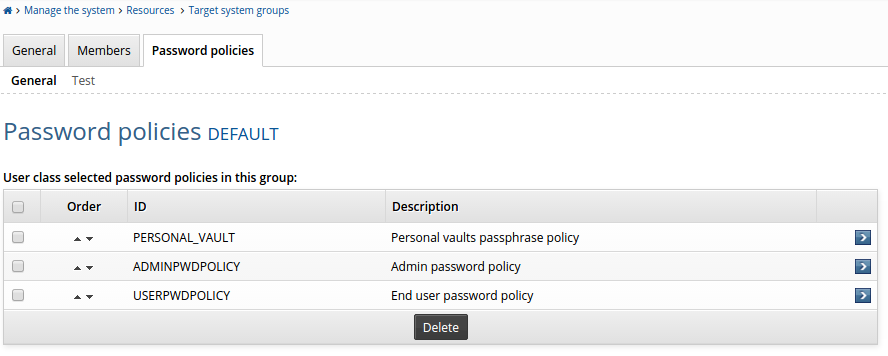
Click on the Password policies tab or the General sub-link to list all user-class-selected password policies that have been assigned to the target system group.
The target system group’s default password policy will be applied to:
Console-only users
Users who do not belong to any user class selected on the group’s password policies page
Prioritizing user-class-selected password policies
Only one password policy per target system group is enforced for a user. Where there are multiple password policies set for a target system group, use the 
 icons to set the priority order of user-class-selected policies. The higher priority policy is applied when a user belongs to multiple user classes.
Testing user-class-selected password policies
Click on the Test sub-link to test whether a password policy will be enforced for the tested user. Bravura Security Fabric displays the rules that will be enforced if the tested user has an account on an applicable target system.
See also
Transparent Password Synchronization for more information about how to implement transparent password synchronization.
Password policy to learn how to set up alternative password policies.