Inventory Management
About inventory management
Inventory management involves provisioning items such as tokens or physical devices, and tracking and managing stock in an inventory database. In Bravura Security Fabric , inventory management services are provided by Bravura Identity . It can be integrated with existing asset management systems.
Bravura Identity allows you to assign inventory items to users in the same way that system access is created, and can notify appropriate people when items need to be delivered, shipped, or recovered.
In general, the Bravura Identity inventory provisioning process works as follows:
A requester logs into the Bravura Security Fabric web application and selects a menu item which allows him to either create a new user profile or request new resources for an existing user.
The requester selects templates representing item types and locations on a RSA Authentication Manager 7.1/8.2, Vasco IDENTIKEY Server, or placeholder (null) target system.
Inventory templates can be included in roles with account templates or can depend on the creation of accounts.
The user submits the request and Bravura Identity enters it into authorization workflow.
Individual items can be automatically assigned at this point.
If applicable, the Workflow Manager Service routes the requests to the appropriate authorizers for authorization and ensures that all requests have sufficient approval.
Individual items can be automatically assigned at this point.
If applicable, an implementer selects and ensures delivery of the items.
The following topics explain how Bravura Identity can be used to manage inventory and illustrates this with case studies. The diagram below illustrates one method for provisioning inventory items after the system is configured.
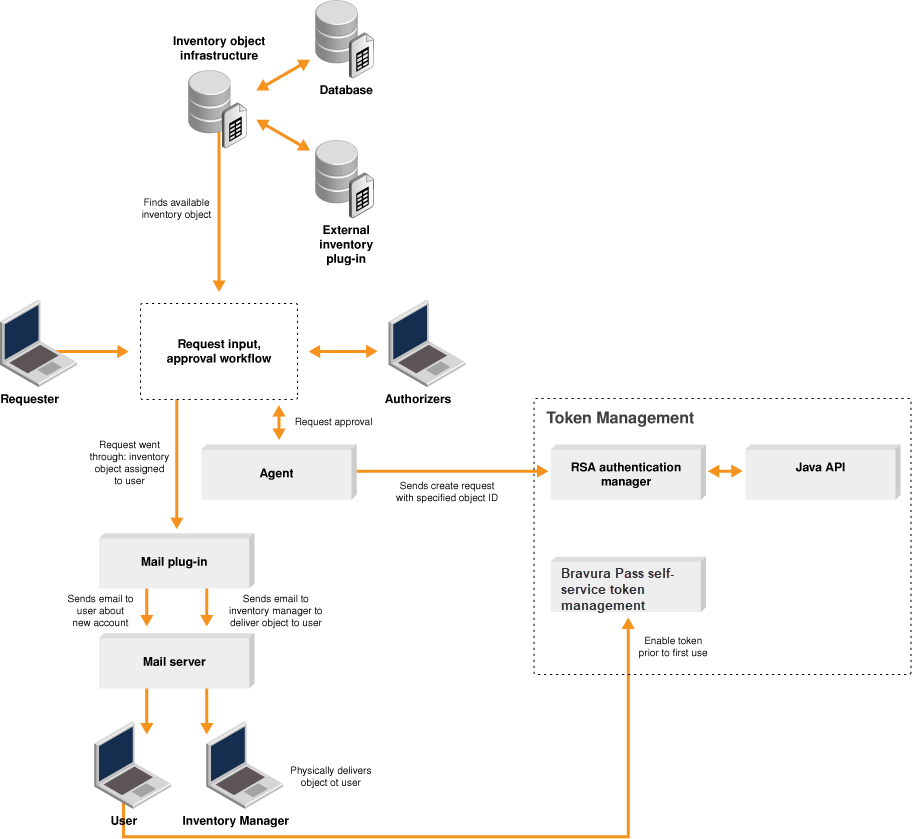
How inventory lists are maintained
Bravura Identity maintains a list of inventory items in its database. You can use the manageinv program to batch load items, or use the web interface to manage individual inventory items in the database. You can also write a plugin to maintain the list on an external source.
Bravura Identity identifies inventory items by location and type. Inventory items become available for provisioning to users after the inventory item type and location are bound to RSA Authentication Manager 7.1/8.2, or Vasco IDENTIKEY Server target systems, or a placeholder through the use of a template.
Who manages inventory
Bravura Identity is flexible enough to accommodate your existing workflow and areas of responsibility. Inventory management can be handled by Bravura Identity administrators, and can include regular users defined as inventory managers , authorizers , implementers and inventory managers-implementers .
Bravura Identity product administrators can use the Manage the system (PSA) module to:
Define inventory target systems and templates.
Define item types and locations.
Assign inventory managers to item types and locations.
Assign authorizers and implementers.
Add items to the database (they can also do this in batches).
Modify all item properties, including states.
Inventory managers can manage inventory items by location and type.
Using the Manage inventory (IDV) module, an assigned inventory manager can:
Add inventory items to the Bravura Security Fabric database.
Change the state of an item.
Change the location of an item if they are responsible for the same item types in different locations.
Unassign items.
Authorizers can approve or deny requests for inventory items, via the Requests app.
Implementers can fulfill requests for inventory items. Implementers can act on a task after a request has been approved. Using the Requests app, they can:
Accept, decline or delegate the task.
Mark the task as complete or could not be completed.
Implementers who are also an inventory manager have the most flexibility to fulfill requests for inventory items. These users can act on a task after a request has been approved. Using the Requests app they can:
Accept, decline or delegate the task.
Reserve an inventory item.
Mark the task as complete or could not be completed.
Change the state of an item.
Change the location of an item if they are responsible for the same item types in different locations.
Unassign items.
How inventory is assigned to users
Inventory items can be assigned to users in the Bravura Identity database in a number of ways, depending on the configuration:
When the resource is requested
Bravura Identity can automatically allocate the first available inventory item with the type and location specified by the template account.
When the request is fulfilled
Implementers can reserve an item after they accept the task of delivering the item.
A request cannot proceed if there are no items available to fulfill it. You can configure a plugin to check inventory levels on a nightly basis and notify responsible personnel when stocks are low. See Checking inventory levels for more information about this plugin.
Item states
Bravura Identity keeps track of an item by altering its state attribute in the database or external source. The diagram below illustrates the relationship between inventory items, states, and provisioning workflow. In this figure, options available by default are represented in blue. Yellow represents options that you must configure.
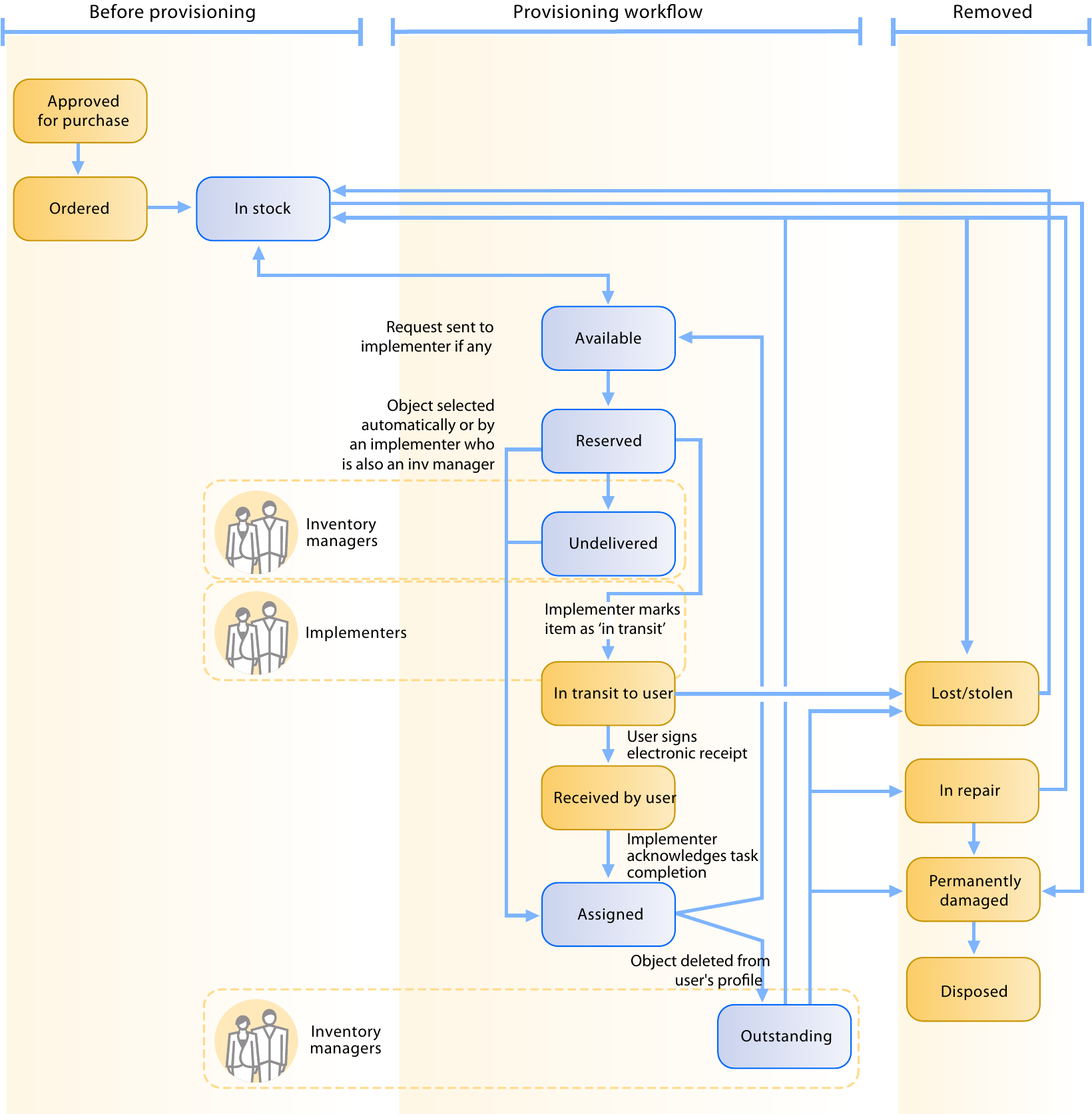
When its state changes, appropriate users are notified. Inventory managers and product administrators can use the Bravura Security Fabric interface to move items between states. Users cannot change states in a way that would violate rules by which items are managed; for example, they cannot change a state from assigned to reserved.