Okta
Connector name |
|
Connector type | Executable |
Type (UI field value) | Okta |
Connector status / support | Bravura Security-Verified This connector has been tested and is fully supported by Bravura Security. |
Bravura Security Fabric provides a method to obtain a challenge response key pair for Okta using the agtokta connector for authentication methods that are available to the Okta user.
Here are a few examples of the available authentication methods that may be presented to the user:
Passcode from the Okta Verify mobile app
Push notification to accept or deny from the Okta Verify mobile app
SMS text message for a passcode
Phone call to authenticate from a key press
Passcode from the Google Authenticator mobile app
Yubikey token via Okta
Okta security questions
Bravura Security Fabric can also:
Create and delete Okta users
Enable and disable Okta users
Create and delete Okta groups
Add users to and remove users from Okta groups
The following Bravura Security Fabric operations are supported by this connector (depending on your product license and version):
expire password
check password expiry
administrator reset password
unlock account
user verify password
create account
delete account
disable account
enable account
create group
delete group
add user to group
delete user from group
check account enabled
update attributes
list account attributes
challenge response authentication
List:
accounts
attributes
groups
members
For a full list and explanation of each connector operation, see Connector operations.
Preparation
Before you can target Okta, you must:
Setting up a target system administrator
Bravura Security Fabric uses a designated account on Okta to perform Bravura Security Fabric operations. Create an account with appropriate permissions if one does not already exist.
Follow the instructions from the Okta page at https://developer.okta.com/docs/guides/create-an-api-token/overview/ to generate an OktaAPI Token and to ensure that you produce an API Token with the privilege level that is sufficient to perform the desired operations.
OAuth2 bearer tokens are being considered but not yet implemented as of CP 4.6.x.
Creating a template account
Bravura Security Fabric uses template accounts as models or "blueprints" for creating new accounts in Okta. The following example illustrates how you can create a template account in Okta:
Login to the Okta administrative web site.
Click Directory.
Click People.
Click Add Person.
Enter a value for First name and Last name.
Enter an email address for Username. This automatically fills in the same address for Primary email.
Click Save.
Targeting the Okta system
For each Okta system, add a target system in Bravura Security Fabric (Manage the system > Resources > Target systems):
Type is Okta .
Address uses the following options:
Table 1. Okta address configurationOption
Description
Options marked with a
 are required.
Server
The DNS domain name of the web server for the Okta instance.
(key: server)
Port
Default is 443.
(key: port)
Connection over SSL
Select to enforce SSL connections. Default is "true".
(key: ssl)
Validate the server’s certificate when connecting
Determines whether to validate the server’s security certificate for SSL connections. Default is "true".
(key: checkCert)
HTTP Network Proxy
Specifies a proxy URL to use for connecting.
(key: proxy)
Timeout for connection (in seconds)
Amount of time the connector will wait for a response. Default: 60.
(key: timeout)
Authentication methods order
Specify the order for the list of the multifactor authentication method s that are presented to an Okta user for challenge response authentication.
(key: authorder)
Groups to list users from
List only those users who exist in one or more groups .
(key: listGroups)
Records per page
Affects the number of records returned during listing. Default: 200.
(key: pagesize)
Filter for listing users
List all users that match the filter criteria.
(key: filter)
The Okta target system address syntax is as follows:
 {server=(<the web server for the Okta instance>);
 [port=<port number>;]
 [proxy=<proxy server>;]
 [ssl=<true|false>;]
 [checkCert=<true|false>;]
 [filter=<filter|search>=<search criteria>;]
 }
The full list of target system parameters is explained here.
Setting the administrator credentials
Bravura Security Fabric uses designated accounts configured for the Okta server to perform Bravura Security Fabric operations.
Set the Administrator ID and Password to the credentials for the Okta API Token as configured for the Okta server.
Setting the order for the Okta authentication methods
The Authentication methods order option may be used to specify the order for the list of the multifactor authentication methods that are presented to an Okta user for challenge response authentication.
The order may be specified by either a list on the target address configuration page or from a file.
When choosing the list option and specifying the multifactor authentication methods, these fields allow multiple values. To fill in multiple values, select List from the drop-down list box displaying in front of these fields, and use the More button to add additional input boxes when more than one value is given. The value in each input box is treated as a single value, for example:
token:okta
push:okta
sms:okta
call:okta
token:google
token:yubico
question:okta
These values represent the following multifactor authentication methods:
Passcode from the Okta Verify mobile app
Push notification to accept or deny from the Okta Verify mobile app
SMS text message for a passcode
Phone call to authenticate from a key press
Passcode from the Google Authenticator mobile app
Yubikey token via Okta
Okta security questions
There is also an option to specify the authentication order in a file. To use the file, select File option from the drop-down list and specify the file name in the field.
The file must be located in the \<instance>\script\ directory and contain a list of the authentication order for the Okta multifactor authentication methods.
To specify the authentication order:
   # KVGROUP-V2.0
   authorder = {
      "token:okta";
      "push:okta";
      "sms:okta";
      "call:okta";
      "token:google";
      "token:yubico";
      "question:okta";
   };
The list of the multifactor authentication methods may be modified to re-order how they are presented to a user for challenge response authentication.
If the user has more multifactor authentication methods than what is provided for the authentication methods order, the methods provided in the list will be the first ones that are shown to the user and the remaining methods will be directly underneath in the provided list to the user.
Targeting groups
You can restrict Bravura Security Fabric to list only those users who exist in one or more named groups.
To do this, on the page, specify Groups to list users from.
This field allows multiple values. To fill in multiple values, select List from the drop-down list box displaying in front of this field, and use the More button to add additional input boxes when more than one value is given. The value in each input box is treated as a single value, for example:
00gsgzwclwX8C0N8y0h7
00gsgzrb307bEbLSk0h7
00gsh14zcacEBVtVV0h7
00gsh18jnnIx8sIlS0h7
Note
The value to specify in these fields is the long id value of an Okta group.
If there are many groups to list, there is an option to include all groups in a file. To use the file, select File option from the drop-down list and specify the file name in the field.
This files must be located in the <Program Files path>\Bravura Security\Bravura Security Fabric\<instance>\ script\ directory and contain a list of groups to list from.
For listing users from groups:
   # KVGROUP-V2.0
   listGroups = {
     "00gsgzwclwX8C0N8y0h7";
     "00gsgzrb307bEbLSk0h7";
     "00gsh14zcacEBVtVV0h7";
     "00gsh18jnnIx8sIlS0h7";
   }
Filter for listing users
You can restrict Bravura Security Fabric to list only those users who match the search criteria defined in the Filter for listing users field.
The search criteria can be defined with Okta supported account attributes (properties) which are outlined in following documentations:
https://developer.okta.com/docs/reference/api/users/#list-users-with-a-filter
https://developer.okta.com/docs/reference/api/users/#list-users-with-search .
Start the search criteria with a keyword of either "filter=" or "search=". For example, setting Filter for listing users to filter=status eq "ACTIVE" or search=status eq "ACTIVE". will result in same set of users listed from Okta target system.
Note
Ensure to use Okta supported account attributes (properties) to define search criteria and follow the syntax, an invalid statement may result in no users listed.
Custom search expression for filtering groups
You can restrict Bravura Security Fabric to list only those groups who match the search criteria defined in the Custom search expression for filtering groups field.
The search criteria can be defined with Okta supported group attributes (properties) which are outlined in the following:
Start the search criteria with a keyword of "type". For example, setting Custom search expression for filtering groups to the following:
type eq "OKTA_GROUP"
will result in groups that were created within Okta to be listed from the Okta target system.
Note
Ensure to use Okta supported group attributes (properties) to define search criteria and follow the syntax, an invalid statement may result in no groups listed.
Handling account attributes
You can view the complete list of attributes that Bravura Security Fabric can manage, including native and pseudo-attributes, using the Manage the system (PSA) module. To do this, select Okta from the Manage the system > Resources > Account attributes > Target system type menu.
For information about the native Okta attributes managed by Bravura Security Fabric , consult your Okta documentation.
Bravura Security Fabric explicitly handles the following attributes and pseudo-attributes when creating or modifying recipient accounts for Okta target systems:
email Use email to define the email address of the user. This pseudo-attribute should be mapped to the EMAIL profile and request attribute.
login Use email to define the email address of the user. This pseudo-attribute should be mapped to the EMAIL profile and request attribute.
The EMAIL profile attribute must be included in requests when creating new users and filled in with the new user’s email address since this is also used for their Okta login.
_DeleteMode Use _DeleteMode to deactivate an Okta account instead of deleting the account for a delete operation. Configure this account attribute to be set to a specified value on update. Also set the value type to Literal value and the attribute value to Deactivate .
._FACTORS Use _FACTORS to be able to reset the multifactor authentication methods for an Okta user.
Map this pseudo-attribute to a profile and request attribute and set to a value of CLEARALL for an update in order to remove all of a user’s Okta multifactor authentication methods.
firstName Use firstName to define the first name of the user. This pseudo-attribute should be mapped to the FIRST_NAME profile and request attribute.
lastName Use lastName to define the last name of the user. This pseudo-attribute should be mapped to the LAST_NAME profile and request attribute.
middleName Use middleName to define the middle name of the user. This pseudo-attribute should be mapped to the OTHER_NAME profile and request attribute.
See Account attributes in the Bravura Security Fabric configuration documentation for more information.
Handling group attributes
You can view the complete list of attributes that Bravura Security Fabric can manage, including native and pseudo-attributes, using the Manage the system (PSA) module. To do this, select Okta from the Manage the system > Resources > Group attributes > Target system type menu.
For information about the native Okta attributes managed by Bravura Security Fabric , consult your Okta documentation.
Bravura Security Fabric explicitly handles the following attributes and pseudo-attributes when creating or modifying groups for Okta target systems:
description Use description to define the group description of the group. This pseudo-attribute should be mapped to the GROUP_NAME profile and request attribute.
Okta integration strategy: SAML or API
Okta offers a platform for:
Web single sign-on (SSO) with federation or password form stuffing.
Two-factor authentication (2FA) via a smart phone app or a PIN delivered to user emails or mobile phones.
Simple creation and deactivation of accounts on certain SaaS platforms.
It is possible to integrate Bravura Security Fabric with Okta to utilize one of Okta's authentication methods when signing into Bravura Security Fabric .
Integrating Okta with Bravura Security Fabric
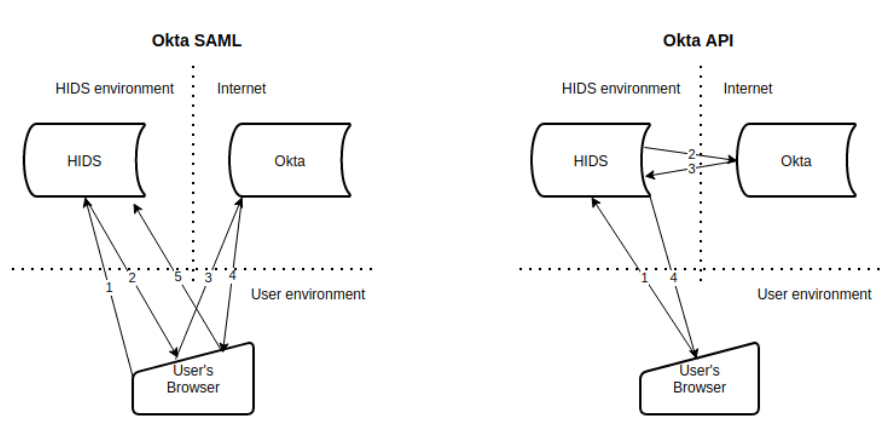
There are two mechanisms available to integrate Okta with Bravura Security Fabric :
Integration with SAML federation; where the Okta service is the Identity Provider (IdP) and Bravura Security Fabric is the Service Provider (SP) . Bravura Security Fabric can also act as the IdP to Okta or any other web app acting as the SP.
Note
The SAML solution is not recommended for Bravura Security Fabric versions prior to 12.0.3. Contact support for more information.
Integration via the Okta web services API; where the Bravura Security login subsystem asks Okta for session status, is also available.
Advantages of a SAML-based integration
Consistent SSO (single-sign-on): Once signed into Okta from one browser, any future attempts to login for the duration of the SSO token, don't require authentication.
Note
This does have security and audit implications for Privileged accounts and should not be implemented alone for those accounts, however, for end-users it is a time-saver.
More consistent user experience:: The visual login sequence with Okta's Web UI showing up when authenticating from other Web applications is what customers' users are sometimes already familiar with.
2FA can be configured natively on the Okta platform by the relevant application administrators.
2FA can be configured using Bravura Security Fabric authentication chains.
Once SAML tokens are created during the login process, the login is transparent for additional SAML SPs
In high-security applications like Bravura Privilege this is actually a security risk; for example, going directly into Bravura Privilege because a user authenticated into Google Calendar may not be secure enough.
There is no need to create an administrative-level API token on the Okta platform and import it into Bravura Security Fabric .
There is no need to create an extra target, or copy a list from the target Okta authenticates against (AD or other LDAP).
Advantages of an API-based integration
Bravura Identity can manage accounts on Okta, and role assignment.
More solid directory integration than the SAML method: Listing accounts from the Okta target directly and making it a SoP can ensure no false-negatives exist, if the Okta directory is out of sync with the SoP of the Bravura Security Fabric instance.
Smaller attack surface: As the diagram above shows, Okta exists on the Internet; connections to it are using encrypted, over TLS:
Using the SAML integration method the user browser needs access to both the Bravura Security Fabric instance and the Okta instance configured for authentication using SAML.
Using the API authentication, the users browser only need access to the Bravura Security Fabric 's UI, which is usually on the private network. Bravura Security Fabric then communicates to Okta.
Less repetitive work for end-users: Users enter their profile ID only once. With SAML, users must enter their ID twice; once when interacting with the Bravura Security Fabric instance and again when interacting with the Okta login subsystem.
More consistent user experience per login: Users interact with just a single portal, the Bravura Security Fabric instance rather than being redirected between two login pages.
Note that each portal can use its own cookie to auto-populate this input field, which reduces the impact on login attempts from a previously used browser.
With API-based integration, two different users can sign into Bravura Security Fabric from the same browser. With SAML-based integration, it is more difficult for users to share a browser; either the previously signed-on user must sign off from both products when finished, or the second user wishing to use the browser must first sign into Okta and only then can sign into Bravura Security Fabric .
API-based integration is much easier to use in cases where users share a laptop and need access to "Self-Service, Anywhere" to reset forgotten, locally cached passwords using Bravura Pass.
It is possible to configure the Bravura Security portal to prompt users to provide multiple Okta factors, leading to multi-factor authentication rather than strictly two-factor authentication.
Configuring and updating an expired API token is less work than updating an expired SAML certificate.