Viewing and Updating Groups
The Groups app allows users with assigned privileges to request changes to group membership or to create or update groups.
Users can request to join or leave groups. Group owners can also:
Delete groups
Update group attributes
Update owners
Update membership (accounts, child groups, parent groups)
Users with the appropriate permissions can use the Groups app to create groups on target systems.
See also
See Groups appfor details on configuration, including user access.
When Bravura Identity is licensed, self-service users can also request changes to group membership via the View and update profile menu.
Getting started: Viewing groups
You can access the Groups app via the self-service menu. You may also receive an email notification containing a link to view a particular group.
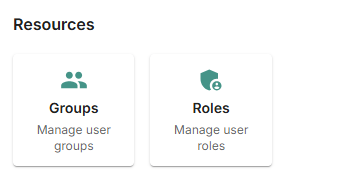
To access the Groups app from the self-service main menu:
In the Resources section, click Groups.
Your group memberships are shown in Card view by default:
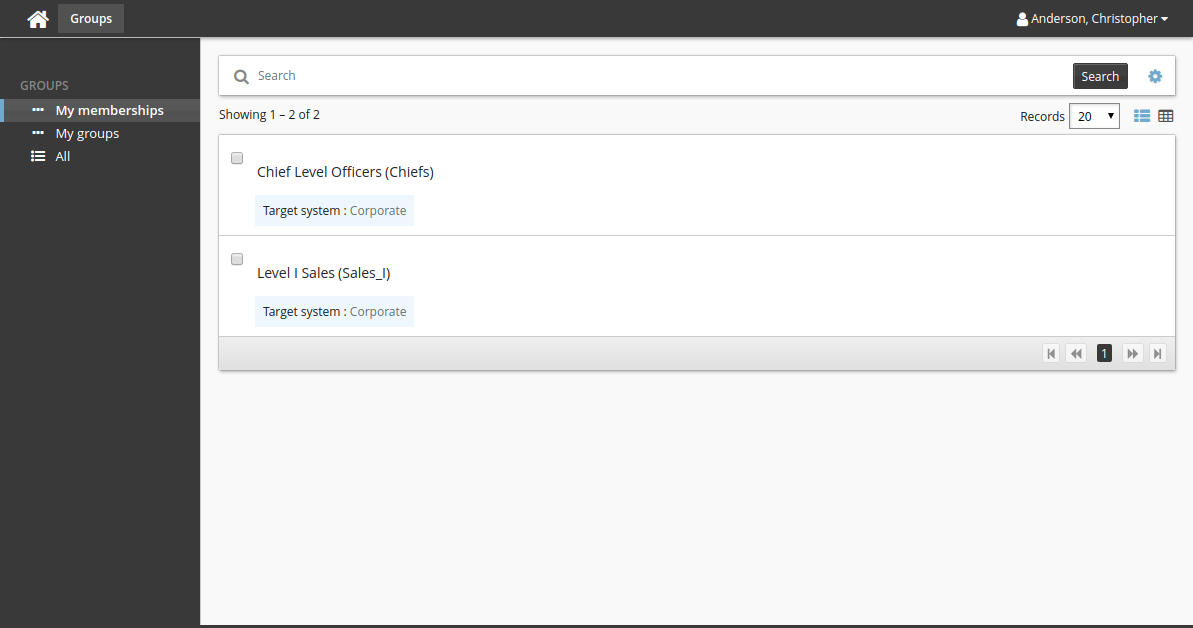
Click the
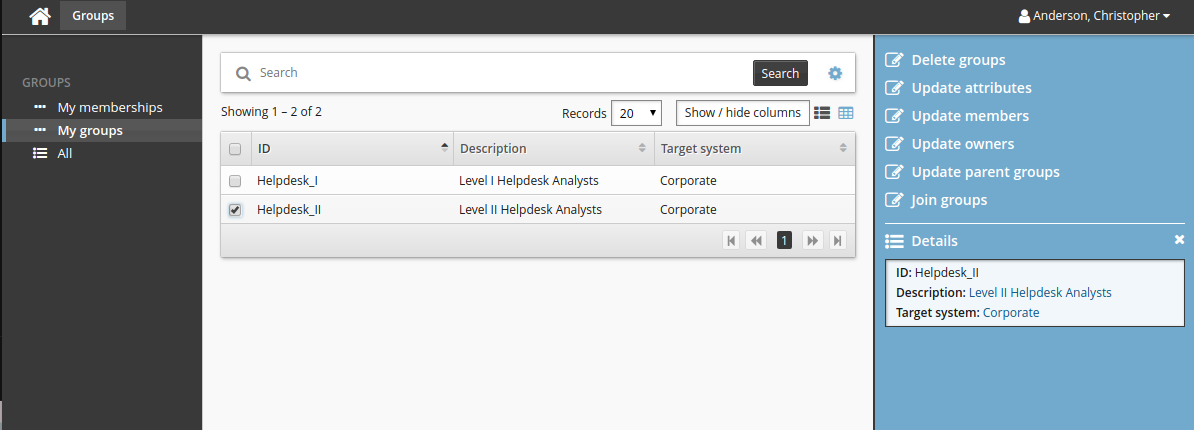
 icon in the top right corner of the middle panel to switch to Table view:
Click My groups in the Filter panel to view groups that you own.
Click All in the Filter panel to view all groups managed by Bravura Security Fabric .
Select one or more groups from the Results panel, then select an action from the Actions panel.
The available actions depend on the groups selected and the user's permissions.
Group recommendations
Product administrators can configure the Groups app so that users see recommendations for adding or deleting group memberships based on consistency with their peer group.
A peer group is a group of users who share a common attribute; for example, users working at the same location or in the same department, or with the same manager.
When configured, users can show or hide recommendations by clicking the Recommendations button in the middle panel. Recommendations are visually represented by a color bar with a number stating the percentage of peers who are members. This can help the user to decide whether to add or delete a membership.
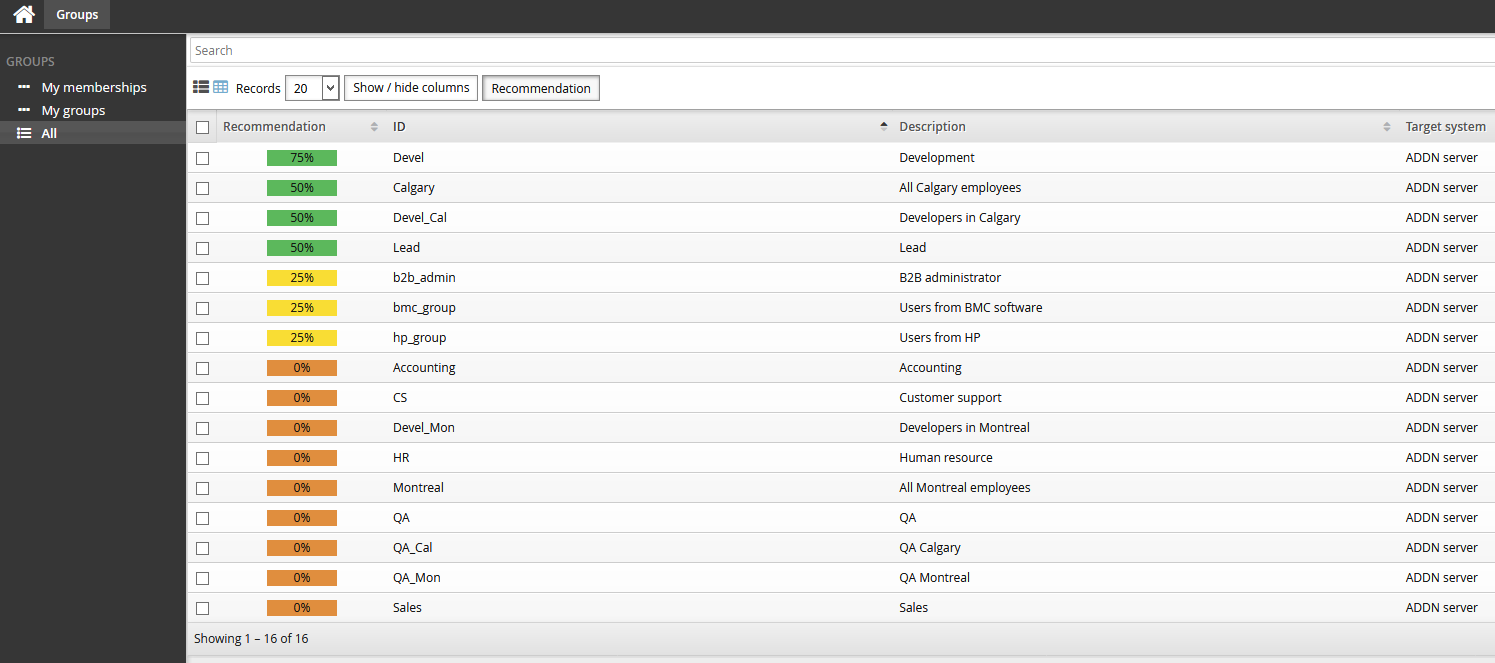
In the above screenshot:
 Membership is not recommended. None of the user’s peers are members.
 Membership is recommended. 25% of the user’s peers are members.
 Membership is strongly recommended. 75% of the user’s peers are members.
Changing your group memberships
Self-service users can use the Groups app to request to join or leave groups managed by Bravura Security Fabric.
Join groups
The following example describes how to use the standard Join groups request.
To add yourself to a group:
Click All in the Filter panel.
Select a group from the Results panel.
Click Join groups.
Bravura Security Fabric displays a confirmation dialog box.
Click OK to confirm the action.
Relevant authorizers are notified to review the request if necessary.
Updating group attributes
Group owners can use the Groups app to update the group description and other attributes configured by product administrators.
Update group attributes
The following example demonstrates how a group owner uses the standard Update attributes request to update a group attribute.
Initially, a product administrator adds a resource attribute.
To update a group attribute as a group owner:
Click My groups in the Filter panel.
Select a group from the Results panel.
Click Update attributes.
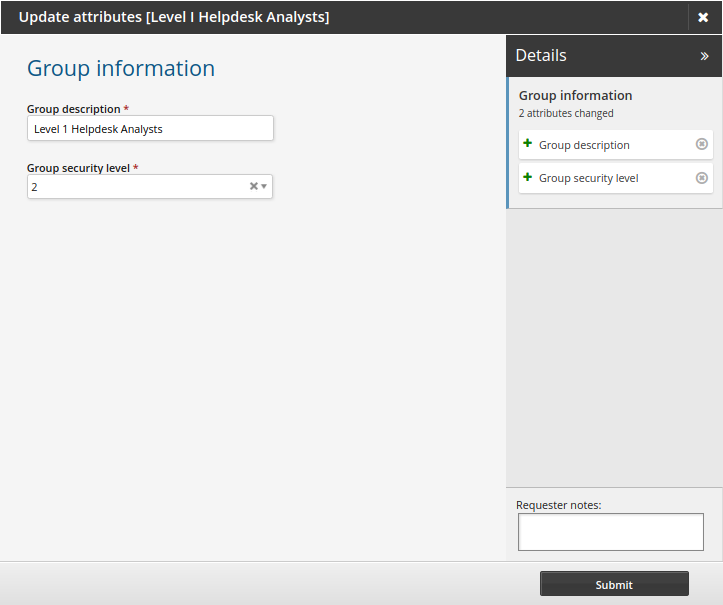
Select a Group security level.
Click Submit.
Relevant authorizers are notified to review the request if necessary.
Deleting groups
Group owners can use the Groups app to delete their own groups.
To delete a group:
Click My groups in the Filter panel.
Select a group from the Results panel.
Click Delete group.
Bravura Security Fabric displays a confirmation dialog box.
Click OK to confirm the action.
Relevant authorizers are notified to review the request if necessary.
Updating group members
Group owners can use the Groups app to update group members, including adding or removing users and child groups.
Owners can select multiple groups, then add or delete multiple accounts or groups as members. Note that when multiple groups are selected, separate requests are sent to add or delete members.
Add members to multiple groups
The following procedure describes how a group owner can add account members to multiple groups using the standard Add members request. To include accounts as members of other groups:
As a group owner, navigate to the Groups app.
Click My groups in the Filter panel.
Select multiple groups from the Results panel.
Click Add members .
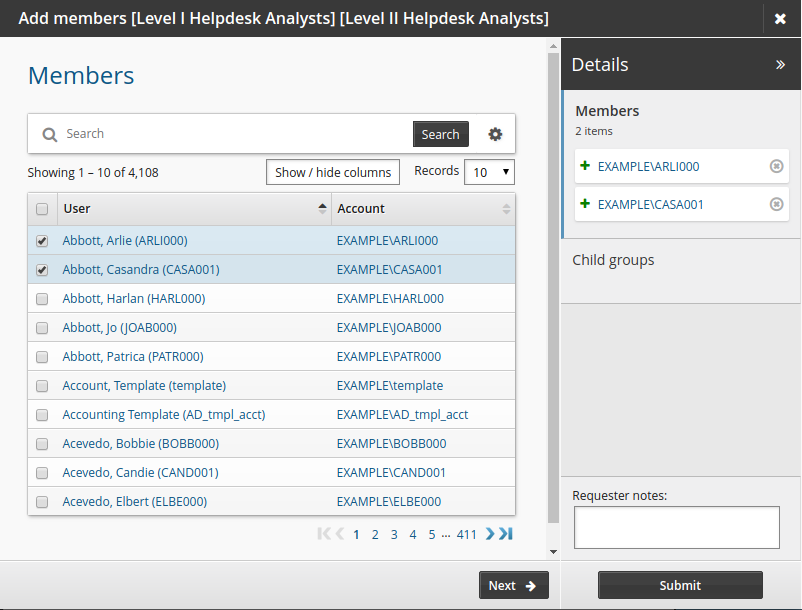
Select the checkboxes for the members you want to add.
Click Submit.
Relevant authorizers are notified to review the request if necessary.
Update group members and attributes
The following example demonstrates how users can join a group and update a group attribute simultaneously.
Initially, a product administrator:
Adds a resource attribute that can determine when membership of a group expires.
Modifies the Update members request.
To request an update to a group’s membership:
As a group owner, navigate to the Groups app.
Click My groups in the Filter panel.
Select a group from the Results panel.
Click Update members.
Select a user account.
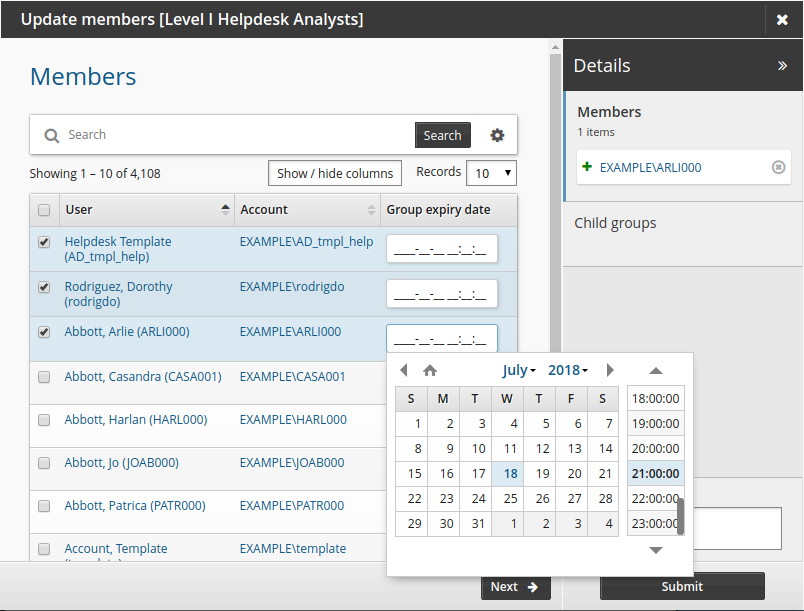
Select a Group expiry date.
Click Submit.
Relevant authorizers are notified to review the request if necessary.
Changing group owners
Group owners can add or delete group owners, depending on the group’s properties. Bravura Security Fabric blocks requests to add multiple owners to a group if the target system only supports single-owner groups. When changing the owner of a single-owner group, you must delete the original owner at the same time as adding a new owner.
Ensure that you do not delete all owners of a group without adding a new owner. The Groups app does not allow non-owner users to add owners to groups. Depending on target system settings, groups without owners may no longer be managed by Bravura Security Fabric.
Change an Active Directory group’s owner
In this example, the group owner removes himself and adds a new group owner using the Update owners request.
To change owners:
As a group owner, navigate to the Groups app.
Click My groups in the Filter panel.
Select a group from the Results panel.
Click Update owners.
Deselect the original owner's checkbox.
Select another user's checkbox to add them as the owner.
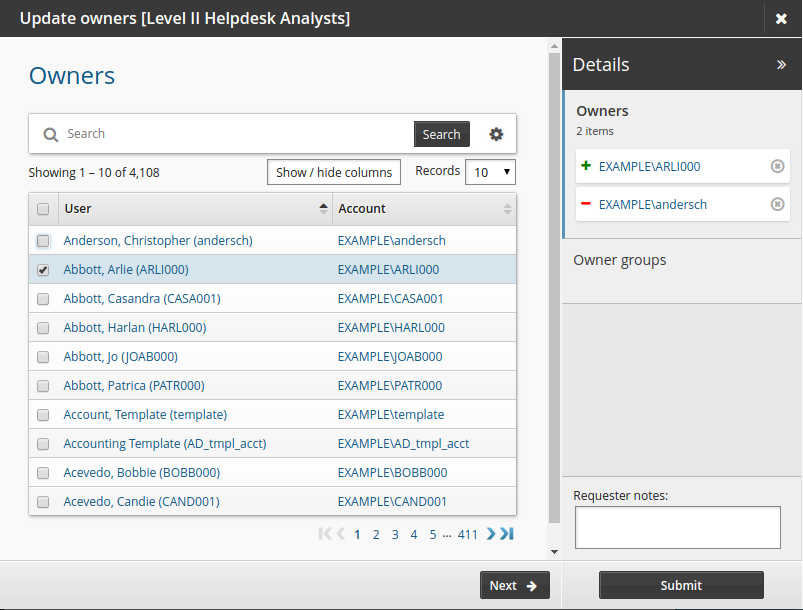
Click Submit.
Relevant authorizers are notified to review the request if necessary.
Changing parent groups
Group owners can use the Groups app to add or delete parent groups for a group; in effect, the owner requests group membership changes on behalf of a group.
Owners can select multiple groups and then add or delete them as parent groups. Note that when multiple groups are selected, separate requests are sent to add or delete parent groups.
Add a parent group
This case describes how a user can add a parent group using the standard Update parent groups request. To add a parent group to a group:
As a group owner, navigate to the Groups app.
Click My groups in the Filter panel.
Select a group from the Results panel.
Click Update parent groups.
Search for and select a group that you want to add as parent.
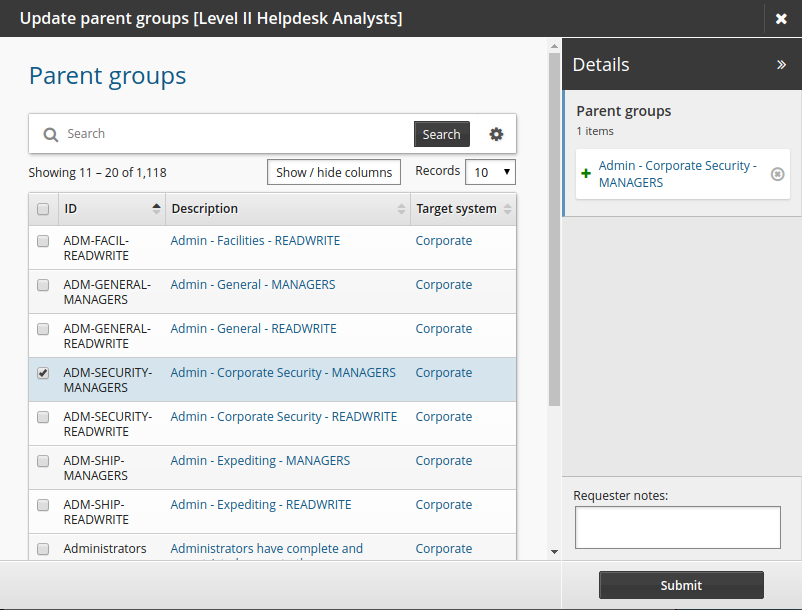
Click Submit.
Relevant authorizers are notified to review the request if necessary.