Managing the certification process
The following sections show you how to create, save, schedule, and start certification campaigns.
Getting started
Requirements
Before you start, see Setting up access certification for a full list of pre-requisites. The following security privileges control access to the Manage certification process (cert) module:
Product administrators with the ”Manage certification process” administrative privilege can initiate certification campaigns with multiple reviewers.
Product administrators with the ”Initiate entitlement certification campaigns” administrative privilege can initiate entitlement certification campaigns with a single reviewer.
Navigation steps
Use the Manage certification process (CERT) module to create, save, schedule and start a certification campaign. To begin:
Click Manage certification process or Initiate entitlement certification campaigns.
The option that is available to you depends on your product administrator privileges.
Click:
Active campaigns to view information about campaigns that are in progress
Start entitlement certification campaign to add a new certification campaign
Start configuration certification campaign to add a new certification campaign
Saved certification setups to select a saved certification setup
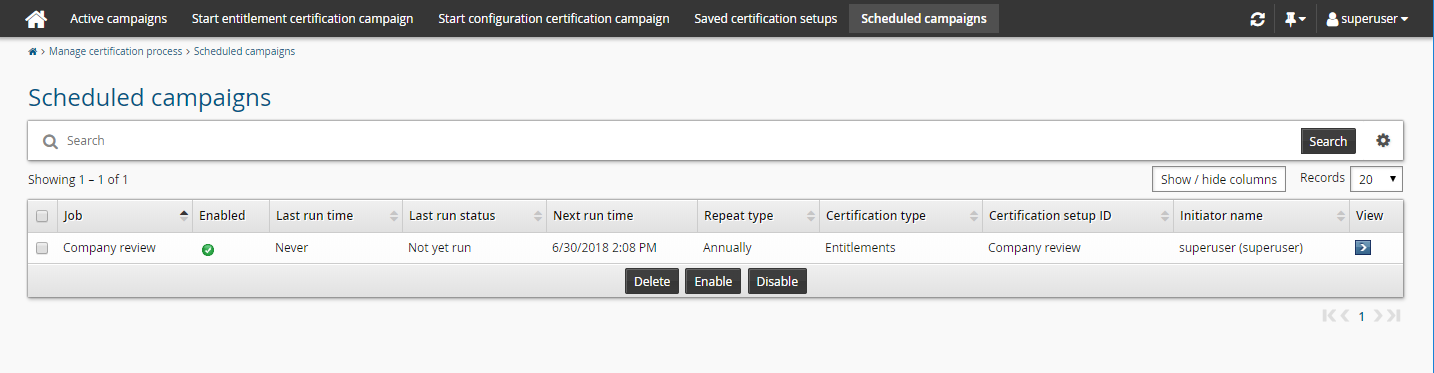
Scheduled campaigns to view information about campaigns that are scheduled
See also
Users with the ”Initiate a review of all entitlements” privilege can initiate a quick certification of a single user via the View and update profile (IDR) module. See Reviewing all entitlements for a user.
View active campaigns
To view active certification campaigns:
Navigate to the Manage certification process menu and select Active campaigns.

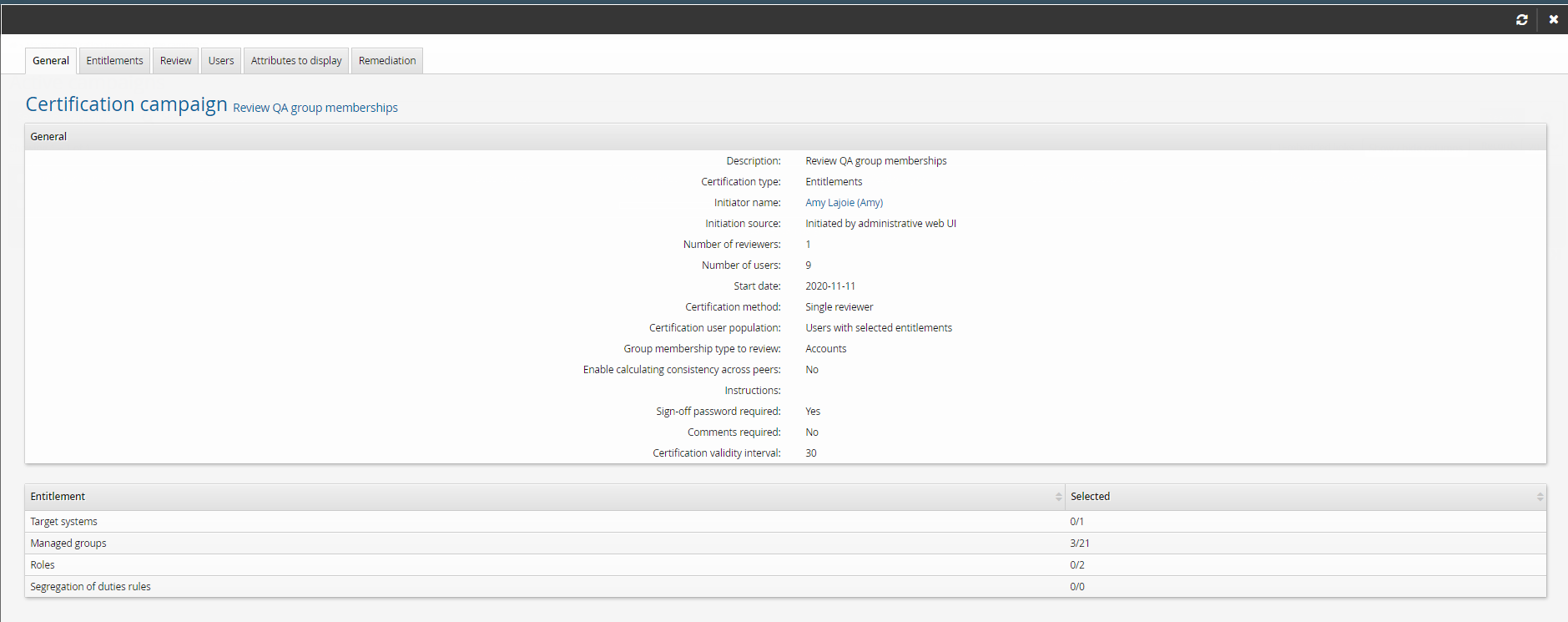
Select an active campaign to display details.
Cancel active campaigns
To cancel active certification campaigns:
Navigate to the Manage certification process menu and select Active campaigns.
To cancel the campaign, select the campaign and click Cancel campaign.
Create an entitlement certification campaign
To create a new certification campaign, click Manage certification process > Start entitlement certification campaign.
The certification setup menu for new campaigns includes a series of tabbed pages to guide you through the process of creating a certification campaign. The first page in the series allows you to select the entitlements or configurations that will be part of the campaign. You can proceed through the required steps by clicking Next: <tab> or clicking any tab on the certification menu to:
Select users to review for entitlement certification campaigns
Select attributes to display during entitlement certification campaign
Select resource attributes to display during entitlement certification campaign
Select pre-defined requests for remediation in entitlement certification campaigns
Select attributes to review for entitlement certification campaigns
Caution
Unsaved changes are lost if you navigate away from the certification menu.
Click below to view a demonstration of initiating and completing an entitlement-centric certification campaign asking group owners to review membership of their groups.
Click below to view a demonstration of initiating and completing an OrgChart-centric certification campaign asking managers to review their subordinates’ profile information and accounts.
Entitlements are resources that have been assigned to users. For certification, they can include:
Target systems
Roles
Managed groups
Segregation of duties rules
Profiles
Profile attributes
Note
When entitlements are assigned to a user via a role, they can only be certified through that role. Reviewers cannot view or certify the member entitlements individually.
Empty managed groups will not be shown in the group selection list.
To select an entitlement on which to certify users:
Navigate to the configuration page for a new or saved campaign.
Select the Items to review tab, then select the entitlements you want to certify.
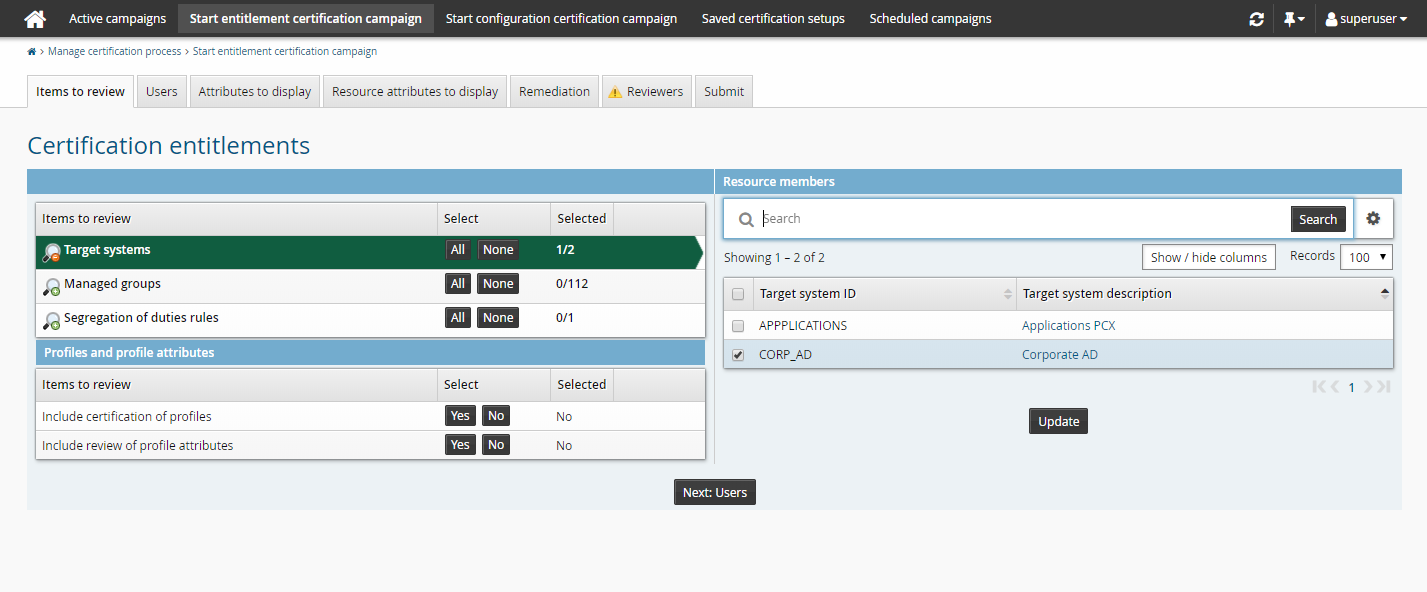
If you select All , a question mark is displayed next to the entitlement to indicate that late binding is in effect.
Bravura Security Fabric displays a warning if the number of selected entitlements exceeds the threshold defined by CERT SIZE WARNING THRESHOLD (Manage the system > Modules > Manage certification process (CERT) ).
When you select an individual entitlement, the Selected column is updated when you click one of the icons in the Entitlement type column, Next , or another certification tab.
Click Next: Users or another certification tab to proceed.
Next:
Select users to review for entitlement certification campaigns.
By default, all users associated with selected entitlements are reviewed during a certification campaign. To view the total number of users for each entitlement, select the Users tab on the configuration page for a new or saved round:
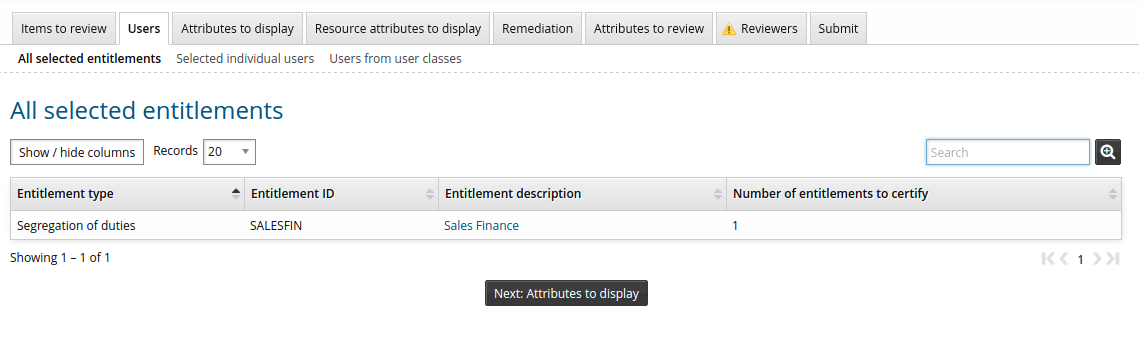
To limit a certification campaign to selected individual users:
Navigate to the configuration page for a new or saved campaign.
Click the Users tab, then a sub-tab to specify
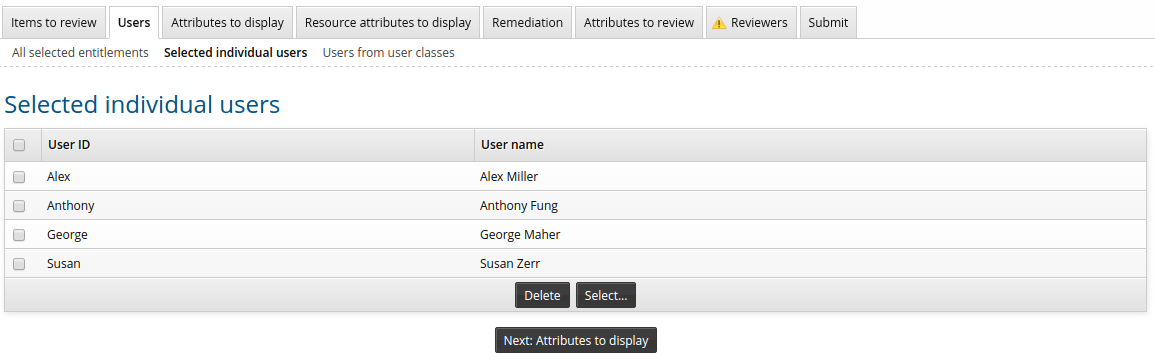
Selected users
Search for, or browse to select individual users, then click Select.
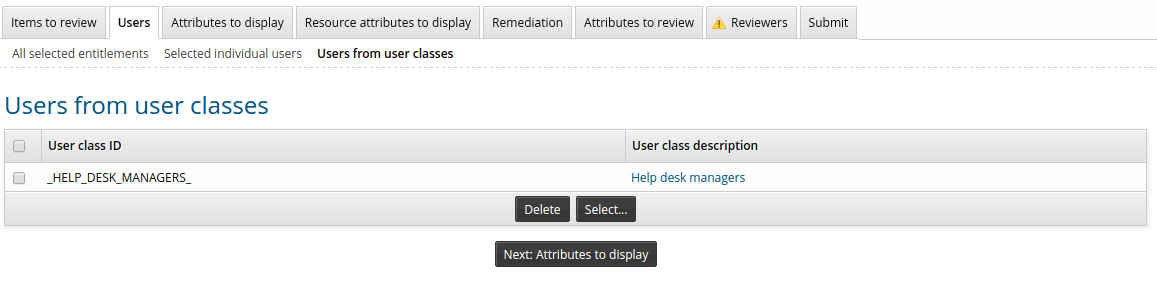
Membership in user class
Select existing user classes: Enable the checkboxes for the user classes you want to add, then click Select.
Create new user classes: Click Create a new user class .
Edit existing user classes: Click the edit
 icon to modify existing user classes.
Select and create user classes until you have defined the user segments you want reviewed.
Next:
Select attributes to display during entitlement certification campaign to determine the user information you want to be available to reviewers.
You can make user information, defined by profile and request attributes, available to reviewers to assist them in their reviews. Reviewers can choose which attributes to include in their review list.
Reviewers must have appropriate permissions to view the attributes.
To select attributes to be available for display:
Navigate to the configuration page for a new or saved campaign.
Click the Attributes to display tab.
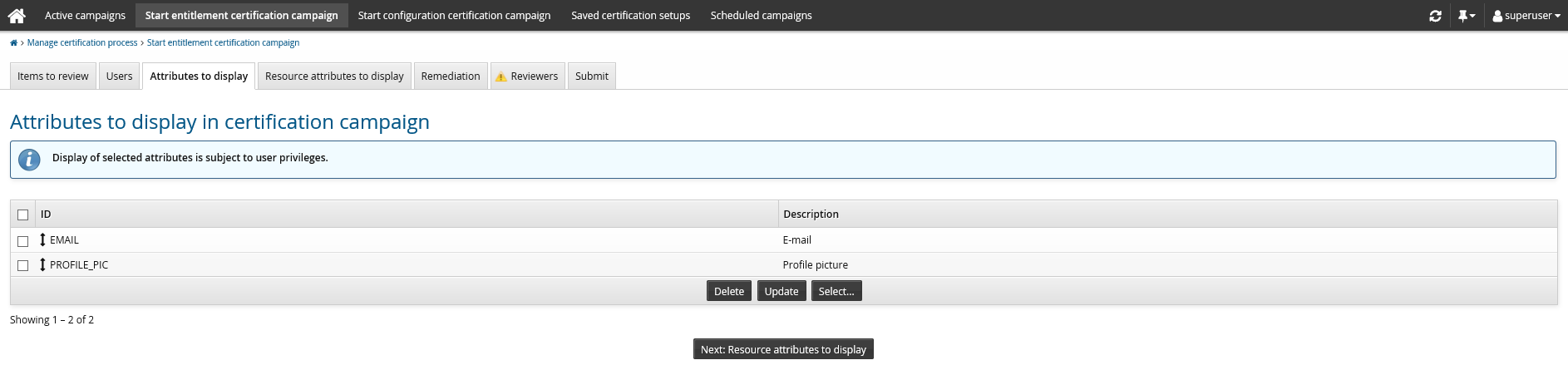
To add attributes, click Select… , choose the applicable attributes and click Select.
Drag and drop one of the double direction arrows in the ID field to change the attributes’ order in the list.
Click Update to apply changes.
Click Next: Remediation or another certification tab to proceed.
The shipped default selection is EMAIL and PROFILE_PIC, which is determined by membership of the CERT_ATTR_TO_DISPLAY attribute group.
Next:
Select resource attributes to display during certification campaign to determine the resource information you want to be available to reviewers.
You can make resource information, defined by resource attributes, available to reviewers to assist them in their reviews. Reviewers can choose which resource attributes to include in their review list.
Reviewers must have appropriate permissions to view these resource attributes.
To select resource attributes to be available for display:
Navigate to the configuration page for a new or saved campaign.
Click the Resource attributes to display tab.
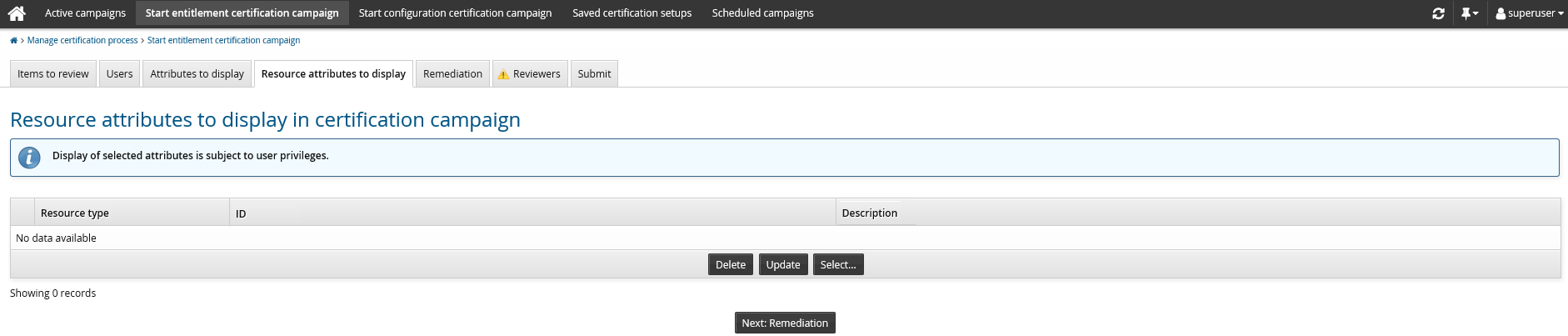
To add resource attributes, click Select… , choose the applicable resource attributes and click Select.
Drag and drop one of the double direction arrows in the ID field to change the attributes’ order in the list.
Click Update to apply changes.
Click Next: Remediation or another certification tab to proceed.
Next:
You can specify the remediation – that is, what happens to an entitlement after it is revoked in the entitlement certification campaign – by selecting a pre-defined request . In most cases, the request will be submitted after the reviewer has signed off the entitlement certification campaign.
You can specify more than one pre-defined request for a remediation type. In this case, users choose which request to submit when they revoke the entitlement.
Some special requests are submitted immediately and may not be triggered by a reviewer revoking an entitlement. These requests include:
Add profile
Transfer a user
Resolve segregation of duties rules
Profile attributes must be included in the certification campaign to allow reviewers to create a new user from the certification app.
To select pre-defined requests for remediation:
Navigate to the configuration page for a new or saved campaign.
Click the Remediation tab:
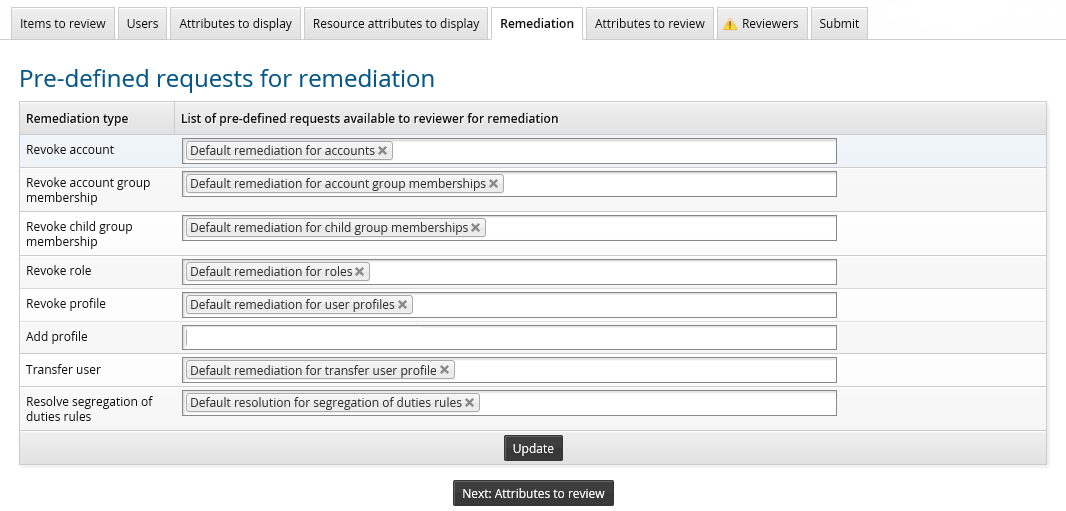
Each selected remediation type, except for Add profile, is already loaded with built-in pre-defined requests for certification. For the Add profile remediation type, you must define a pre-defined request if you want users to be able to create new users from the certification app review page.
To select another pre-defined request, click on the field next to the remediation type.
Bravura Security Fabric displays a list of pre-defined requests available for that remediation type:

Pre-defined requests must be configured to be Accessible from certification , with the appropriate Remediation type selected.
Click on the request you want to add.
Click Update.
Click Next: Attributes to review or another certification tab to proceed.
Next:
If you included profile attributes in items to review, select attributes to review to determine the user information you want to be reviewed; otherwise, select the reviewers .
You can make user information, defined by profile and request attributes, available to be reviewed. The Attributes to review tab becomes available if you included profile attributes in the Items to review tab. This is different from the page as attributes selected here can be edited by the reviewer.
Reviewers must have appropriate permissions to view and edit the attributes.
To select attributes to be editable in a review:
Navigate to the configuration page for a new or saved campaign.
If the Attributes to review tab is not available, click the Items to review tab and click Yes to include review of profile attributes.
Click the Attributes to review tab to set the pre-defined request that will define which attributes to display for the certification campaign:
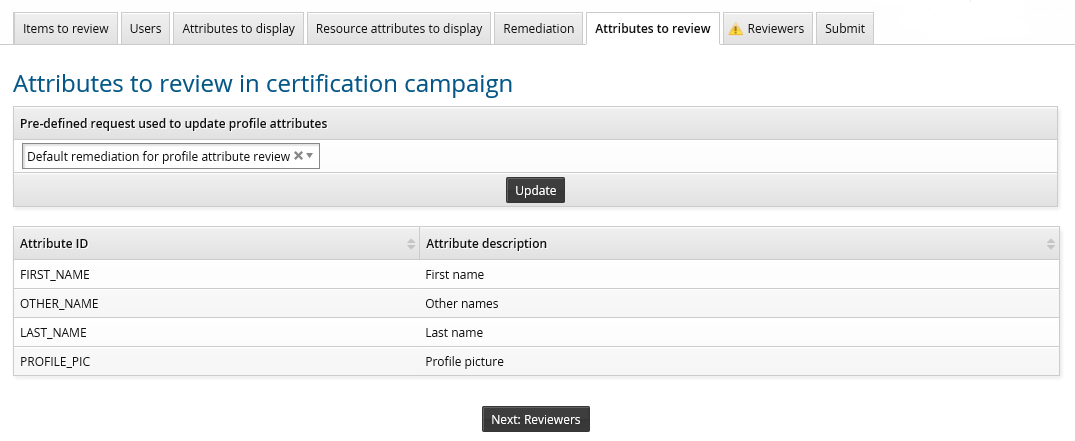
The pre-defined request used to update profile attributes, listed in the upper table, defines the attributes listed in the lower table and their order. To be selectable here, the pre-defined request may only have one attribute group.
The order of the attributes is defined by the attribute group.
Click on the drop-down list to select another pre-defined request. Only one may be selected for each certification campaign.
Click Update to apply changes.
Click Next: Reviewers or another certification tab to proceed.
The default pre-defined request for attributes to review contains the attributes FIRST_NAME, LAST_NAME, OTHER_NAME, and PROFILE_PIC.
Next:
Product administrators with the "Manage certification process" administrative privilege can initiate certification campaigns with multiple reviewers. Product administrators with the "Initiate entitlement certification campaigns" administrative privilege can only initiate certification campaigns with a single reviewer.
To determine who will certify users and privileges:
Navigate to the configuration page for a new or saved campaign.
Click the Reviewers tab, then select a sub-tab to select:
Use the single reviewer method when one person is easily able to review the access rights of your entire user population, or all the configurations included in the campaign.
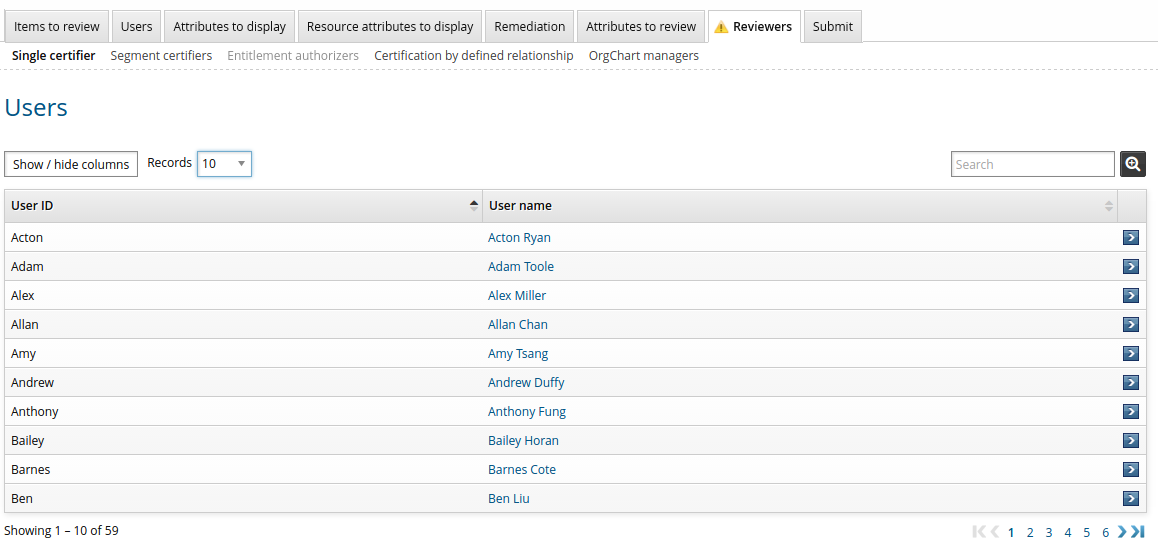
Search or browse the list to select the reviewer.
Next:
Select peer groups for consistency calculations.
When you use the segment method, you configure reviewers for segments of the user population based on user classes. This allows you to divide the work among multiple reviewers. You can also select a reviewer to review users who do not belong to any of the selected classes.
It is possible for reviewers to be asked to certify “empty” segments. Reviewers can, in effect, be asked to certify that there are no users in a particular user class, or not included in a user class.
To define segments and assign reviewers:
Add user classes as segments:
Select existing user classes: Click Select… and enable the checkboxes for the user classes you want to add, then click Select.
Create new user classes: Click Create a new user class.
Edit existing user classes: Click the edit
icon to modify existing user classes .
Select and create user classes until you have defined segments.
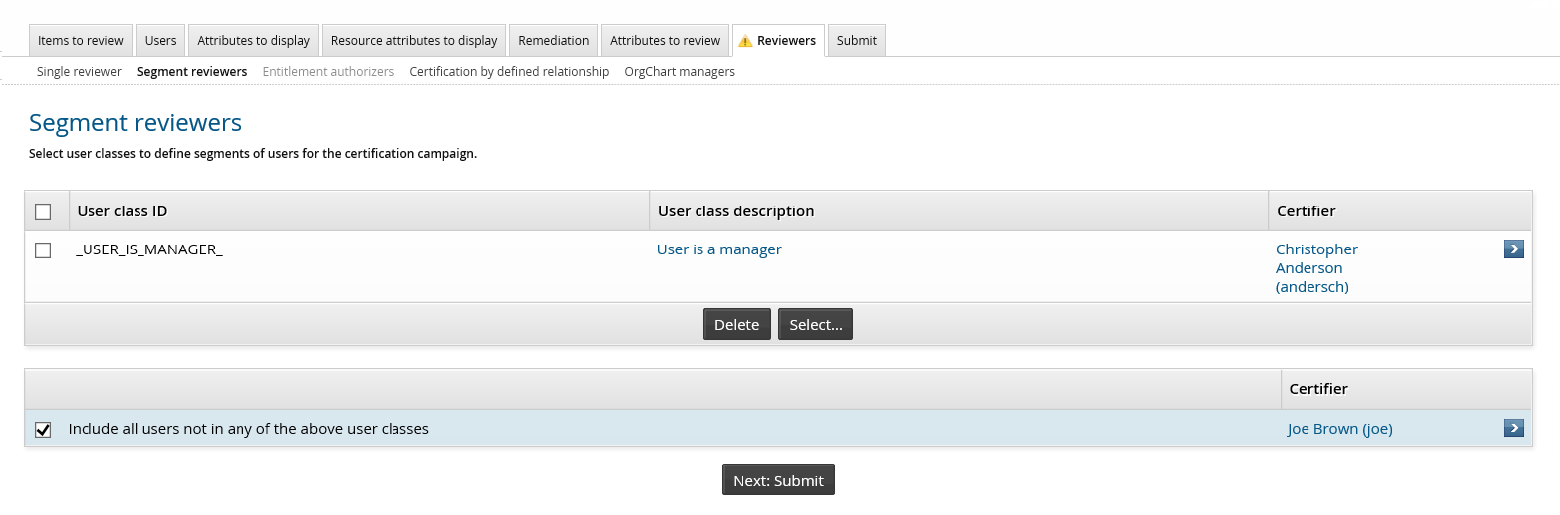
Select a segment row to select the reviewer for the segment. This includes the segment defined by users not in any of the user classes.
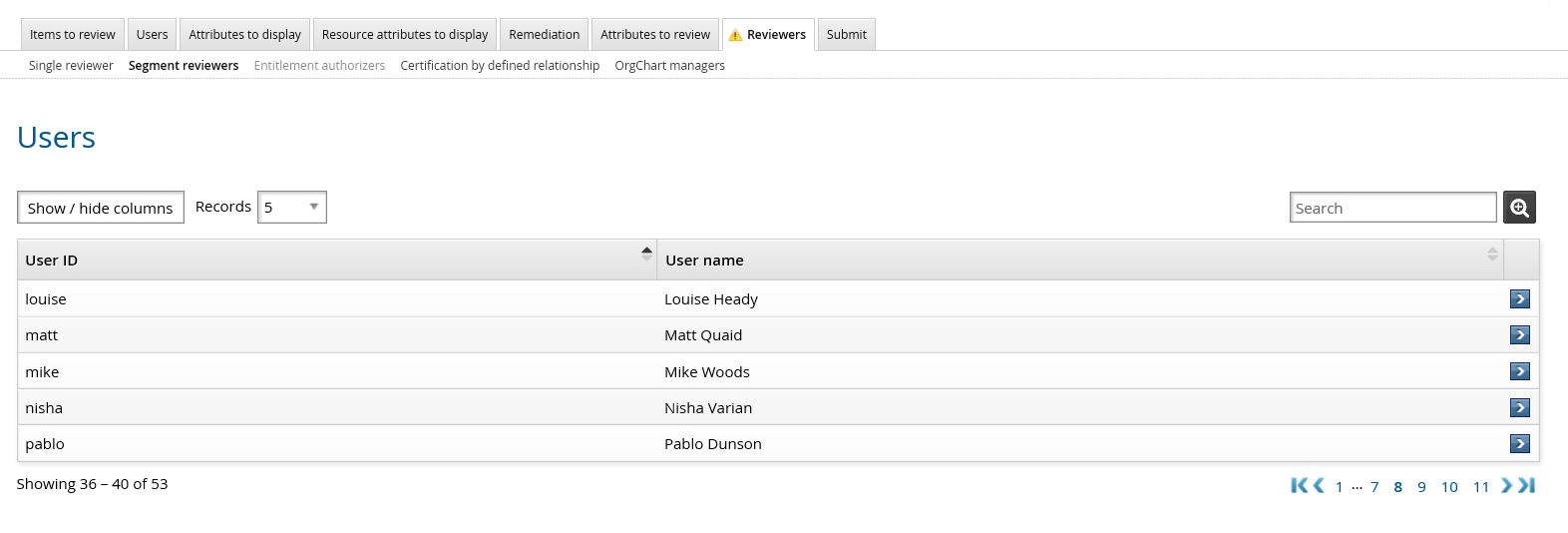
Search or browse the list to select the reviewer.
Click Next: Submit or another certification tab to proceed.
Next:
Select peer groups for consistency calculations.
When you use the entitlement authorizers method, you configure reviewers for segments of the user population based on selected entitlements. This allows you to divide the work among multiple reviewers.
You can manually assign entitlement authorizers, enable random assignment from the authorizers attached to the entitlement or use a plugin to identify the primary and delegate reviewers.
To manually assign entitlement authorizers:
Select an entitlement row to select the reviewer for the entitlement.
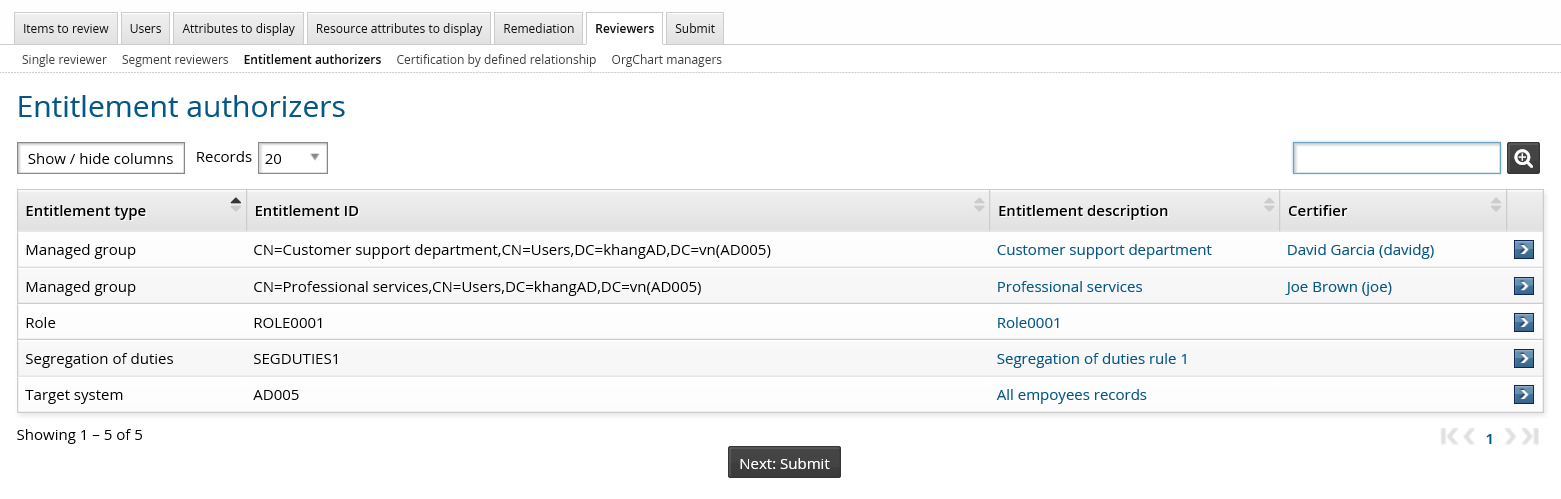
Search or browse the list to select the reviewer.
For managed groups, the group authorizer is the reviewer by default.
Click Next: Submit or another certification tab to proceed.
Next:
Select peer groups for consistency calculations.
Bravura Security Fabric can randomly assign an authorizer from a set of authorizers attached to the entitlement to be the reviewer of the segment if you:
Define a string-type resource attribute in the CERT ATTRIBUTE CERTIFIER Manage certification process (CERT) module setting. The random selection option is enabled when the attribute value is ’RANDOM’.
Leave the reviewer field for the resource empty when configuring the campaign. During the creation of the campaign, the reviewer will be chosen dynamically.
For example, to enable random resource reviewer assignment for a managed group:
Define a resource attribute:
Click Manage the system > Resources > Resource attributes > Add new...
Enter the ID; for example RANDOM-CERTIFIER.
Enter the description.
Select Type: String.
Click Add.
Enter the Actual value: RANDOM
Enter the Displayed value: for example ’Select reviewer from amongst the resource authorizers’.
Click Update.
Set the Default values for the attribute: (None) .
Define a resource attribute group:
Click Manage the system > Resources > Resource attribute groups > Add new...
Enter the ID; for example RANDOM-CERTIFIER-GROUP.
Enter the Description.
Select Type: Managed groups .
Click Add.
Click the Members tab.
Click Select then select the resource attribute you created previously; for example RANDOM-CERTIFIER.
Configure the option in the Manage certification process (CERT) module:
Click Manage the system > Modules > Manage certification process (CERT) .
Type RANDOM-CERTIFIER in the CERT ATTRIBUTE CERTIFIER field.
Type a user ID in the CERT DEFAULT CERTIFIER field to specify the default reviewer in case the resource does not have any authorizer.
Turn on the random reviewer option for a managed group.
Click Manage the system > Resources > Groups.
Select the target system.
Select a managed group.
Click Manage.
Set the RANDOM-CERTIFIER drop-down to RANDOM.
Click Update.
Now, if you initiate a certification campaign for the managed group by selecting the entitlement authorizers method, Bravura Security Fabric chooses the reviewer for the managed group randomly from the group’s set of authorizers. If the group has no authorizers, Bravura Security Fabric chooses the user defined by CERT DEFAULT CERTIFIER.
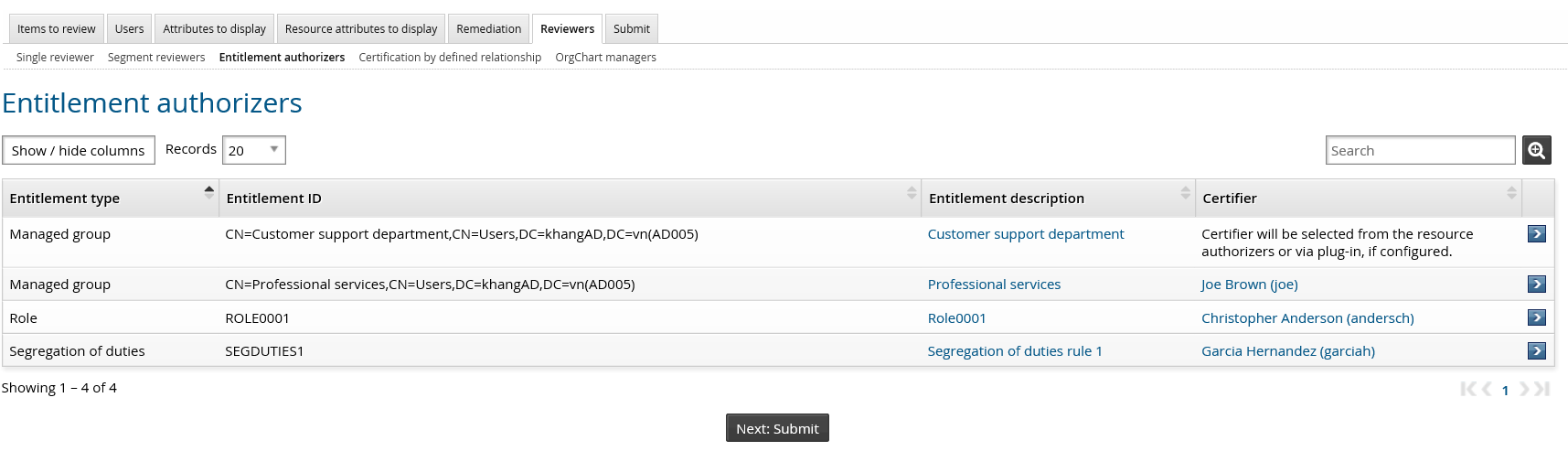
If random selection is enabled, you can still manually define an entitlement’s reviewer.
Next:
Select peer groups for consistency calculations.
Bravura Security Fabric can use a plugin to assign a reviewer and delegates to the segment if you:
Define a string-type resource attribute in the CERT ATTRIBUTE CERTIFIER Manage certification process (CERT) module setting. The via plugin selection option is enabled when the attribute value is ’VIAPLUGIN’.
Write a plugin to supply the reviewer and delegates to the certification segment.
Leave the reviewer field for the entitlement empty when configuring the campaign. During the creation of the campaign, the reviewer and the delegates will be supplied by the plugin dynamically.
For example, to use a plugin to specify a reviewer and delegates for a managed group:
Define a resource attribute:
Click Manage the system > Resources > Resource attributes > Add new...
Enter the ID: for example CERTIFIER-VIA-PLUG-IN.
Enter the description.
Select Type: String.
Click Add.
Enter the Actual value: VIAPLUGIN
Enter the Displayed value: for example ’Select reviewer and delegates from plugin’.
Click Update.
Set the Default values for the attribute: (None) .
Define a resource attribute group:
Click Manage the system > Resources > Resource attribute groups > Add new...
Enter the ID: for example CERTIFIER-VIA-PLUG-IN-GROUP.
Enter the Description.
Select Type: Managed groups .
Click Add.
Click the Members tab.
Click Select then select the resource attribute you created previously; for example CERTIFIER-VIA-PLUG-IN.
Write a plugin to supply the reviewer and delegates to the certification segment. Save the plugin file in the plugin directory.
Configure the option in the Manage certification process (CERT) module:
Click Manage the system > Modules > Manage certification process (Cert).
Type CERTIFIER-VIA-PLUGIN in the CERT ATTRIBUTE CERTIFIER field.
Type a user ID in the CERT DEFAULT CERTIFIER field to specify the default reviewer in case the resource does not have any authorizer.
Type plugin file name in the CERT DELEGATION PLUGIN field to specify the plugin
Turn on the via plugin option for a managed group.
Click Manage the system > Resources > Groups.
Select the target system.
Select a managed group.
Click Manage.
Set the CERTIFIER-VIA-PLUG-IN drop-down to VIAPLUGIN.
Click Update.
Now, if you initiate a certification campaign for the managed group by selecting the entitlement authorizers method, Bravura Security Fabric gets the reviewer and the delegates for the managed group from the plugin. If the plugin does not supply a valid reviewer, Bravura Security Fabric chooses the user defined by CERT DEFAULT CERTIFIER.
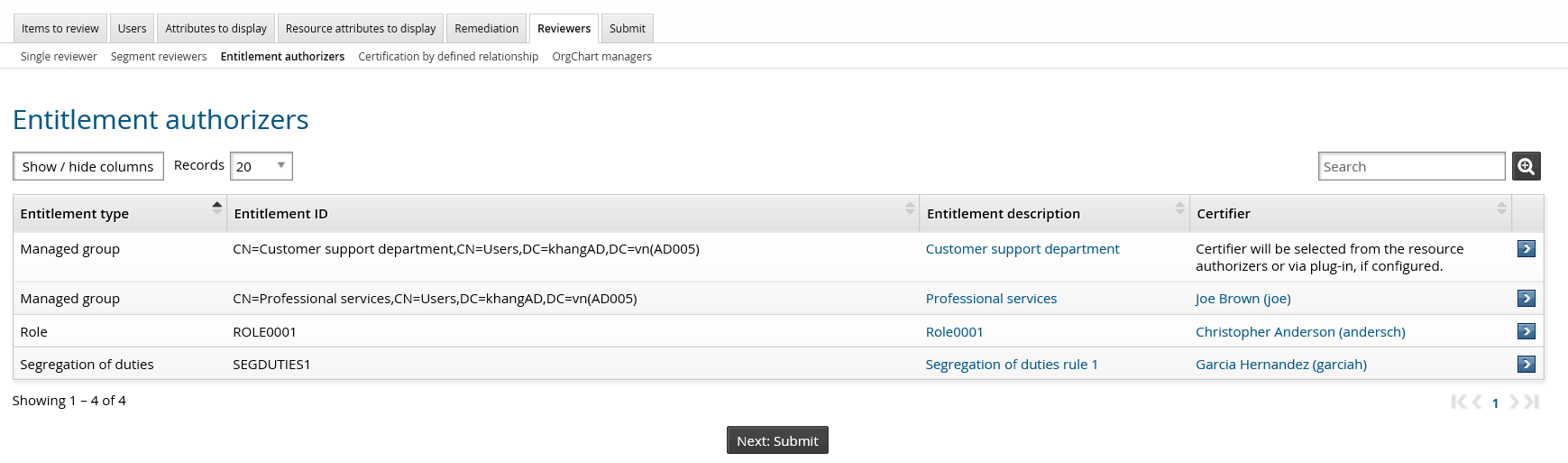
If via plugin is enabled, you can still manually define an entitlement’s reviewer.
Next:
Select peer groups for consistency calculations.
When you use the certification by defined relationship method, Bravura Security Fabric can generate certification segments and assign the appropriate reviewer to the segments based on the relationship between the reviewer and the users.
It works on the same principle as the OrgChart managers method where Bravura Security Fabric creates segments and assigns the appropriate manager to each segment (manager-subordinate relationship).
The certification by defined relationship method offers flexibility by allowing you to define the relationship between the reviewer and the user by a two-participant user class.
In this example, all the users whose first name start with ”user” will be certified by a user having membership in group X.
Manage Group1, ensure that Group1 has this members: gr1_member1.
Ensure that these users exist in Bravura Security Fabric : user1, user2, user3.
Add a two-participant user class, UC, as follows:
Participant P1 has group membership matching Group1
Participant P2 has profile attribute matching: FIRST_NAME starts with ”user”
Create a new certification campaign:
Entitlements
Select an Active Directory target system
Users
All selected entitlements
Reviewers
Certification defined by relationship:
Select the user class UC defined in step 3.
Map participant P1 to CERTIFIER.
Map participant P2 from to USER_UNDER_REVIEW.
Click Update
Set a Default reviewer by clicking Select… and choosing a user.
Once you submit this campaign, Bravura Security Fabric will create two certification segments:
First segment would include all the users whose first name starts with ”user” (user1, user2, user3). The reviewer of this segment is gr1_member1 (if Group1 has multiple members, the first member on the list is picked to be the reviewer).
Second segment would include all the users whose first name does not start with ”user”. The reviewer of this segment is the default reviewer.
Next:
Select peer groups for consistency calculations.
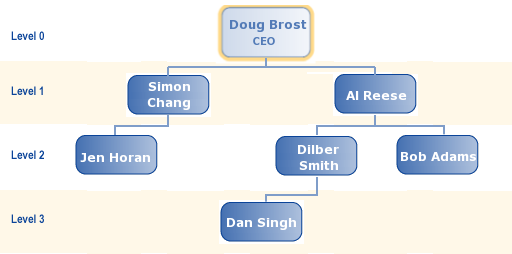
When you use the OrgChart method, the reviewers are determined by your organizational tree. Each user is certified by his or her direct manager, from the bottom up. You only need to determine the highest level manager for the certification campaign; for example, if you select Al Reese in the OrgChart below, then Dilber Smith certifies Dan Singh, and Al Reese certifies Dilber Smith and Bob Adams.
To select the manager at the top of the certification campaign:
Search or browse the list, then select
 the manager.
Click Next:Submit or another certification tab to proceed.
Notes on OrgChart campaigns:
If a manager has one or more managers in their realm of responsibility, their certification is not considered complete and cannot be signed off until all managers beneath them have completed their own certification.
The lowest-level managers are asked to certify their subordinates first. After some delay the next level of managers is asked to certify their own subordinates. This continues until all managers have been notified.
By staggering the invitations, Bravura Security Fabric gives lower-level managers a chance to complete their certifications before it prompts their supervisors to certify them. You determine the notification schedule when you start the campaign.
If you select users individually to be included in an OrgChart campaign, and none of the selected users is in a given manager’s OrgChart, then that manager does not have to sign off an empty segment.
If a manager has been deleted while an OrgChart campaign is still in progress, then the deleted manager’s segment will be escalated to the manager above them.
Next:
Select peer groups for consistency calculations.
For entitlement certification campaigns, items for review can be marked with a consistency score, so that reviewers see recommendations of items to pay particular attention to. The consistency calculation is based on the percentage of a peer group who share an item.
A peer group is a group of users with some attribute in common; for example, users working at the same location or department, or having the same manager.
Items can be automatically certified or identified as candidates for revocation based on a resource attribute comparison.
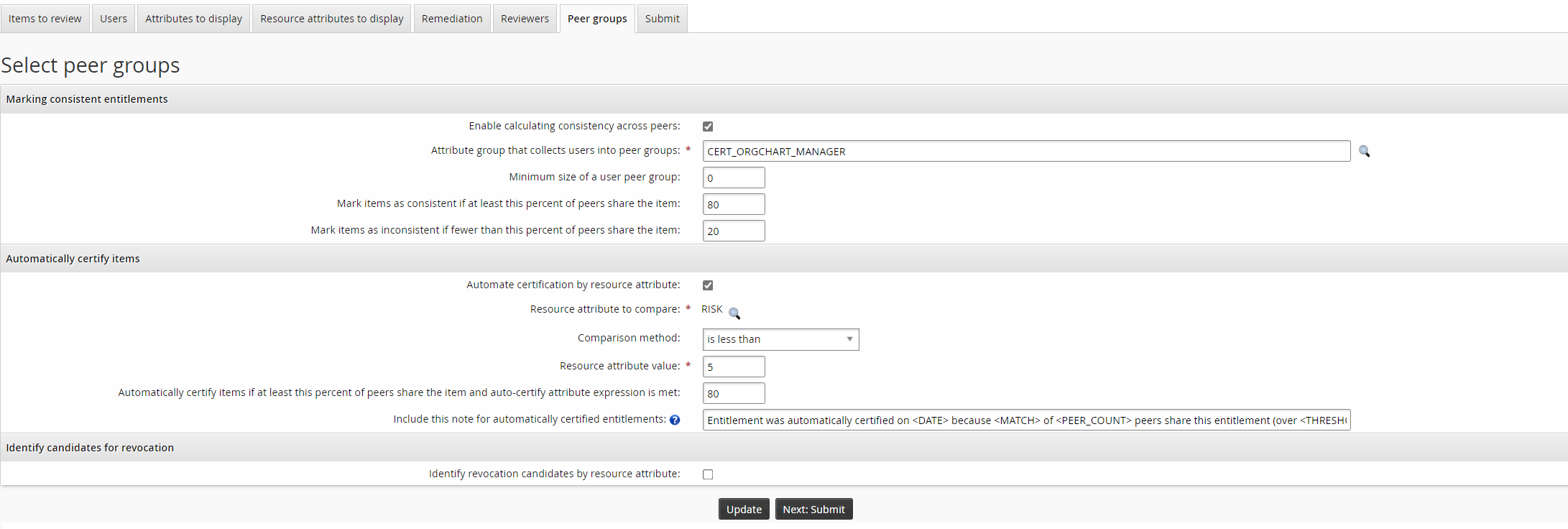
When the global CERT CONSISTENCY CALCULATION setting is enabled (default), consistency calculations are turned on for all campaigns. If disabled, click the Enable calculating entitlement consistency across peers checkbox to view more settings.
Modify settings to suit your campaign:
Click the magnifying glass icon to select an Attribute group that collects users into peer groups.
The default value is set by the CERT CONSISTENCY ATTRIBUTE GROUP system variable.
Edit the value for Minimum size of a user peer group.
If a peer group has fewer members than this, their entitlement consistency will not be calculated. Instead, a help
 icon will be displayed in the consistency column for these users in the review.
The default value is set by the CERT CONSISTENCY MINIMUM system variable.
To determine how in-pattern entitlements will be highlighted, edit the value for Mark items as consistent if at least this percent of peers the item.
By default, if consistency calculations are enabled and at least 80% of user share an entitlement, is will be highlighted in the review. The default is set by the CERT CONSISTENCY USERS UPPER THRESHOLD system variable.
To determine how out-of-pattern entitlements will be highlighted, edit the value for Mark items as inconsistent if fewer than this percent of peers share the item.
By default, if consistency calculations are enabled and fewer than 20% of users share an entitlement, it will be highlighted in the review. The default is set by the CERT CONSISTENCY USERS LOWER THRESHOLD system variable.
If you want to automatically certify consistent items:
Click the Automate certification by resource attribute checkbox.
Click the magnifying glass icon to select the Resource attribute to compare.
Set the Comparison method.
The methods available are determined by the resource attribute type.
For date, string or integer type attributes, set the Resource attribute value.
Edit the value for Automatically certify items if at least this percent of peers share the item and the auto-certify attribute expression is met.
This value must be equal to or greater than the value for Mark items as consistent if at least this percent of peers share the item.
Edit the value for Include this note for automatically certified entitlements to suit your needs.
Use the question mark icon to view available variables.
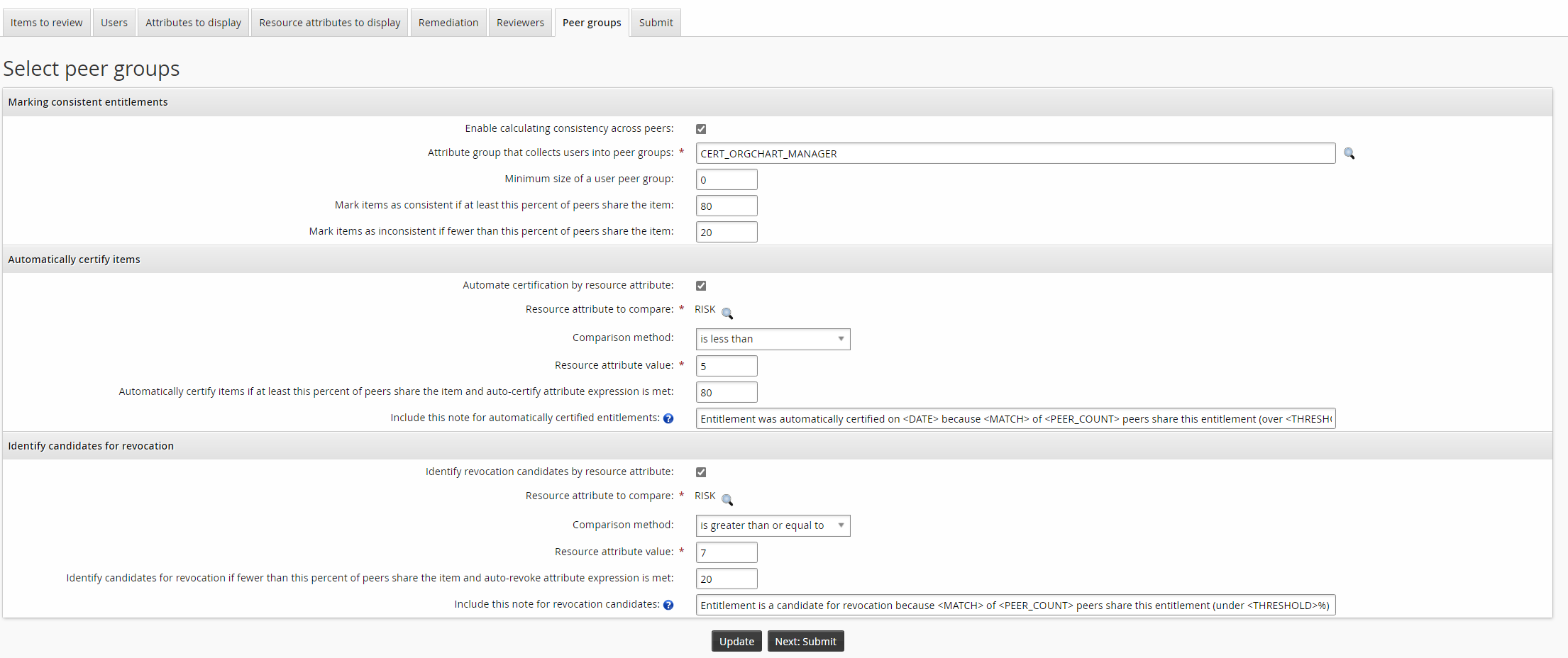
If you want to automatically identify inconsistent items as candidates for revocation:
Click the Identify revocation candidates by resource attribute checkbox.
Click the magnifying glass icon to select the Resource attribute to compare.
Set the Comparison method.
The methods available are determined by the resource attribute type.
For date, string or integer type attributes, set the Resource attribute value.
Edit the value for Identify candidates for revocation if fewer than this percent of peers share the item and auto-revoke attribute expression is met.
This value must be equal to or less than the value for Mark items as inconsistent if fewer than this percent of peers share the item.
Edit the value for Include this note for revocation candidates to suit your needs.
Use the question mark icon to view available variables.
Depending on the items selected, select the pre-defined request to automatically revoke the item, if the option is available.
Next:
Create a configuration certification campaign
To create a new certification campaign, click Manage certification process > Start configuration certification campaign.
The certification setup menu for new campaigns includes a series of tabbed pages to guide you through the process of creating a certification campaign. The first page in the series allows you to select the entitlements or configurations that will be part of the campaign. You can proceed through the required steps by clicking Next: <tab> or clicking any tab on the certification menu to:
Caution
Unsaved changes are lost if you navigate away from the certification menu.
Click below to view a demonstration of initiating and completing a certification campaign to review the configuration of roles.
Configurations that can be certified include:
Roles
Segregation of duties rules
To select a configuration to certify:
Navigate to the configuration page for a new or saved campaign.
Click the Items to review tab, then select the configuration you want to certify.
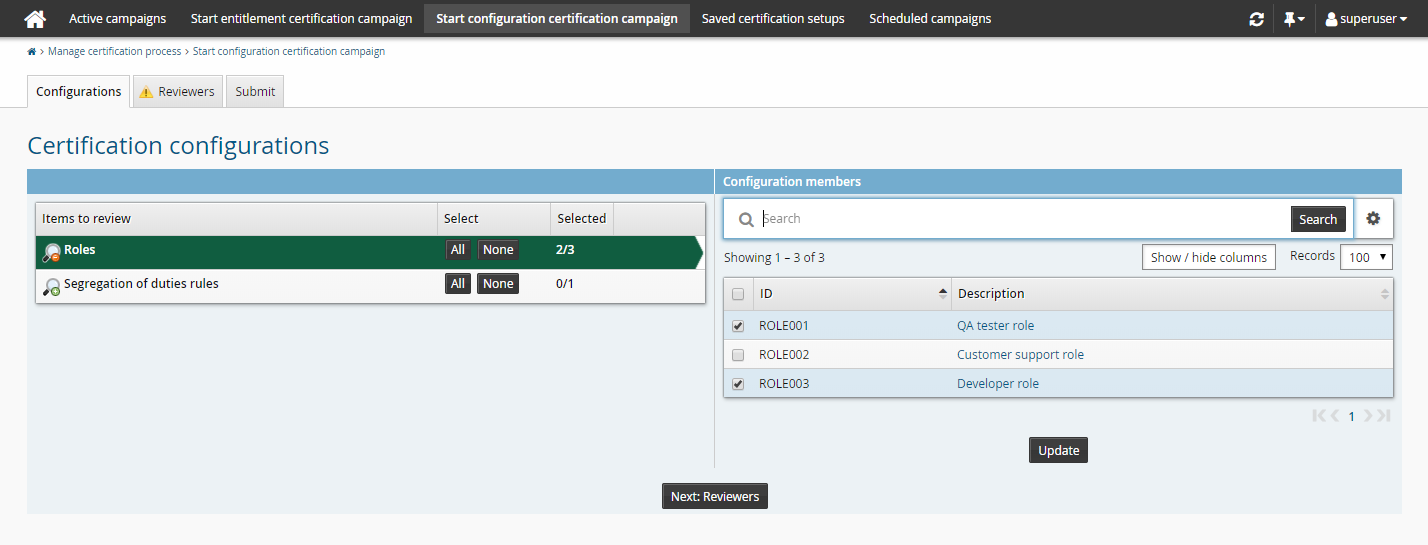
If you select All, a question mark is displayed next to the entitlement to indicate that late binding is in effect.
Click Next: Reviewers or another certification tab to proceed.
Next:
Select reviewers for configuration certification campaigns to determine the certification method.
To determine who will certify configurations:
Navigate to the configuration page for a new or saved campaign.
Click the Reviewers tab, then select a sub-tab to select:
Use the single reviewer method when one person is easily able to review all the configurations included in the campaign.
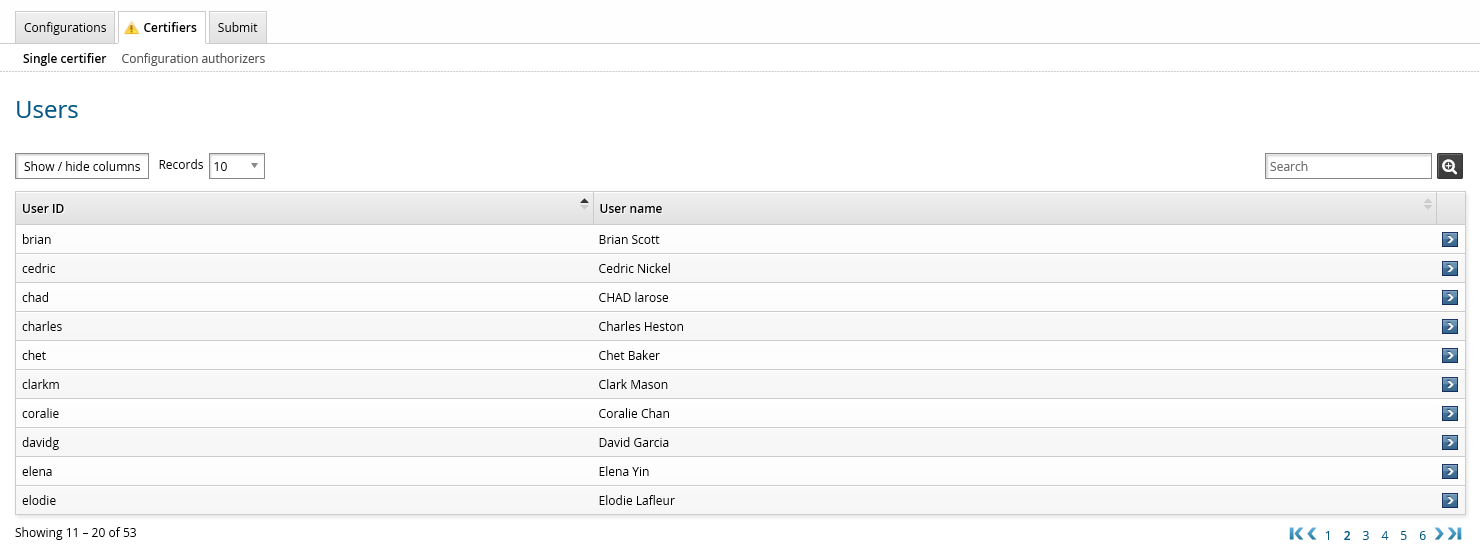
Search or browse the list to select the reviewer.
Next:
Submit the configuration review to launch, save, or schedule it.
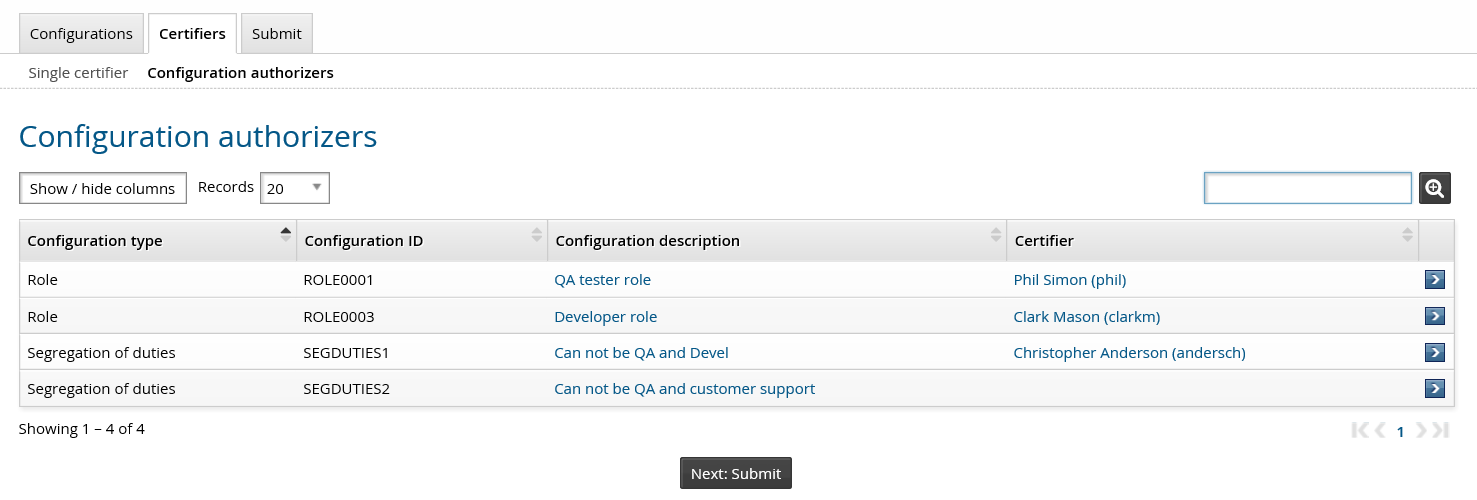
When you use the configuration authorizers method, you configure reviewers based on authorization settings for selected configuration items. This allows you to divide the work among multiple reviewers.
If a configuration does not have an authorizer, you can manually select a user to be the reviewer.
To manually assign configuration authorizers:
Select a configuration row to select the reviewer for the configuration.
Search or browse the list to select the reviewer.
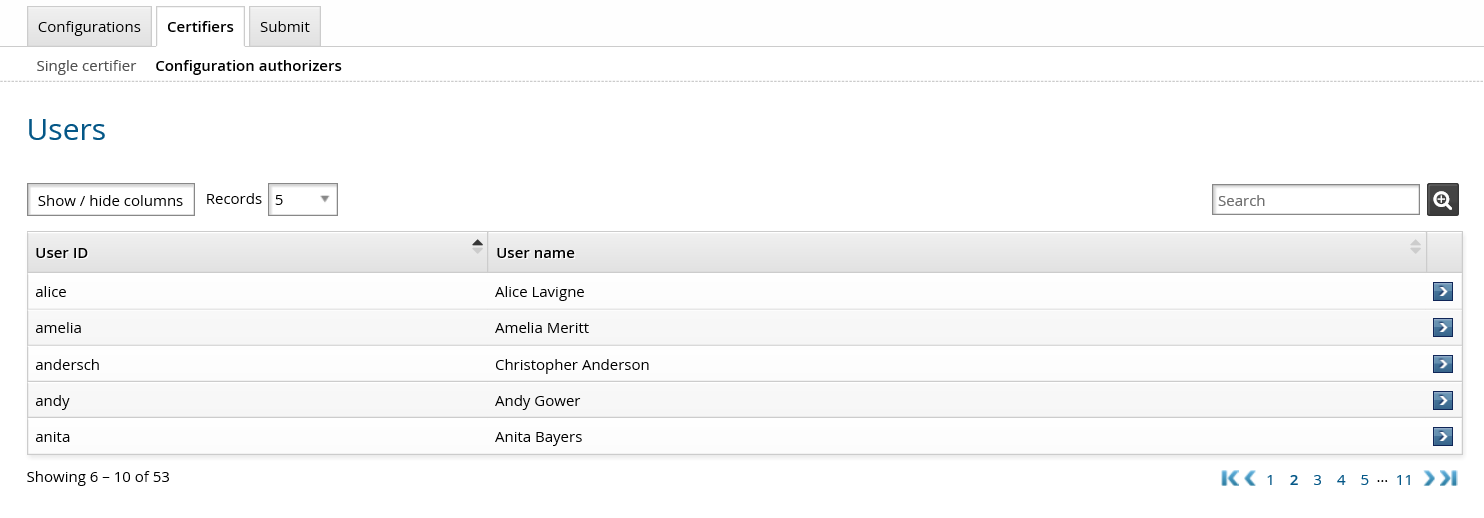
Click Next: Submit.
Next:
Submit the configuration review to launch, save, or schedule it.
Use saved certification setups
Product administrators with the "Manage certification process" privilege can load saved certification setups that they created or that other product administrators have shared.
Product administrators with the Initiate entitlement certification campaigns privilege can load saved certification setups that they created or that other product administrator have shared, provided they are configured with a single reviewer.
To start or schedule a campaign based on a saved certification setup:
Navigate to the Manage certification process menu and select Saved certification setups .
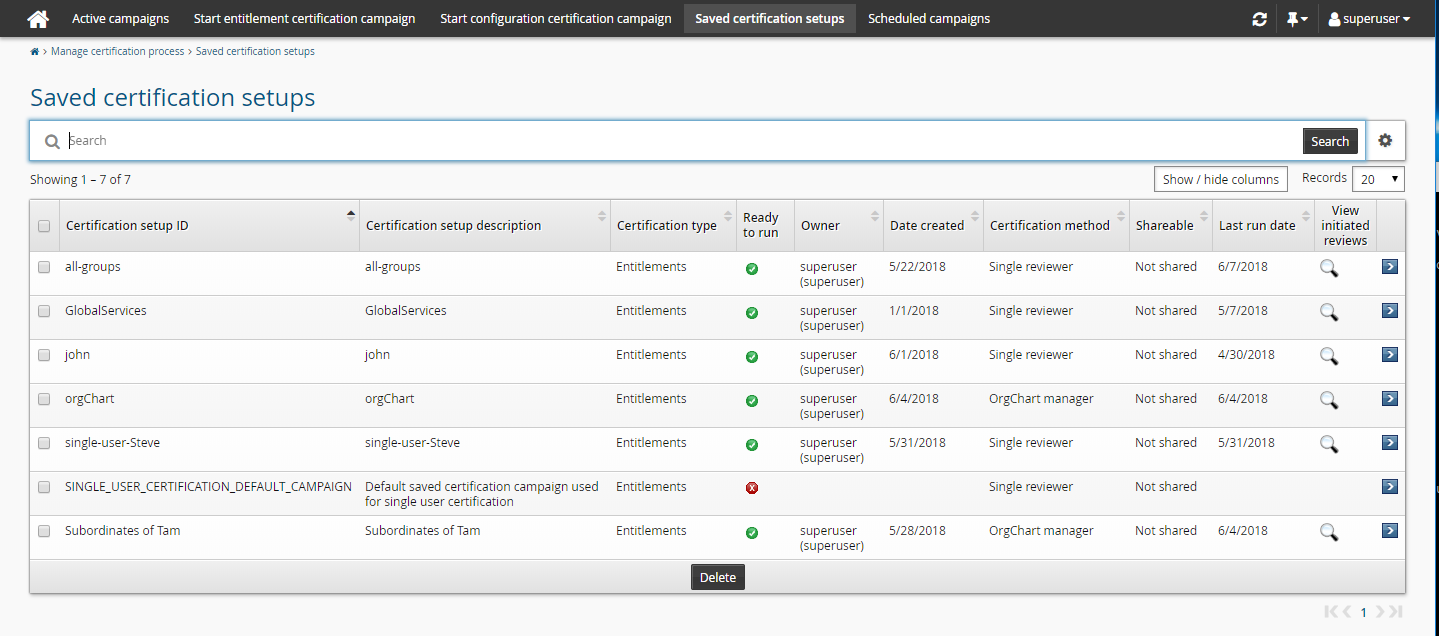
Select the row to load the certification setup.
You can now modify the certification setup as required by selecting tabs in the certification menu, then start a new campaign.
Default single user certification setup
SINGLE_USER_CERTIFICATION_DEFAULT_CAMPAIGN is the default setup for a single user certification campaign. You can modify this setup on the Saved certification setups page. To use another setup, type the ID of the saved setup in the CERT SINGLE USER CONFIGURATION field at Manage the system > Modules > Manage certification process (CERT) .
Notes on saved certification setups
On the Saved certification setups page:
A valid certification setup is shown with a green checkmark
 .
.An invalid certification setup (missing entitlement, users, or reviewer) is flagged with a red cross
 . You cannot start a campaign or schedule a campaign based on the certification setup until you update it and make it valid.
If a reviewer is invalid, for example because his account has been deleted, the reviewer ID is displayed with a strike line.
A certification setup that is in use for a scheduled campaign is denoted with a question mark (with appropriate hover text). You cannot delete this certification setup unless the scheduled campaigns based on this certification setup is deleted first.
Click the view icon in the Active campaigns column to view the active certification campaigns that use the selected saved certification setup.
A certification setup that another product administrator has shared is denoted with a question mark (with appropriate hover text). You can use this certification setup to start or schedule a campaign but you cannot delete nor modify this certification setup. You can make a copy using Save new...
Only a superuser (who has all administrative privileges) may modify a certification setup owned by another product administrator.
A certification setup that used a saved search cannot be shared with other users. Any saved searches are recalculated when the setup is loaded.
Next:
The configuration menu for saved campaigns includes a series of tabbed pages to guide you through the process of initiating a certification campaign. You can proceed through the required steps by clicking Next:<tab> or clicking any tab on the certification menu.
For entitlement certification campaigns:
Select users to review for entitlement certification campaigns
Select attributes to display during entitlement certification campaign
Select resource attributes to display during entitlement certification campaign
Select pre-defined requests for remediation in entitlement certification campaigns
Select attributes to review for entitlement certification campaigns
For configuration certification campaigns:
If you don't need to make any changes you can submit the campaign to launch or schedule it.
Unsaved changes are lost if you navigate away from the certification menu.
Scheduled campaigns
Product administrators with the "Manage certification process" privilege can view and update all scheduled campaigns.
Product administrators with the "Initiate entitlement certification campaigns" privilege can view and update only their scheduled campaigns.
To view or update scheduled certification campaigns:
Navigate to the Manage certification process menu and select Scheduled campaigns .
If necessary use the search facility to narrow down the list of scheduled campaigns.
Select the campaign you want to view.
Use saved searches
You may find it useful to save search filters and re-use them to easily define entitlements, users, and reviewers.
If you use a saved search in a saved certification setup, the saved setup cannot be shared with other administrators.
To save an advanced search query:
On the object list page, click the advanced search icon
 next to the Search button.
Enter your search criteria.
Click the "Save search" icon.
Enter a name for the new search.
Click Create.
Once it is saved, you will see it from the saved search drop-down list in the My Searches section.
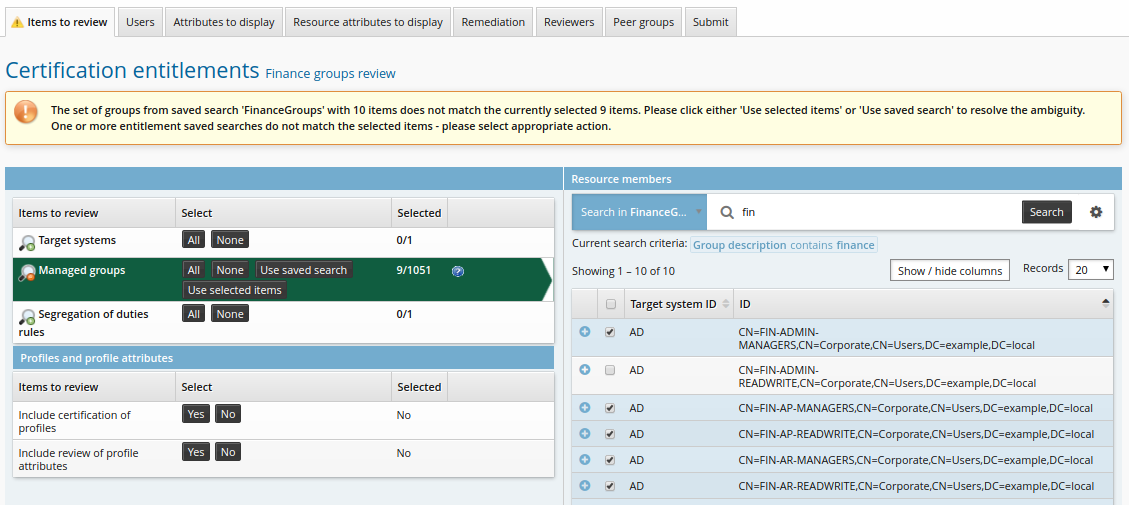
When you use a saved search, the list of items will be recalculated. If the items you select do not match what is presented by the search, two new buttons appear in the certification page, as illustrated below. Click Use saved search to select all items returned by the search, or click Use selected items to confirm that you want to use only the items you selected.
Submitting a certification campaign
Once you have determined what to certify and by whom, select the Submit tab to review changes and define notification details. The details vary for:
Submitting entitlement reviews
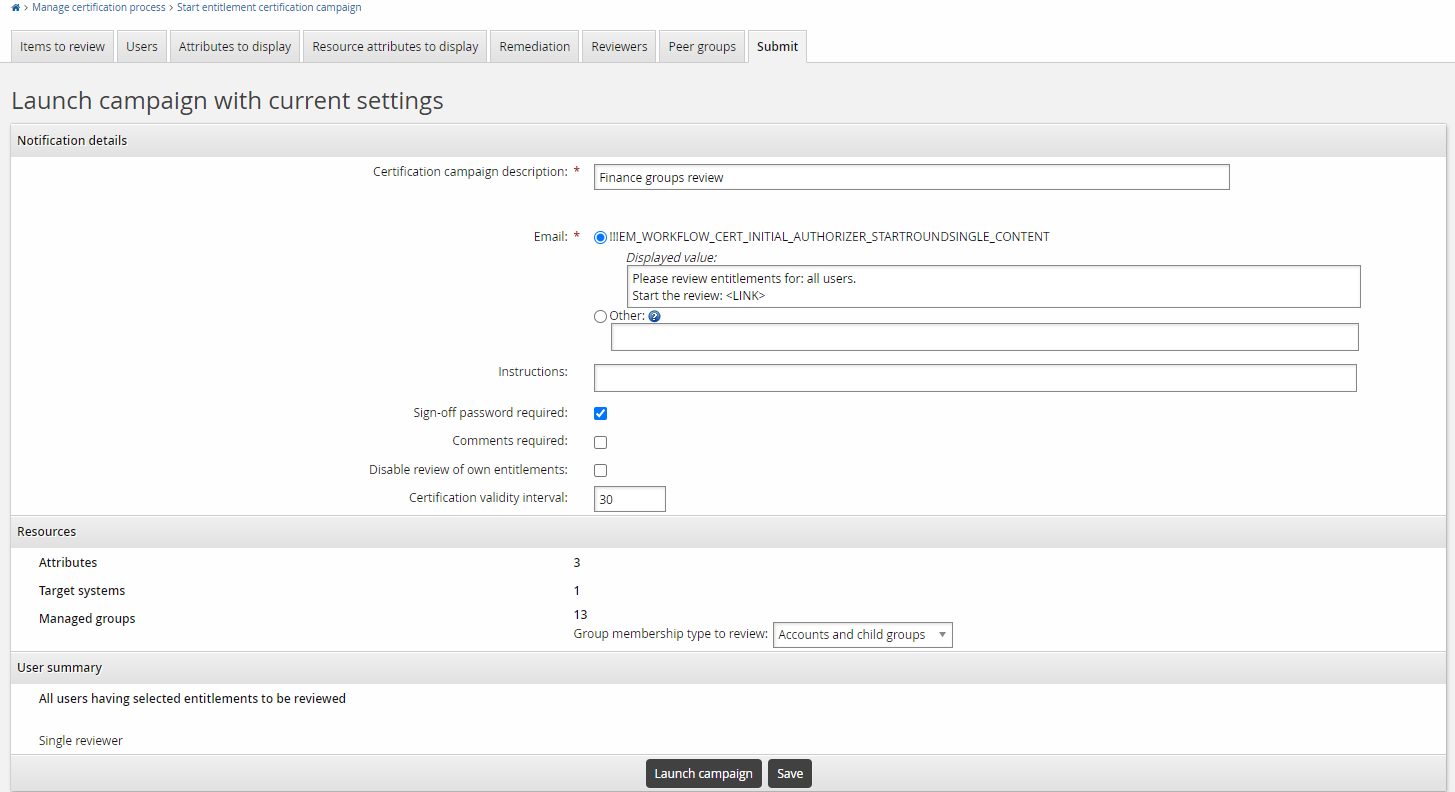
On the Start certification campaign page for an entitlement review:
Click the Submit tab on the configuration page for a new or saved campaign.
In the Notification details section:
Type the Certification campaign description to be displayed to reviewers.
Review the Segment description, if applicable (for certification by entitlement reviewers).
Review the Email.
If you want to edit the notification details for this campaign, select the ”Other” radio button and type the message. Hover your cursor over the question mark to see variables you can include. The values will be inserted in the actual notification message.
Type Instructions for reviewers, if needed.
The instruction pop-up will be displayed when the reviewer first opens the certification app. Thereafter the reviewer can click on the help icon
to view the instructions.Select or deselect the Disable review of own entitlements checkbox to determine whether reviewers can certify or revoke their own entitlements. If enabled, the certify and revoke actions are blocked for their own entitlements. The reviewer can delegate review of these items to another user.
If a reviewer delegates an item to the owner of the item it will be blocked unless the delegation allows further delegations.
The message that is displayed when a delegation is performed to the owner of the item and further delegation is not allowed and self review is disabled is:
With Self review disabled - cannot delegate an item to the owner [Full name of delegate] of that item unless further delegation is permitted.
A reviewer may perform a partial sign off after delegating their items to another reviewer and completing the rest of the items in their segment.
Select or deselect the Sign-off password required checkbox to determine whether reviewers must enter their password to sign off on a campaign.
The default setting is determined by the CERT PROMPT PASSWORD system variable.
If you selected Entitlement authorizers in the Reviewers tab, select the Late binding authorizers checkbox if you want authorizers to be updated when a saved or scheduled campaign is started. This means, for example, if a group's owner has changed since the campaign was set up, the new owner will be uses as authorizer. This option is disabled by default.
Select or deselect the Comments required checkbox to determine whether reviewers must enter comments for all items before sign off on a campaign.
If this option is selected then the reviewer must add a comment to any item that was certified or revoked. If the item was previously certified and is still within the CERT VALIDITY INTERVAL then no comment is required.
This option is intended to be used to provide control at the campaign level whether comments should be enforced. If comments are always mandatory then the system variables CERT REQUIRES COMMENT TO CERTIFY and CERT REQUIRES COMMENT TO REVOKE should be used.
The option will only override the settings of the system variables if it is checked. It will not act to disable the need for comments if the system variables are Enabled.
Review Certification validity interval.
The value is automatically set by the CERT VALIDITY INTERVAL system variable, which by default is set to 30 days.
It allows the certification initiator to specify the number of days until the certification expires.
The value cannot be negative, but it can be 0 which means that the certification is no longer valid directly after sign-off.
Review the Resources to be certified.
You can go back and make changes if necessary; changes made on this page are saved.
If managed groups are being certified, you can select which type of members to review:
Accounts to only review accounts with group membership.
Child groups to only review child groups.
Accounts and child groups to review both.
Child groups can only be certified by single reviewers or entitlement authorizers. If any other certification method is selected, only accounts can be certified and this option will not be available.
Review the User summary section, including the:
Selection method for users to be reviewed
Review method
If the review method is Certification by entitlement authorizers, there is an option to Consolidate reviews for same reviewer. It is selected by default, so that all segments that have the same reviewer will be combined into one segment.
Click:
Save to save the configuration before starting or scheduling a campaign.
Continue to Saving a certification setup .
Schedule to schedule a previously saved configuration.
Launch campaign to start a campaign without saving.
If you selected OrgChart reviewers, schedule OrgChart manager notification emails .
Click Start new campaign.
Submitting configuration reviews
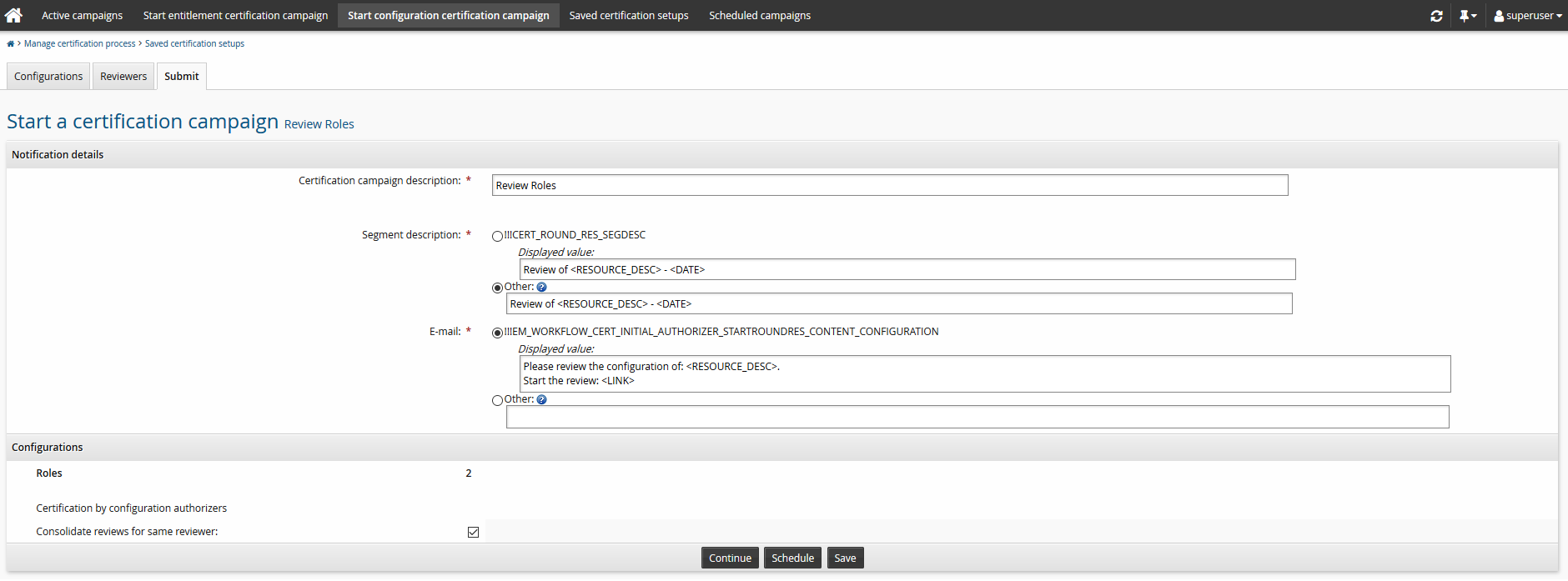
On the Start certification campaign page for a configuration review:
Click the Submit tab on the configuration page for a new or saved campaign.
In the Notification details section:
Type the Certification campaign description to be displayed to reviewers.
Review the Segment description, if applicable (for certification by configuration reviewers).
Review the Email.
If you want to edit the notification details for this campaign, select the ”Other” radio button and type the message. Hover your cursor over the question mark to see variables you can include. The values will be inserted in the actual notification message.
Review the Configurations section, including the:
Configurations to be reviewed
Review method
If the review method is Certification by configuration authorizers, there is an option to Consolidate reviews for same reviewer. It is selected by default, so that all segments that have the same reviewer will be combined into one segment.
Click:
Save to save the configuration before starting or scheduling a campaign.
Continue to Saving a certification setup .
Schedule to schedule a previously saved configuration.
Launch campaign to start a campaign without saving.
Click Start new campaign.
Save a certification setup
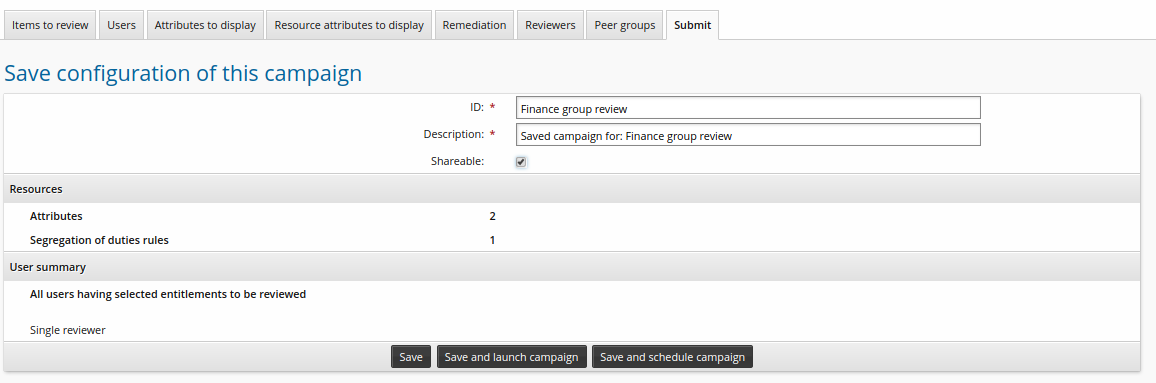
You can save a certification setup once you have reviewed changes and defined notification details . On the page:
If the current setup is based on a previously saved certification setup that you don’t want to overwrite, click Save new...
Type an ID and Description for the setup.
Make the setup Shareable if you want to allow other users to use it.
A shared certification setup can be used by other users but it can not be overwritten.
Only the creator of a shared certification setup can delete it.
Users with the "Initiate entitlement certification campaigns" privilege can use a shared certification setup only if the certification method is single reviewer.
A setup cannot be shared if it uses a saved search.
Click:
Save to take no further action at the moment.
Save and schedule campaign to schedule campaigns to start later.
Save and launch campaign to start a campaign immediately.
If you selected OrgChart reviewers for an entitlement campaign, schedule OrgChart manager notification emails .
Click Start new campaign.
Configuring OrgChart manager notification campaigns
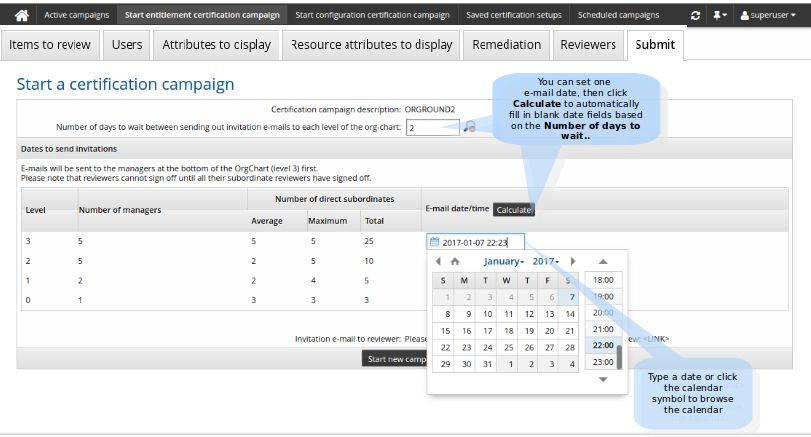
If you chose OrgChart managers, configure the Number of days to wait between sending out invitation emails to each level of the OrgChart before starting a campaign.
Bravura Security Fabric uses notification campaigns to stagger the emails it sends to managers based on their level in the OrgChart . The default interval is determined by the CERT EMAIL INTERVAL.
Click
 to see the notification schedule.
Select a date in at least one date field. To select a date click on the date field and type a date or choose a date with the calendar.
If you have left fields blank, click Calculate to automatically populate other date fields based on the Number of days to wait between sending out invitation emails to each level of the OrgChart.
In the notification list, the level 0 represents the top level manager for the campaign , not necessarily the CEO or top-level manager in your organization.
Schedule a certification campaign
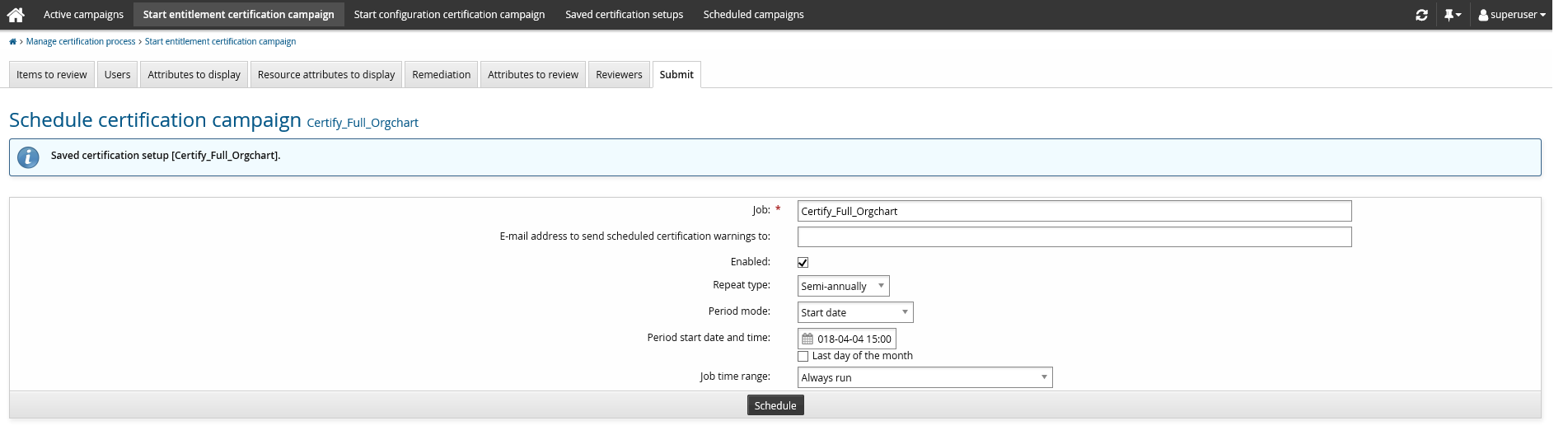
You can schedule certification campaigns once you have reviewed and saved the configuration. To schedule certification campaigns, on the Schedule certification campaign page:
Configure settings as listed in Table 1, “Scheduled certification campaign settings”.
If JavaScript is enabled, options are shown or hidden depending on the Repeat type.
Click Schedule.
In a multi-server environment, a certification campaign can only be scheduled on one server.
Option | Description |
|---|---|
Job ID | Update the ID for this scheduled certification, if necessary. |
Email address to send scheduled certification warnings to | Type an email address to receive notifications of problems with scheduled certifications. If not specified the RECIPIENT EMAIL address is used. |
Enabled | Use this to turn on the scheduled certification. |
Repeat type | Select the frequency of the scheduled job using the drop-down list. Depending on the repeat type, set scheduling options:
|
Period mode | For jobs that are repeated quarterly, semi-annually, and annually, choose either:
|
Date and time to run / Time to run | All scheduled jobs time to run is local to the server that runs the job. Except for jobs that are run once, the default time to run is set by Manage the system > Modules > Options > DEFAULT SCHEDULED TIME. |
Last day of the month | For monthly to annual schedules, use this setting to avoid missed run times. For example, if you schedule a job quarterly, with a start date of August 31, the next run time after August 31 would be November 31, which does not exist. With this setting enabled, the next round would start on the last day of the month, November 30. |
Job time range | Specify if you want your job to always run, to run for a specific length of time, or for a specific number of iterations by selecting one of the following from the drop-down list:
|
Configuration notes
About late binding
If a saved certification setup includes all entitlements or configurations of a type, Bravura Security Fabric includes all entitlements or configurations found when the certification campaign is started, rather than when the setup is saved.
The following example illustrates:
Two roles are listed in the Bravura Security Fabric database.
A product administrator configures a configuration certification round to start the following day, and clicks All to select all roles.
The product administrator saves the certification setup.
A new role is created in the mean time.
When the campaign starts, it includes all three roles currently listed in the database.
If the certification method is by entitlement or configuration authorizers, Bravura Security Fabric tries to find authorizers for newly added entitlements or configurations. If an authorizer is not found then the saved certification setup is rendered invalid. The scheduled job is still executed by the Scheduler Service (psscheduler) (and considered finished) but since the certification setup has become invalid, no certification campaign is initiated.