Authentication chains: Bravura Security Fabric as identity provider
Bravura Security Fabric can act as an IdP for any SAML-compliant application. Bravura Security currently ships out-of-the-box templates for the following service providers:
Microsoft Office 365/Azure.
Bamboo HR
Hitachi Content Platform Anywhere (HCP Anywhere).
YouTrack.
Active Directory Federated Services (ADFS)
Google Applications (Mail, Calendar, etc.).
WebEx.
Salesforce.
As an identity provider, Bravura Security Fabric provides unified third-party authentication for a variety of federation-capable applications using the Bravura Security Fabric login process, reducing the burden of managing multiple app-specific credentials. Once users authenticate they are redirected back to the application along with a cryptographically signed SAML assertion indicating who they are (identity), and what they may access (authorization).
Authentication sequence
The sequence for this externalized authentication is as follows:
A user accesses application at URL A.
URL A (the SP) redirects the user to Bravura Security Fabric at URL B.
The user enters their login ID into Bravura Security Fabric .
Bravura Security Fabric prompts for appropriate credentials. Different users may be asked for different sequences of credentials, based on their group memberships and/or identity attributes.
Bravura Security Fabric generates a SAML 2.0 assertion, indicating who the user is and what they are allowed to access.
The user is redirected back to URL A, with the signed assertion.
Configuration
Configuring Bravura Security Fabric as an identity provider requires the following administrator rights:
"Manage policies" to access the Authentication chains menu item.
"Manage external data store" to access the Manage external data store menu item.
To configure Bravura Security Fabric as an IdP and integrate an SP:
Prepare Bravura Security Fabric as an IdP.
Add a service provider.
If your SP has a pre-configured template, follow the general procedure to add a service provider to the Bravura Security Fabric IdP server . A sample use case is provided for a Salesforce Service Provider .
or
If support for your service provider is not pre-configured in Bravura Security Fabric , follow the procedure to add a service provider that is not pre-configured in Bravura Security Fabric . A sample use case is provided to configure Bravura Security Fabric as an SP and integrate with a Bravura Security Fabric IdP server
Prepare Bravura Security Fabric as an IdP
The Scenario.hid_saml_idp component installs the functionality to allow Bravura Security Fabric to act as an identity provider, enabling it to authenticate end users on behalf of a variety of web applications.
Install Bravura Security Fabric and connector packs.
Log in to the front end as a superuser.
Click Manage the system > Workflow > Email configuration
Set BASE_IDSYNCH_URL to the servername used in the IIS TLS certificate, which is the URL seen by the end users' browsers.
Note
If that URL ever changes, the
idp-metadatafile must be edited to global-replace the old server name with the new one.Click Home
 > Manage components.
Install the
Scenario.hid_saml_idpcomponent.Configure the ”AD” target system that was added by the component:
Update the target system address.
Update credentials.
Test the connection.
An existing Source of Profiles target can be used.
Run auto discovery to import user profiles into the Bravura Security Fabric database.
Verify the rule in table hid_authchain_select:
RuleNumber
=120
Comment
SAML authentication chain
SkipRemaining
MatchType
sessdata
MatchKey
SAML_REQUEST
MatchCondition
set
MatchValue
<null>
Action
flush
ChainId
SAML
Note
Installing this component in stand-alone mode on a new instance will override all default authentication chains, and may prevent non-SAML and console users from logging into Bravura Security Fabric . To avoid this, confirm that the hid_authchain_select table includes a valid chain for users authenticating without a SAML_REQUEST before continuing.
Component deployment
Installing Scenario.hid_saml_idp automatically installs and configures the following:
Notes:
Installing this component will overwrite any target system using the system ID ”AD”. Ensure that your environment is prepared before beginning installation.
Additional configuration is required to:
Set up appropriate login processes into Bravura Security Fabric and;
Establish a trust relationship between each application and Bravura Security Fabric .
This component, alone, does not provide for single sign-on. Users are prompted to sign into Bravura Security Fabric at every application login attempt.
This component externalizes the login process from each configured application to Bravura Security Fabric , but does not alter application logout processes.
Service provider directories
Installing Scenario.hid_saml_idp adds an idp directory inside the instance directory. The idp directory contains the following directories for pre-configured service providers:
adfs
azure
bambooHR
google
hcpa
salesforce
webex
youtrack
Each directory contains a unique SAML XML template named saml-response.xml.
If your service provider is not included, add the service provider that is not pre-configured in Bravura Security Fabric .
The SAML IdP (from version 11.0.0 upwards) is compatible only with version 39.1.1 and higher of the Webex Meetings app. The browser version is still usable with IdP authentication.
Fedidp_assert.py
This plugin is installed by the SAML component framework to the plugin directory, and is responsible for generating the SAML assertion for authenticated users. This plugin is also responsible for generating the single sign-on session data, in addition to creating and updating the browser cookie to which the session is associated.
fedidp-util.exe
This utility is installed by the SAML component framework to the util directory. Fedidp-util is used during installation to generate the self-signed PFX certificate used to securely sign SAML assertions, and the IdP metadata files, which are used to report Bravura Security Fabric ’s IdP capabilities to service providers that require it.
When installing through the component, this utility generates the following files:
saml.pfx, used to sign SAML assertions, and installed to plugin.public.cer, the public certificate file that can be provided to end users’ workstations to add the Bravura Security Fabric instance as a trusted authority. This file is installed to the <instance> \ idp \ directory.Idp-metadata, this file stores information about the instance’s capabilities as an identity provider. This file can be sent to the administrators of SPs and allows for the import of IdP metadata to help configure the SP to connect to Bravura Security Fabric . This file is installed to the <instance> \ idp \ directory.
Note
If the value of BASE_IDSYNCH_URL is changed, replace the old server name with the new server name in idp-metadata.
Read more about fedidp-util usage .
Authentication chains
Caution
Installing the SAML component will override the DEFAULT_LOGIN and HELPDESK_LOGIN authentication chains, and can render your Bravura Security Fabric instance inaccessible. Following installation of this module, ensure that DBE tables hid_authchain_select and sp_access are configured to enable a valid authentication method for both regular and federated logins. Bravura Security recommends using the authcfg program to export authentication chain settings before modifying the default configuration.
The default USER_IDENTIFICATION authentication chain is configured to include the fedidp_ident module by default for any new instance. This module captures and parses SAML requests sent by an SP. If the SAML request specifies a valid user profile in the ”subject” parameter, then this module will proceed past the user identification step as though the user had already provided their profile ID.
Fedidp_ident must be the first module called for any authentication chain that will handle SAML authentication, or the initial SAML request will not be captured.
When single sign-on authentication is enabled, fedidp_ident is responsible for reading and validating the web browser cookie used to associate SAML requests to an existing SSO session. By default, an SSO session is terminated when the user logs out of Bravura Security Fabric , however service providers that support single log-out can pass the SAMLLogout=1 GET parameter to this module in order to terminate the user’s current SSO session.
SAML
The custom authentication chain SAML is called when users provide a SAML request parameter as part of an SP-initiated login. This authentication chain is configured to call the following modules:
Fedidp_csfederated login chain selector. This module leverages the sp_authchain external database table in order to determine which authentication chains a federated login will use. By default, this chain directs users to the REGUSER chain.This plugin makes use of the Allow plugin to skip chain selection setting. When enabled,
Fedidp_cswill skip chain selection for users with an active SSO session who already meet authentication requirements for the target SP, authenticating these users without requiring them to re-input their credentials. Users without an active SSO session or those who have not met all the authentication criteria will be forced to complete remaining chains. Users lacking authorization to access the target SP, or login attempts to SPs that are not enabled or available will have their requests denied.The
Fedidp_assertmodule is the last step in SAML authentication, and uses a pre-defined PFX certificate to sign the assertion generated by thefedidp_responseplugin that will be sent to the SP.Single sign-on (SSO) session behavior is enabled or disabled in this module via the Single sign-on mode setting, which configures how SSO session data is tracked:
Enabled (default): An SSO session is always created or updated when a user completes federated login.
Disabled: SSO session information is never created or updated.
Prompt: Upon completing federated login, users are asked whether SSO session data should be retained before they are redirected to the SP.
The
Fedidp_assertmodule issues or updates a browser cookie for the user whenever SSO session information would be updated. This cookie is read by theFedidp_identmodule when the user attempts authentication to other SPs during the duration of their session.This module is also responsible for redirecting successfully authenticated end users to their SP.
REGUSER
Custom authentication chain REGUSER is used by several Bravura Security Fabric component installations, and is responsible for the actual authentication of SAML users. By default, this module will authenticate federated logins using the password / security questions modules.
External database tables
hid_authchain_select
This table is used by several Bravura Security Fabric component installations, and overrides the normal authentication chain selection process. With the SAML configuration installed, this table directs any user that has provided a SAML_REQUEST POST parameter to the SAML authentication chain.
After installing the Scenario.hid_saml_idp component the following rule should exist:
RuleNumber | =120 |
Comment | SAML authentication chain |
Proceed | False |
MatchType | sessdata |
MatchKey | SAML_REQUEST |
MatchCondition | set |
MatchValue | <null> |
Action | flush |
ChainId | SAML |
Installing this component in stand-alone mode on a new instance will override all default authentication chains, and may prevent non-SAML and console users from logging into Bravura Security Fabric . To avoid this, confirm that the hid_authchain_select table includes a valid chain for users authenticating without a SAML_REQUEST before continuing.
sp_mapping
This table associates each SP issuer with an sp_folder value, and sets parameters used in generating a SAML assertion, if they were not defined by the request.
Option | Description |
|---|---|
issuer | (Required) This parameter is passed along side the SP’s initial SAML request, and defines which SP the request came from. |
sp_folder | (Required) The sp_folder value refers to an actual folder installed to the <Instance>\idp directory of your instance server, and contains both the saml-response.xml template used to generate SAML responses for that SP, as well as the icon.png file acting as this SP’s icon image for IdP-initiated authentication |
acs_url | The URL to which successfully authenticated users should be redirected, if it differs from the issuer. In an SP-initiated authentication, the acs_url provided by the SP will take precedence. In order to support IdP-initiated authentication, this value must be defined |
idp_url | The URL of the identity provider service. IdP service is provided by Front-end (PSF) by default. |
enabled | (Required) Enable or disable SAML requests from the specified SP. By default, all SPs are disabled, and at least one must be enabled in order to perform federated authentication. |
idp_initiated | (Required) Configure whether the application can natively support IdP-initiated SSO. If set to 0, the launchpad will simulate it via SP Initiated SSO. |
disp_name | The user-friendly label for this service provider that will be displayed to users on the application launchpad page. By default, the name of the sp_folder is used. |
default_pin | Configure whether the launchpad button for this SP should be pinned to Front-end (PSF) by default for users that have access to it. |
relay_state | Set a default relayState parameter to be passed to the SP alongside the SAML assertion. Some SPs require this parameter for authentication. During SP-initiated authentication, the relayState provided by the service provider takes precedence |
sig_logic | (Required) This option configures the signing of a SAML response or SAML assertion to ensure message integrity when a response/assertion is delivered to a Relying Party. |
sp_access
This table defines which user classes are given access to federated login for a particular SP. This table acts as a subtractive filter, where access is granted to all user classes that are not explicitly denied here.
Option | Description |
|---|---|
sp_folder | (Required) The sp_folder used for this SP’s issuer. This should be the same value as defined in sp_mapping. |
userclass | (Required) The user class ID to configure access controls for. |
deny_acl | (Required) Define whether or not the selected user class is prohibited from accessing the specified SP through federated login. |
sp_authchain
This table defines which authentication chains should be used when logging into a particular SP, and is used by the fedidp_cs authentication chain module.
Option | Description |
|---|---|
sp_folder | (Required) The sp_folder used for this SP’s issuer. This should be the same value as defined in sp_mapping. This table can also direct users who are not making SAML requests, by setting this value to "__non_saml__". |
userclass | The user class that authenticating users must belong to in order to use the specified authentication chain. If the user class is unspecified, then any authenticating user who does not match another rule in this table is able to use the specified authentication chain. |
authchain | The authentication chain to be used for this issuer. If no authentication chain is defined for an issuer, then users authenticating to that SP are allowed to use any of the authentication chains defined on the system. If an SP does have values defined here, then only those authentication chains listed here will be used for authentication. |
Target system
Installing the Scenario.hid_saml_idp component automatically adds an Active Directory target system with the system ID of "AD". The target system is configured to be a source of profiles. When users login, they will validated against their Active Directory credentials.
Add a service provider to the Bravura Security Fabric IdP
Bravura Security currently ships out-of-the-box templates for the following service providers:
Microsoft Office 365/Azure.
Bamboo HR
Hitachi Content Platform Anywhere (HCP Anywhere).
YouTrack.
Active Directory Federated Services (ADFS)
Google Applications (Mail, Calendar, etc.).
WebEx.
Salesforce.
For other SAML-compliant SPs, follow the procedure to add a service provider that is not pre-configured in Bravura Security Fabric .
Service provider with pre-configured template
If your SP has a pre configured template follow this process to integrate the SP with Bravura Security Fabric IdP.
Follow the vendor's steps to prepare the service provider. See Configure a Salesforce service provider for an example.
Add the service provider to the Bravura Security Fabric identity provider
As superuser on the IdP server navigate to Manage external data store > sp_mapping.
Enable the sp_mapping table issuer that corresponds to your service provider:
Rows exist for the following SPs: bamboohr, google, webex, hcpa, adfs, youtrack, salesforce and azure.
All rows have a value of 0 in the enabled column, by default. Change the value in the row for your service provider to 1.
Ensure the following field values match the values used on the service provider. In Salesforce these values can be found in the SAML Single Sign on settings.
issuer In Salesforce this is called the Entity ID
sp_folder contains
__non_saml__, and <sp folder name on the Bravura Security Fabric IdP server>acs_url In Salesforce this is the Login URL.
idp_url In Salesforce this is the issuer entry .
Click Update.
Optional: As superuser on the IdP server navigate to Manage external data store > sp_access.
Edit the following entries if you want to restrict access to the service provider to a more specific set of users:
sp_folder: contains __non_saml__, and <sp folder name>
userclass: _ALLUSERS_
deny_acl: 0
Click Update.
Optional: As superuser on the IdP server navigate to Manage external data store > sp_authchain.
Edit the following entries if you have different authentication requirements:
sp_folder: contains __non_saml__, and <sp folder name>
authchain: column values are set to REGUSER
Click Update.
Test the login process
The SP should now be set up to authenticate with Bravura Security Fabric as IdP. To test this setup:
Open the SP instance login page.
Submit the username of one of the test accounts that is a member of SAML_USERS.
You should be redirected to IdP's login page.
Complete the authentication process, using valid credentials.
Login uses the SAML authentication chain.
Upon successful authentication, the user’s web browser is redirected back to the service provider, where they are logged in automatically.
Example: Configure a Salesforce service provider
If your organization makes use of the Salesforce service, it can be configured to allow end users to login via Bravura Security Fabric .
Prepare Salesforce as service provider
Log into Salesforce as an administrator.
Add SAML Single Sign-On Settings for Bravura Security Fabric :
Navigate to the Single Sign-On Settings configuration page (Settings > Identity > Single Sign-On Settings).
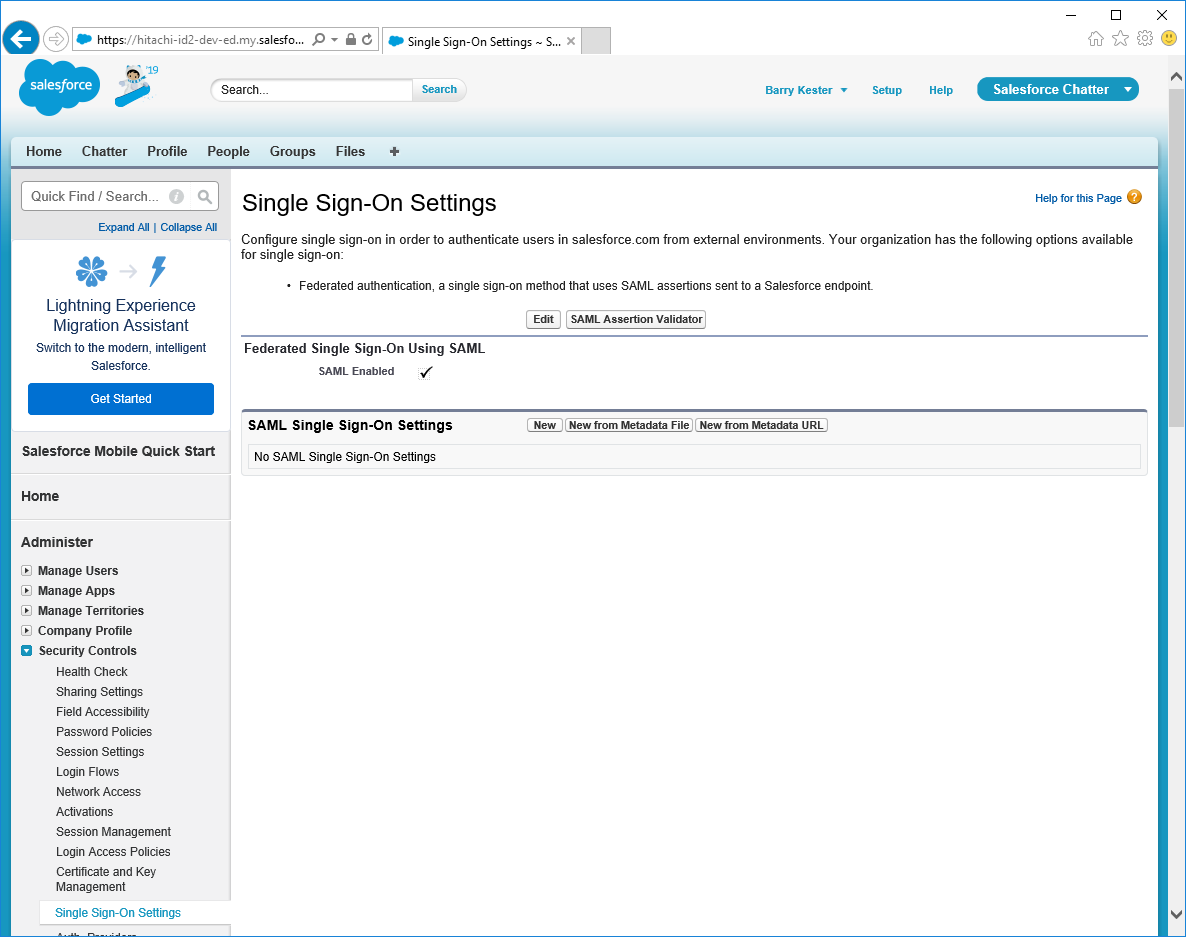
Click New from Metadata file.
Browse to the <instance>\idp folder on your Bravura Security Fabric instance to find the idp-metadata.xml file.
Select idp-metadata.xml and click Create.
Configure SAML Single Sign-on Settings in Salesforce:
Choose a Name for the IdP configuration.
This will appear on the Salesforce Login page.
You can also update the API Name, but Salesforce should automatically correct it upon import.
Note the value of the Entity ID.
This will be used by Salesforce to identify itself to Bravura Security Fabric .
If required, update the Issuer value with the hostname of the Bravura Security server.
This is populated by default with https://<Bravura Security Host>/instance/sso/
Select the SAML Identity Type that you expect Bravura Security Fabric to send to Salesforce in order to uniquely identify users when they log in.
If unsure leave this as the Salesforce username.
Select the SAML Identity Location.
By default this should be the NameIdentifier element of the Subject.
Ensure that HTTP Redirect is selected for Service Provider Initiated Binding.
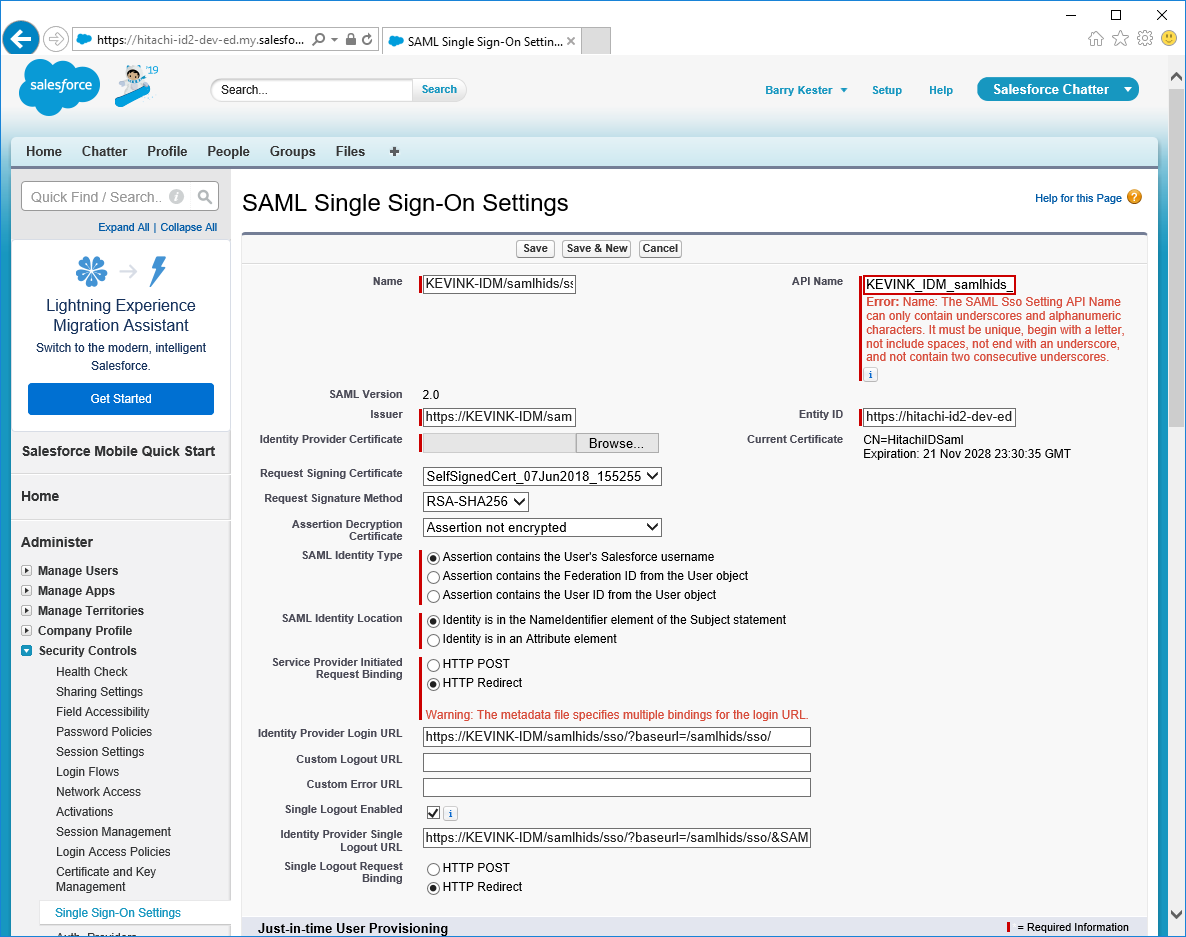
Click Save.
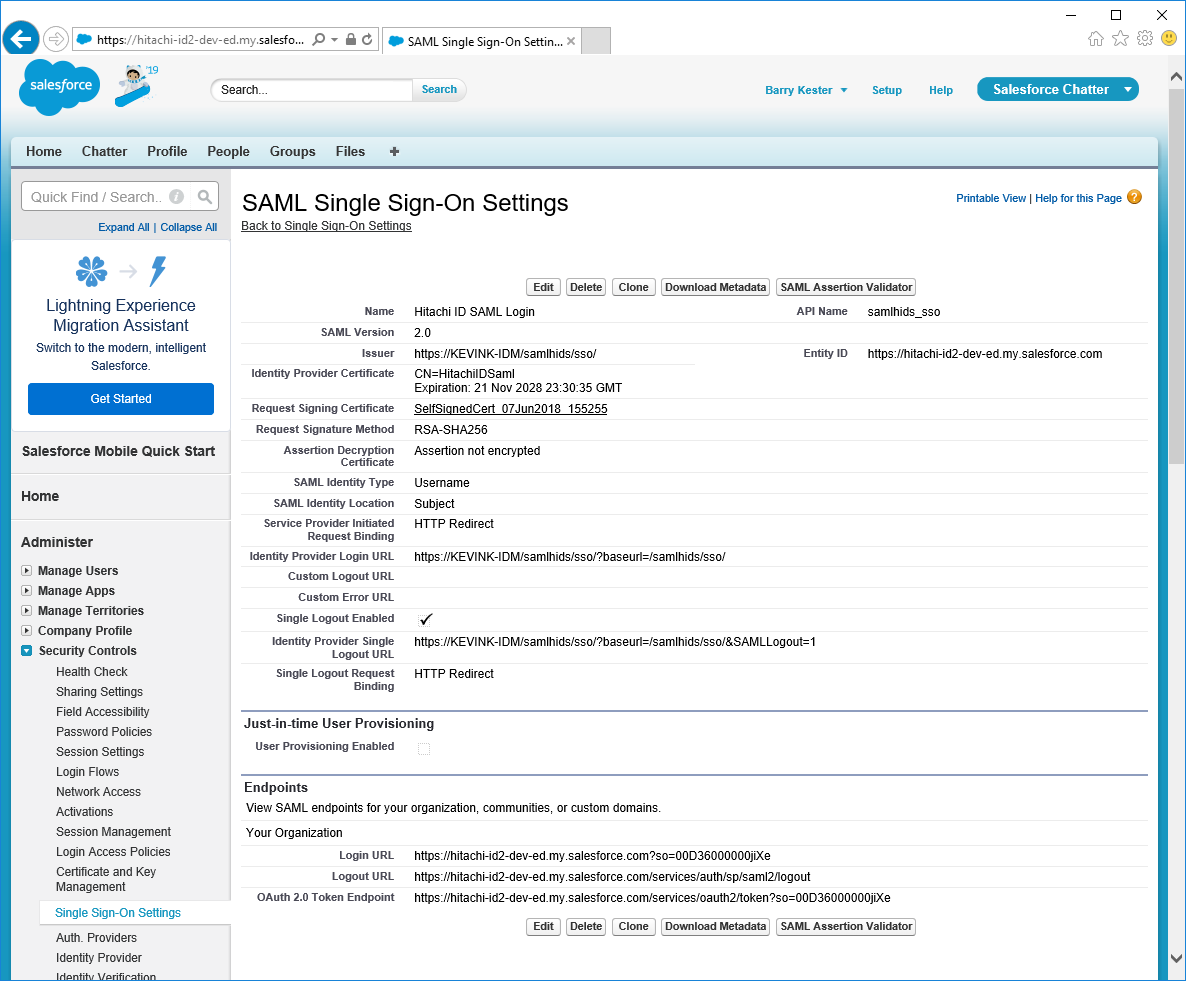
Once saved successfully, make note of the Login URL in the Endpoints section near the bottom.
This is used to tell Bravura Security where to send the SAML assertion.
Enable SAML for your Salesforce domain:
Within Salesforce, navigate to Settings > Company Settings > Domains.
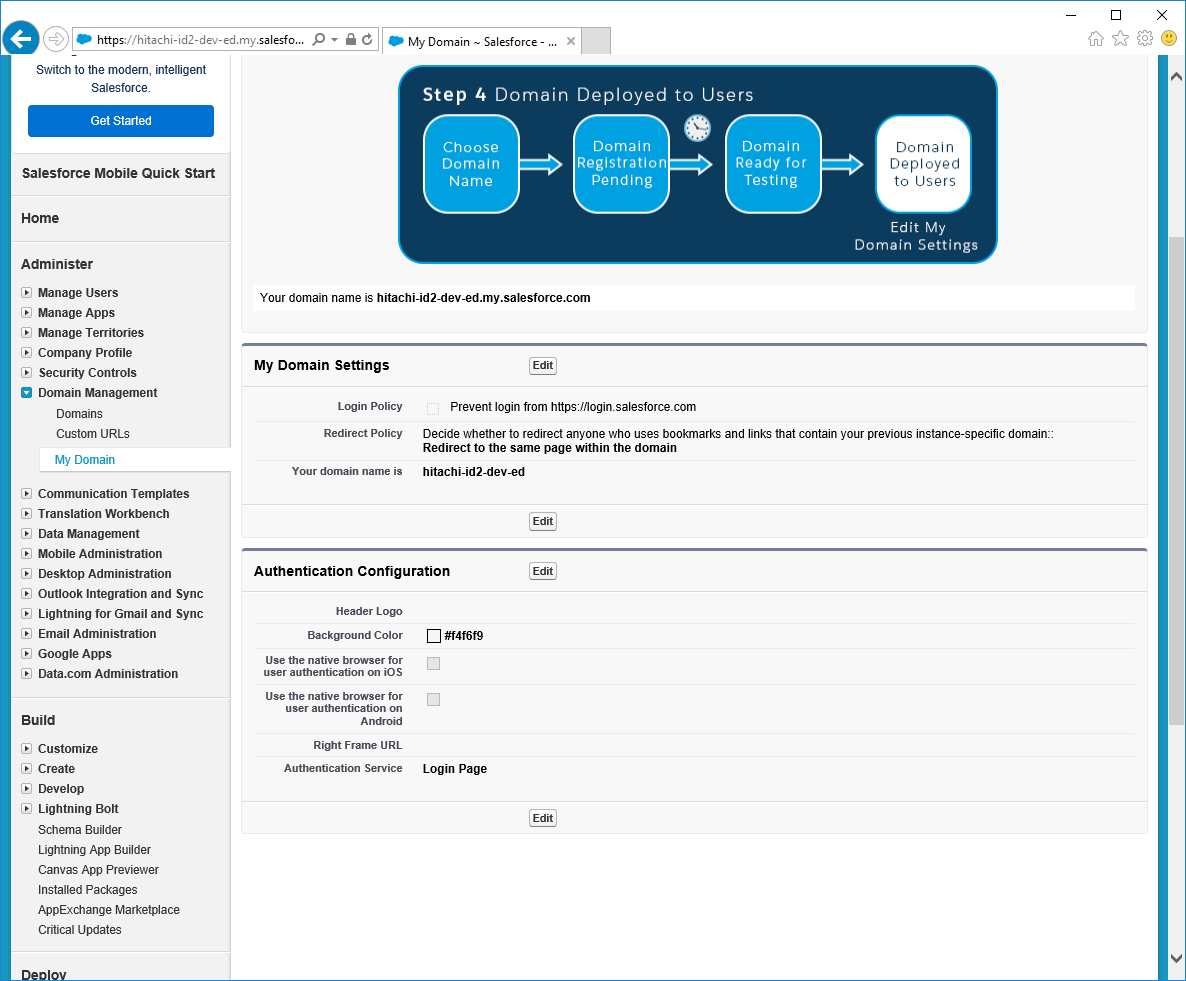
Select the domain you want to enable SAML for.
In the Authentication Configuration section, click Edit.
Enable the SAML configuration option created above.
If you want to continue to allow direct user ID and password login to Salesforce then leave Login Page checked.
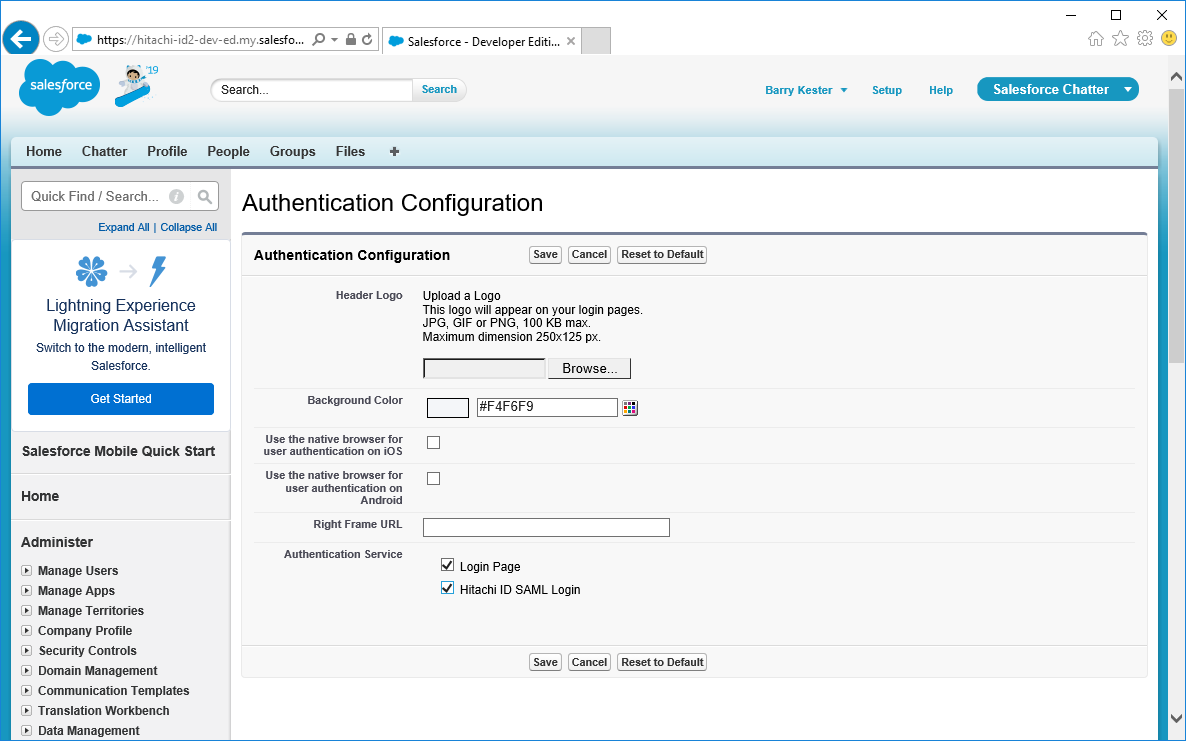
Click Save.
Add the service provider to the Bravura Security Fabric identity provider
As superuser on the IdP server navigate to Manage external data store > sp_mapping.
Enable the sp_mapping table issuer that corresponds to your service provider:
Rows exist for the following SPs: bamboohr, google, webex, hcpa, adfs, youtrack, salesforce and azure.
All rows have a value of 0 in the enabled column, by default. Change the value in the row for your service provider to 1.
Ensure the following field values match the values used on the service provider. In Salesforce these values can be found in the SAML Single Sign on settings.
issuer In Salesforce this is called the Entity ID
sp_folder contains
__non_saml__, and <sp folder name on the Bravura Security Fabric IdP server>acs_url In Salesforce this is the Login URL.
idp_url In Salesforce this is the issuer entry .
Click Update.
Optional: As superuser on the IdP server navigate to Manage external data store > sp_access.
Edit the following entries if you want to restrict access to the service provider to a more specific set of users:
sp_folder: contains __non_saml__, and <sp folder name>
userclass: _ALLUSERS_
deny_acl: 0
Click Update.
Optional: As superuser on the IdP server navigate to Manage external data store > sp_authchain.
Edit the following entries if you have different authentication requirements:
sp_folder: contains __non_saml__, and <sp folder name>
authchain: column values are set to REGUSER
Click Update.
Test the login process
Log into Salesforce via Bravura Security Fabric :
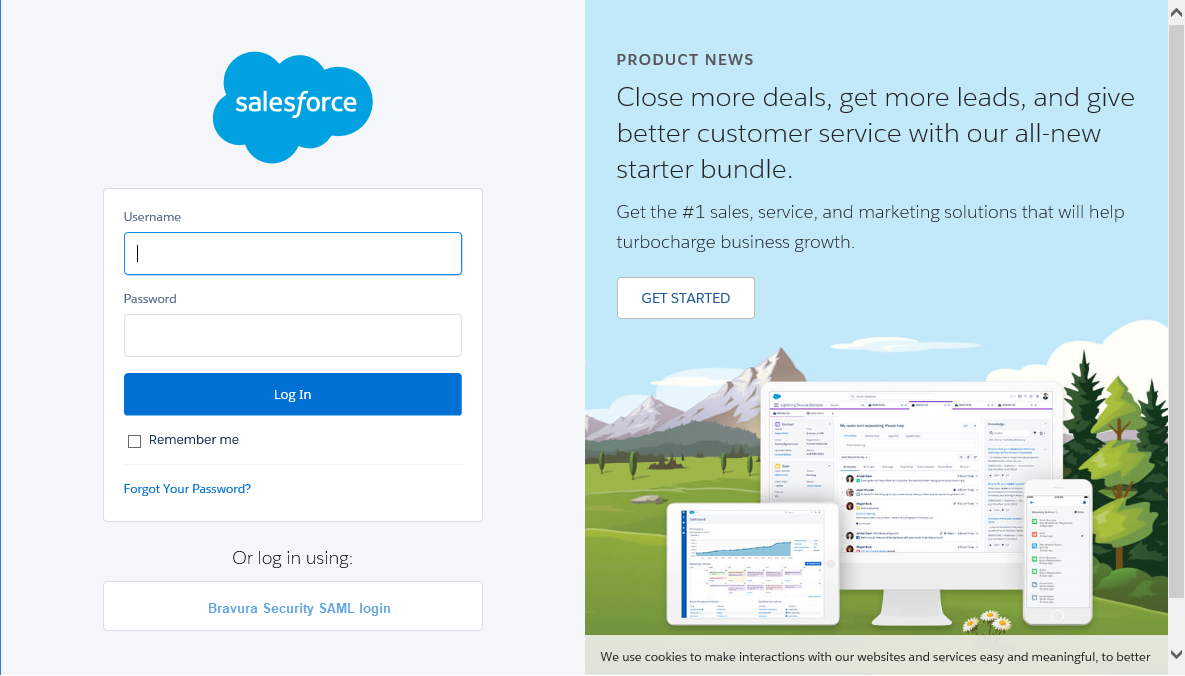
On the Salesforce login page, select the new option to login using the SAML IdP.
You will be redirected to Bravura Security Fabric .
Authenticate into Bravura Security Fabric as an end user that wants access to Salesforce.
After successfully authenticating with Bravura Security Fabric you will be redirected back to Salesforce and be logged in.
Note
By default the Salesforce configuration in Bravura Security Fabric assumes that the EMAIL profile attribute is what should be sent to Salesforce as the Name Identifier as the subject of the assertion. If this is not the case and a different mapping is needed, you can edit this in the saml-response.xml file in the following folder: C:\Program Files\Bravura Security\Bravura Security Fabric\\samlhids\idp\salesforce\
Service provider with no pre-configured template in Bravura Security Fabric
If support for your service provider is not included in Bravura Security Fabric by default, it can be added manually.
Create a new folder to hold the service provider’s SAML assertion template in the <instance>\idp \<new sp folder> directory.
You can give this folder any name. Take note of this folder name. It will be added to the sp_access table in a later step.
Copy the XML template file from an existing sp_folder over to your new service provider folder.
Edit the new
saml-response.xmlto ensure the assertion includes all requirements for the service provider you are configuring.Follow the vendor's steps to prepare the service provider. You will be prompted for the XML file created in step 3 during the setup.
As superuser on the IdP server navigate to Manage external data store > sp_mapping.
Add a new entry with values:
issuer: "%SP server's BASE IDSYNCH URL%/SP/"
sp_folder: <sp folder name on the Bravura Security Fabric IdP server>
acs_url: The endpoint login url
idp_url: This must exactly match the "identity provider issuer" value. https://<Bravura Security Host>/instance/sso/ is most commonly used.
enabled: 1
idp_initiated: 1
disp_name: "<display name>" This value will be displayed on the end user launchpad and in messages when redirecting the users from the IdP to the SP.
default_pin: 1
relay_state: < value provided by the SP vendor > . The RelayState will be provided to the SP during an IdP initiated flow if required.
sig_loc: Assert
Click Update
As superuser on the IdP server navigate to Manage external data store > sp_access.
Add a new entry with the values:
sp_folder: contains __non_saml__, and <sp folder name>
userclass: _ALLUSERS_- Optional: Add a different user class to restrict access to the service provider to a more specific set of users:
deny_acl: 0
Click Update.
As superuser on the IdP server navigate to Manage external data store > sp_authchain.
Add the following entries:
sp_folder: contains __non_saml__, and <sp folder name>
authchain: column values are set to REGUSER Optional: This can be edited to use a custom authentication flow.
Click Update.
The SP should now be set up to authenticate with Bravura Security Fabric as IdP. To test this setup:
Open the SP instance login page.
Submit the username of one of the test accounts that is a member of SAML_USERS.
You should be redirected to IdP's login page.
Complete the authentication process, using valid credentials.
Login uses the SAML authentication chain.
Upon successful authentication, the user’s web browser is redirected back to the service provider, where they are logged in automatically.
Example: Configure Bravura Security Fabric as an SP and integrate with a Bravura Security Fabric IdP server
Bravura Security Fabric can be configured to operate as a service provider and as an identity provider, providing a federated login solution.
As an identity provider, Bravura Security Fabric provides unified third-party authentication for a variety of federation-capable applications using the Bravura Security Fabric login process, reducing the burden of managing multiple app-specific credentials. Once users authenticate they are redirected back to the application along with a cryptographically signed SAML assertion indicating who they are (identity), and what they may access (authorization).
The following example describes how to configure Bravura Security Fabric as a SP and how integrate with a Bravura Security Fabric IdP.
Follow instructions to install Scenario.hid_saml_idp component to prepare Bravura Security Fabric as an IdP .
Navigate to the IdP instance's \install\idp directory and copy idp-metadata.xml to a location where it can be accessed by the Bravura Security Fabric IdP server in order to finish configuring the authentication chain module.
Create a new folder to hold the service provider’s SAML assertion template in the <instance>\idp\ directory; for example <instance>\idp\<new sp folder>.
You can give this folder any name. Take note of this folder name. It will be added to the sp_access table in a later step.
Copy the XML template file from an existing sp_folder over to your new service provider folder.
Edit the new
saml-response.xmlto ensure the assertion includes all requirements for the service provider you are configuring.
Follow instructions to install the Scenario.hid_authchain_saml_sp component to prepare Bravura Security Fabric as an SP .
Follow instructions to configure the Bravura Security Fabric SP to authenticate with the Bravura Security Fabric IdP.
As superuser on the IdP server navigate to Manage external data store > sp_mapping.
Add a new entry with values:
issuer: "%SP server's BASE IDSYNCH URL%/SP/"
sp_folder: <sp folder name on the Bravura Security Fabric IdP server>
acs_url: The endpoint login url
idp_url: This must exactly match the "identity provider issuer" value. https://<Bravura Security Host>/instance/sso/ is most commonly used.
enabled: 1
idp_initiated: 1
disp_name: "<display name>" This value will be displayed on the end user launchpad and in messages when redirecting the users from the IdP to the SP.
default_pin: 1
relay_state: < value provided by the SP vendor > . The RelayState will be provided to the SP during an IdP initiated flow if required.
sig_loc: Assert
Click Update
As superuser on the IdP server navigate to Manage external data store > sp_access.
Add a new entry with the values:
sp_folder: contains __non_saml__, and <sp folder name>
userclass: _ALLUSERS_-
deny_acl: 0
Click Update.
As superuser on the IdP server navigate to Manage external data store > sp_authchain.
Add the following entries:
sp_folder: contains __non_saml__, and <sp folder name>
authchain: column values are set to REGUSER
Click Update.
Verify the rule in table hid_authchain_select:
RuleNumber
=120
Comment
SAML authentication chain
Proceed
False
MatchType
sessdata
MatchKey
SAML_REQUEST
MatchCondition
set
MatchValue
<null>
Action
flush
ChainId
SAML
Installing this component in stand-alone mode on a new instance will override all default authentication chains, and may prevent non-SAML and console users from logging into Bravura Security Fabric . To avoid this, confirm that the hid_authchain_select table includes a valid chain for users authenticating without a SAML_REQUEST before continuing.
Two Bravura Security Fabric instances should now be configured to authenticate via SAML. To test this setup:
Open the SP instance login page.
Submit the username of one of the test accounts that is a member of SAML_USERS.
You should be redirected to IdP's login page.
Complete the authentication process, using valid credentials.
Login uses the SAML authentication chain.
Upon successful authentication, the user’s web browser is redirected back to the service provider, where they are logged in automatically.
See also
Authentication chains: Bravura Security Fabric as service provider provides more detail on Scenario.hid_saml_idp component deployment and configuration.
Single sign-on support and launchpad
When acting as an IdP, Bravura Security Fabric is able to support single sign-on (SSO) authentication across multiple service providers. SSO authentication enables a user to log into multiple SPs without having to re-enter their credentials, if they already meet the authentication criteria for these services. By reducing the number of credential inputs required from users, single sign-on authentication reduces password fatigue while mitigating the risks of transmitting credential information to third-party services.
An application launch-pad and single sign-on policy are included and expand on the included IdP to maximize user login convenience. When this is enabled, users sign into Bravura Security Fabric and then click an icon to sign into other applications, where sessions are initiated in a new browser tab.
Single sign-on
Single sign-on support is enabled by default when Scenario.hid_saml_idp is first installed. When a user completes a federated login through SAML their SSO session information is recorded in the IDP_SESSION and IDP_SESSINFO database tables, tracking session validity as well as the authentication chains the user has successfully completed. A user is granted immediate access to an SP if their SSO session already meets the new SP’s authentication chain requirements.
Available configuration options for single sign-on include:
When configuring the
fedidp-assertauthentication chain module, set Single sign-on mode to one of ”Enable”, ”Disable”, or ”Prompt” to configure when SSO session information should be stored following successful log-in.When configuring the
fedidp-cschain selection module, modify Allow plugin to skip chain selection to enable or disable whether the plugin can skip authentication chain steps for already-authenticated users.
Single sign-on launchpad
The SAML component provides a graphical interface from which users can launch commonly used services. When the SAML component is installed, a new Customize applications link appears on Front-end for users with access to at least one SP. Clicking this link will direct users to the Application Launchpad, which displays a set of graphical buttons for each service provider available to the user. Clicking these buttons will launch the selected SP in a new browser tab, and the user will be automatically authenticated to that service.

Clicking the circular icon beside any of these service provider buttons will pin it to Front-end , allowing the user to launch the selected service directly from their home page.
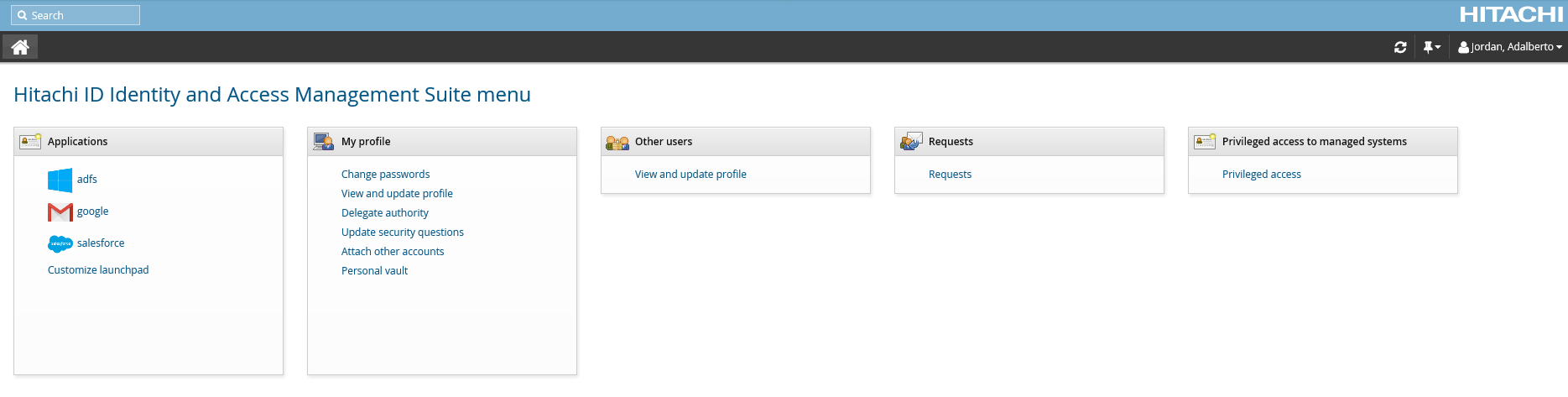
The Application launchpad will only display the button for a service provider if it is enabled, and the user is authorized to connect to it. Availability of service providers can be configured in the sp_mapping and sp_access tables in Manage external data store (DBE) module. Each service provider on the launchpad is identified by an icon image. This icon is an 80x80px PNG-format image named icon.png stored in the sp_folder directory for that service provider, and is used automatically for that SP if the image is available.