Website disclosure configurations
Users need to access potentially hundreds and thousands of websites from any browser without having to provide administrator credentials. When accessing these websites, session monitoring, via secure browser disclosure, can enhance the organization’s ability to audit access.
The following sections show you how to configure website disclosure configurations. Once the website disclosure configurations are created, managed accounts and vault accounts can be configured to use one or both of the following access disclosure methods:
Web app privileged sign-on This disclosure plugin launches a new web page tab within the same browser and provides automatic login to the website without need to enter administrator credentials for the managed account. This is currently supported on Chrome only. This disclosure method does not support session monitoring.
Secure browser The secure browser method allows users to automatically login to a website as a managed account without the need to enter administrator credentials, and includes recording screenshots using session monitor.
Only the Screenshots collection module is available in session monitor for secure browser.
Terminology
Web application administrator | User who has access to web application PDRs (pre-defined requests). This person needs to be a member of the PAM_TEAM_ADMINS user class, and needs to be configured by a product administrator. |
Secure browser disclosure plugin | A disclosure plugin, which provides a method that brokers access to websites using a dedicated browser window with added session monitoring. |
Web app privileged sign-on disclosure plugin | A disclosure plugin, which provides a method that brokers access to websites launched through a Chrome browser tab. |
Bravura Security browser extension | An extension that allows the web app privileged sign-on disclosure to broker access to the configured website. |
Secure browser client | Bravura Security Secure Browser trusted app that brokers access to a configured website with added session recording. |
Website disclosure configuration | Disclosure configuration created in Bravura Security Fabric using JSON configuration files to provide single sign-on access to a website. |
Requirements
Web app privileged sign-on disclosure method:
Google Chrome or Microsoft Edge (Chromium): Bravura Security browser extension 1.1.4 or newer needs to be installed. This extension can be obtained from the Chrome Web Store. Alternatively, this will be prompted upon initial launch of the web app disclosure.
Secure browser disclosure method:
Deployment
To allow the secure browser or web app privileged sign-on method to be used, install the following components in addition to the Bravura Privilege Pattern configuration:
Scenario.pam_webapp_management
Scenario.pam_webapp_social (optional)
This optional component includes website disclosure configurations for GMail, Facebook, and Twitter.
Scenario.pam_webapp_cloud_service (optional)
This optional component includes website disclosure configurations for Microsoft Azure and AWS IAM/root accounts.
Scenario.pam_webapp_cloud_computing (optional)
This optional component includes a website disclosure configuration for ServiceNow accounts.
For information about converting existing browser driver (pswxdom) configuration to JSON format that can be used for website disclosure configurations see pswxdom2webapp .
You can manually create a configuration file (JSON) if the website you want to access is not available with Bravura Security Fabric
The configuration file for the web app privileged sign-on disclosure requires a JSON file with the following structure:
{
    "info": {
        "url": "https://webpage/"
        },
    "username": {
        "order": 1,
        "type": "CSS",
        "value": "input[name='session[username_or_email]']",
        "input_value": "%username%",
        "keypress_event": true,
        "click": false,
        "settle_time_before": 5,
        "settle_time_after": 0,
      "stop_on_fail": false
    },
    "password": {
        "order": 2,
        "type": "CSS",
        "value": "input[name='session[password]']",
        "input_value": "%password%" ,
        "keypress_event": true,
        "click": false,
        "settle_time_before": 0,
        "settle_time_after": 0,
        "stop_on_fail": false
    },
    "submit": {
        "order": 3,
        "type": "CSS",
        "value": "[role='button'][type='submit']",
        "input_value": "" ,
        "keypress_event": false,
        "click": true,
        "settle_time_before": 0,
        "settle_time_after": 0,
        "stop_on_fail": false
    }
}
Where:
"Info"["url"]is the url the web app will open the webpage on."username","password ", and"submit"action keys with a structure which determines how the browser will interact with the webpage.You can have as many action keys as needed to interact with the webpage tab
"order"order number the browser extension will act on."type"the search method the browser extension will use to find an element that matches "value" on the webpage. The supported types are:"XPATH": find an element using XPATH that matches the "value"
"CSS": find an element using CSS that matches the "value"
"ID": find an element with "id" that matches the "value"
"NAME": find the first element with "name" that matches the "value"
"CLASS": find the first element with the class that matches the "value"
"value"browser extension will use to look the webpage by "type"."input_value"the value that will be injected into the element when"click"isfalse. Use the substitution variables%username%and%password%to inject the managed account credentials. This value is ignored when"click"istrue."keypress_event"a flag that is required, but not yet used."click"a flag that determines the action the browser extension performs on the element. When set totrue, the extension clicks the element but does not inject any value — use this for buttons, links, or other elements that need to be clicked. When set tofalse, the extension injects the"input_value"into the element — use this for input fields such as username and password. These two behaviors are mutually exclusive."settle_time_before"the time in seconds the browser extension waits before accessing this element."settle_time_after"the time in seconds the browser extension waits after accessing this element."stop_on_fail"a flag that stops the continued execution if the browser extension fails to find the element set by "value".
{
    "info": {
        "url": "https://twitter.com/i/flow/login"
    },
    "username": {
        "order": 1,
        "type": "XPATH",
        "value": "//span[contains(text(),'email')]/ancestor::label//*/input",
        "input_value": "%username%",
        "keypress_event": true,
        "click": false,
        "settle_time_before": 5,
        "settle_time_after": 0,
        "stop_on_fail": false
    },
    "next": {
        "order": 2,
        "type": "XPATH",
        "value": "//div[@role='button']//*/span[text()='Next']",
        "input_value": "",
        "keypress_event": false,
        "click": true,
        "settle_time_before": 5,
        "settle_time_after": 0,
        "stop_on_fail": false
    },
    "password": {
        "order": 3,
        "type": "XPATH",
        "value": "//input[@name='password']",
        "input_value": "%password%" ,
        "keypress_event": true,
        "click": false,
        "settle_time_before": 5,
        "settle_time_after": 0,
        "stop_on_fail": false
    },
    "submit": {
        "order": 4,
        "type": "XPATH",
        "value": "//div[@role='button']//*/span[text()='Log in']",
        "input_value": "" ,
        "keypress_event": false,
        "click": true,
        "settle_time_before": 2,
        "settle_time_after": 0,
        "stop_on_fail": false
    }
}
{
    "info": {
        "url": "https://signin.aws.amazon.com/signin?redirect_uri=https%3A%2F%2Fconsole.aws.amazon.com%2Fconsole%2Fhome%3Ffromtb%3Dtrue%26hashArgs%3D%2523%26isauthcode%3Dtrue%26nc2%3Dh_ct%26src%3Dheader-signin%26state%3DhashArgsFromTB_us-east-1_441d1e05053cfca4&client_id=arn%3Aaws%3Asignin%3A%3A%3Aconsole%2Fcanvas&forceMobileApp=0&code_challenge=jl906YI3PGnEFnKUoDomEJodvMzv2JwAFKsXDJg9rkc&code_challenge_method=SHA-256"
    },
    "root_user": {
        "order": 1,
        "type": "CSS",
        "value": "input#root_user_radio_button",
        "input_value": "",
        "keypress_event": false,
        "click": true,
        "settle_time_before": 5,
        "settle_time_after": 0,
        "stop_on_fail": false
    },
    "user": {
        "order": 2,
        "type": "CSS",
        "value": "input#resolving_input",
        "input_value": "%username%",
        "keypress_event": true,
        "click": false,
        "settle_time_before": 5,
        "settle_time_after": 2,
        "stop_on_fail": false
    },
    "next": {
        "order": 3,
        "type": "CSS",
        "value": "button#next_button",
        "input_value": "",
        "keypress_event": false,
        "click": true,
        "settle_time_before": 0,
        "settle_time_after": 3,
        "stop_on_fail": false
    },
    "password": {
        "order": 4,
        "type": "CSS",
        "value": ":not([style='display:none'])>div>input#password,input#ap_password",
        "input_value": "%password%",
        "keypress_event": true,
        "click": false,
        "settle_time_before": 600,
        "settle_time_after": 3,
        "stop_on_fail": false
    },
    "signin": {
        "order": 5,
        "type": "CSS",
        "value": "button#signin_button,input#signInSubmit-input,a#signin_button",
        "input_value": "",
        "keypress_event": false,
        "click": true,
        "settle_time_before": 3,
        "settle_time_after": 0,
        "stop_on_fail": false
    }
}
{
    "info": {
        "url": "https://accounts.google.com/signin/v2/identifier?continue=https%3A%2F%2Fmail.google.com%2Fmail%2F&service=mail&sacu=1&rip=1&flowName=GlifWebSignIn&flowEntry=ServiceLogin"
	},
    "username": {
        "order": 1,
        "type": "CSS",
        "value": "input[type='email']",
        "input_value": "%username%",
        "keypress_event": true,
        "click": false,
        "settle_time_before": 0,
        "settle_time_after": 3,
        "stop_on_fail": false
    },
	"next": {
        "order": 2,
        "type": "CSS",
        "value": "div#identifierNext",
        "input_value": "",
        "keypress_event": false,
        "click": true,
        "settle_time_before": 0,
        "settle_time_after": 3,
        "stop_on_fail": false
    },
    "password": {
        "order": 3,
        "type": "CSS",
        "value": "input[type='password']",
        "input_value": "%password%" ,
        "keypress_event": true,
        "click": false,
        "settle_time_before": 0,
        "settle_time_after": 0,
        "stop_on_fail": false
    },
    "passwordNext": {
        "order": 4,
        "type": "CSS",
        "value": "div#passwordNext",
        "input_value": "" ,
        "keypress_event": false,
        "click": true,
        "settle_time_before": 0,
        "settle_time_after": 0,
        "stop_on_fail": false
    }
}
Example: Install optional scenarios
Log in to the front-end as superuser.
From the main menu click Manage components.
Search and select the checkbox for the following optional scenarios:
Scenario.pam_webapp_social
Scenario.pam_webapp_cloud_computing
Scenario.pam_webapp_cloud_service

Click Install component(s).
The panel on the right will indicate when the installation is complete.
These optional scenarios include website disclosure configurations for the following:
GMail
Facebook
Twitter
Microsoft Azure
AWS IAM/root accounts
ServiceNow
Example: View the optional website disclosure configurations
This example assumes that:
Scenario.pam_webapp_management is installed
Scenario.pam_webapp_social is installed
Scenario.pam_webapp_cloud_computing is installed
Scenario.pam_webapp_cloud_service is installed
A web application administrator has been added to the PAM_TEAM_ADMINS user class, thus has the privilege to configure website disclosure configurations
To view the website disclosure configurations installed by these three scenarios:
Log in to Bravura Security Fabric as a web application administrator.
Click Manage Resources.
Click Website Disclosure Configuration: Update.
Click Select a website disclosure configuration.
The configurations installed by the three scenarios are available.
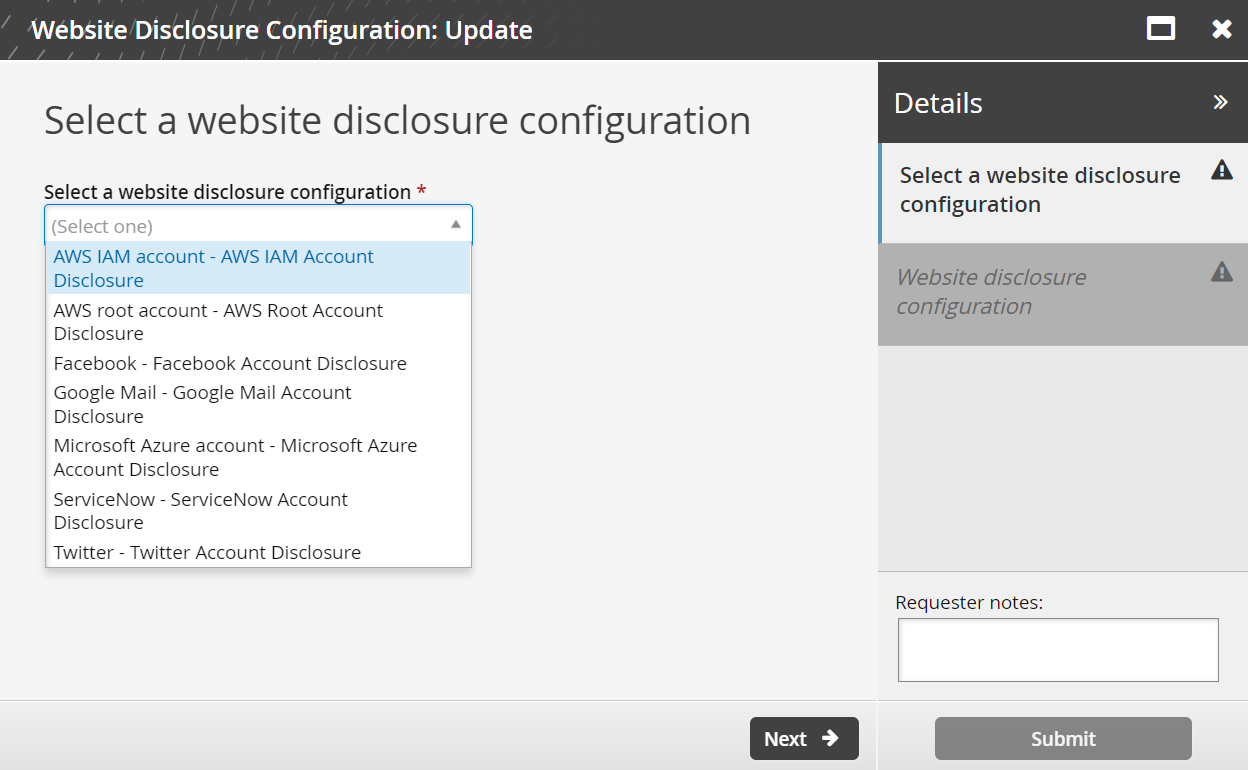
Close the Update wizard.
or
Edit the website disclosure configuration:
Select one of the website disclosure configurations and click Next .
Change the website disclosure configuration name, description, or configuration file as needed.
Click Submit.
Install the Secure browser client
Install the secure browser client to use the secure browser access disclosure plugin.
Windows 10 Version 1809 is the minimum required version.
To install the client on Windows 10:
Copy
SecureBrowser-1.0.0.zipfrom \<instance>\addon\securebrowser\ and paste it into a temporary folder on the Windows 10 system.Open the temporary folder and extract the contents of the zip file.
Open the SecureBrowser-1.0.0 folder, and locate
SecureBrowser.UWP_1.0.0.26_x86_x64_arm.msixbundle.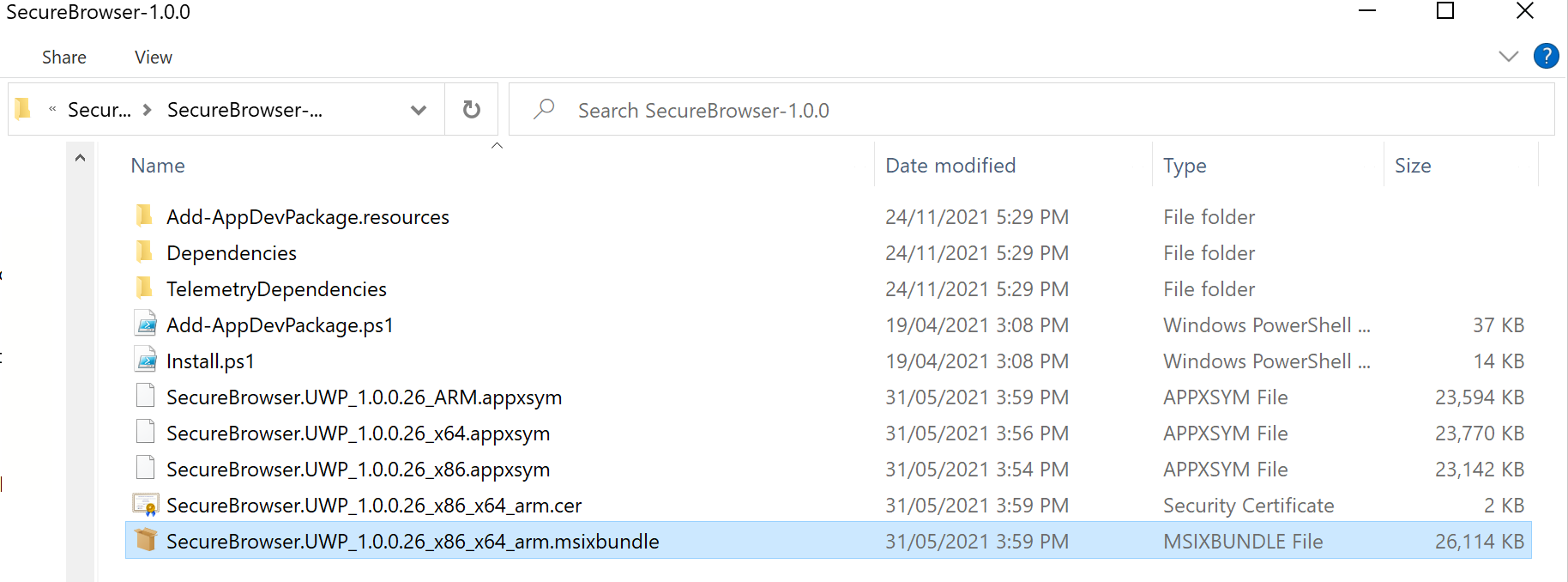
Double-click to launch the installer.
Click Install.
Troubleshooting
If the client fails to install with the following or similar error:
App installation failed with error message: error 0x80073D02: Unable to
install because the following apps need to be closed
Microsoft.DesktopAppInstaller_1.0.30251.0_x64__8wekyb3d8bbwe. (0x80073d02)
Verify if dependencies are being downloaded and installed correctly.
Check app updates can be downloaded and installed via the Microsoft store.
Check DNS.
Manually install dependencies in Dependencies/x64 either by double clicking or through PowerShell:
Microsoft.NET.Native.Framework.2.2.appx
Microsoft.NET.Native.Runtime.2.2.appx
Microsoft.UI.Xaml.2.4.appx
Microsoft.VCLibs.x64.14.00.appx
Uninstalling the client
To uninstall via the Start menu:
In the Start menu, find Bravura Security Secure Browser .
Right-click then click Uninstall.
To uninstall through Apps & features:
Open "Apps & features.
Search for Bravura Security Secure Browser.
Click Uninstall.
Example: Create a website disclosure configuration
The following optional scenarios are available which provide pre-configured website disclosure configurations:
Scenario.pam_webapp_social (optional)
This optional component includes website disclosure configurations for GMail, Facebook, and Twitter
Scenario.pam_webapp_cloud_service (optional)
This optional components includes website disclosure configurations for Microsoft Azure and AWS IAM/root accounts
Scenario.pam_webapp_cloud_computing (optional)
Include a website disclosure configuration for ServiceNow accounts.
Web application administrators can create website disclosure configurations for broking access to specific websites if the configuration required is not available.
This example demonstrates adding a website disclosure configuration for Outlook/Live which is not included with Bravura Security Fabric .
Additional requirements
This example assumes that:
Scenario.pam_webapp_management is installed.
A web application administrator has been added to the PAM_TEAM_ADMINS user class and thus has the privilege to configure website disclosure configurations.
A configuration file (JSON) for Outlook/Live is available and complete.
Create a configuration file (JSON) if the website you want to access is not available with Bravura Security Fabric .
It is recommended the JSON files are stored in a shared location available to all web application administrators.
Create a website disclosure configuration
Log in to Bravura Security Fabric as a web application administrator.
Click Manage Resources.
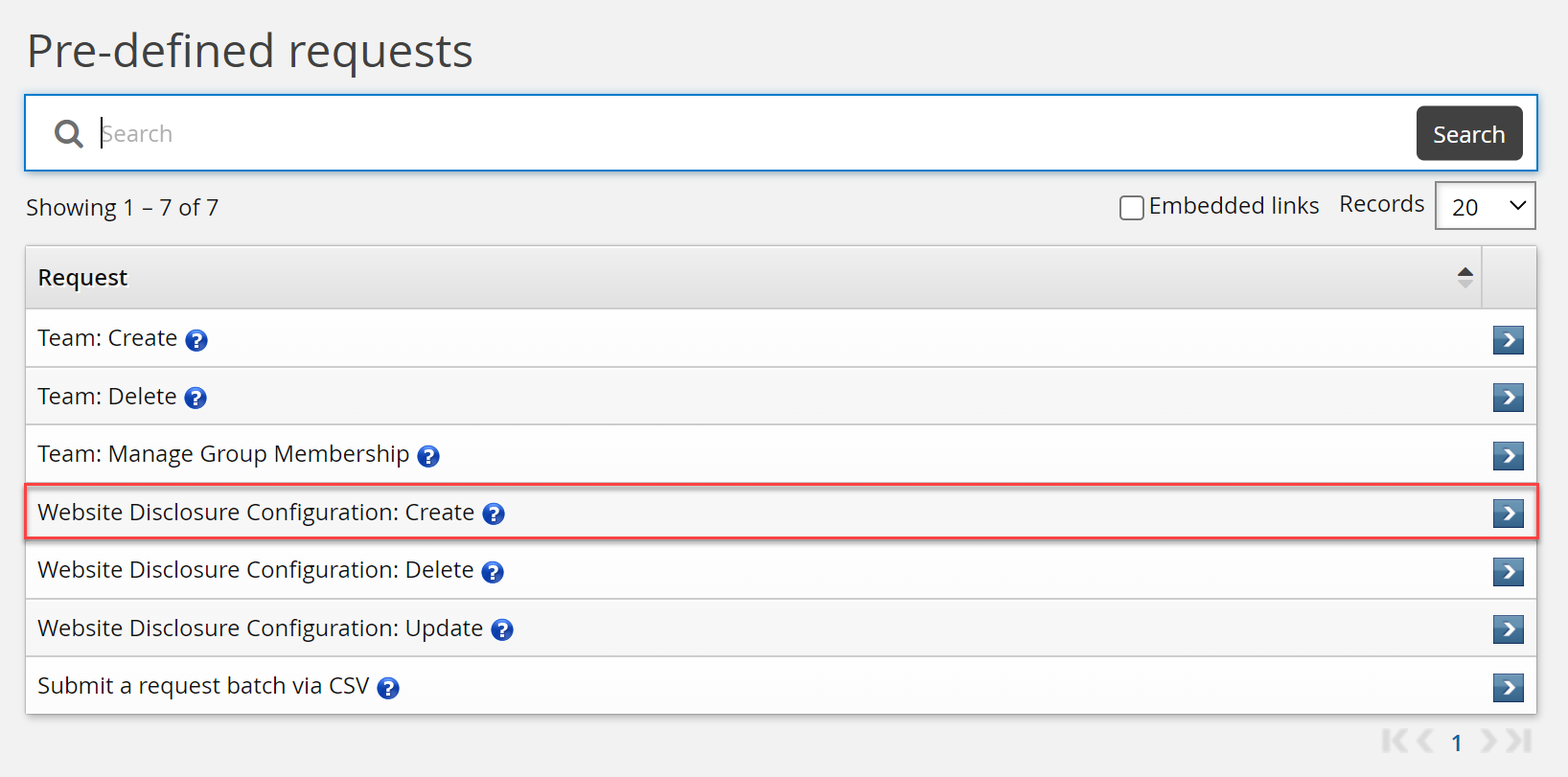
Select Website Disclosure Configuration: Create.
Enter a Name, Description , search for, and select a Configuration file (json) .
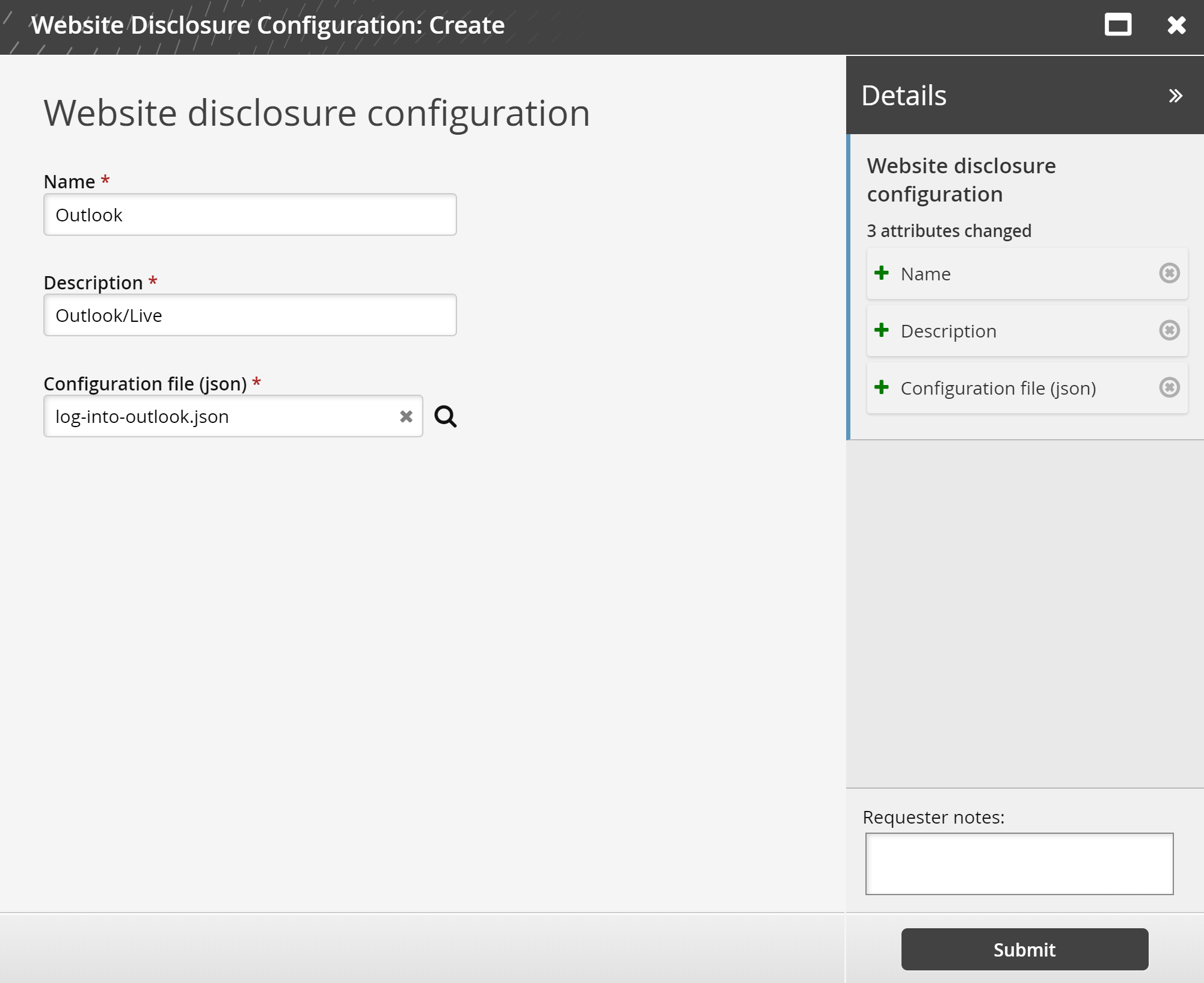
Click Submit.
The request should be automatically approved.
Example: Configure a vault account to use the web app privileged sign-on disclosure method
Once website disclosure configurations are configured, managed and vault accounts can use them for web app privileged sign-on and secure browser methods.
This example demonstrates how to create a vault account and configure that account to use the web app privileged sign-on method and will allow the account access to a website disclosure configuration at time of check out.
Additional requirements
This example assumes that:
A team has been created and configured.
A team vault has been configured.
A vault trustee has been configured for the team vault.
A website disclosure configuration is configured and available.
Scenario.pam_webapp_management is installed.
Create a vault account to use the web app privileged sign-on method
Log in to Bravura Security Fabric as a vault trustee.
Click Manage Resources.
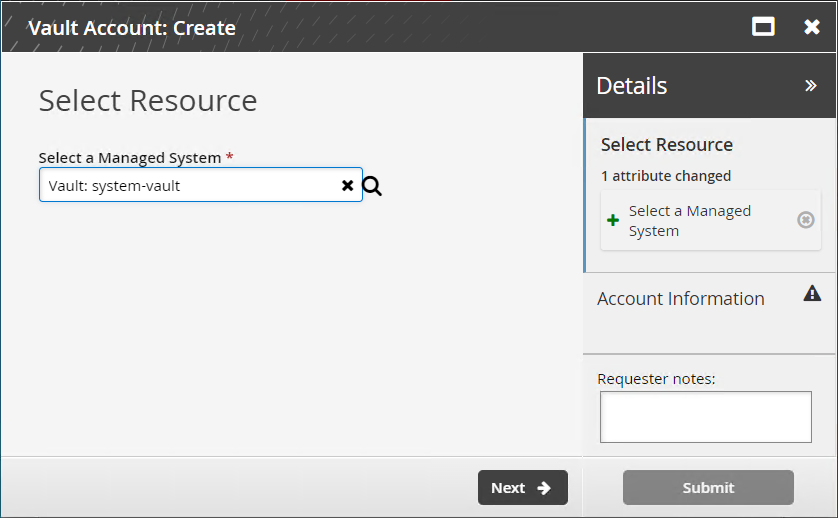
Select Vault Account: Create.
Select a managed system.
Click Next .
Enter Account Name.
Enter Account Password and confirm.
Select one or more configurations in Website disclosure configuration for web app privileged sign-on.
The website disclosure configurations chosen here will be the only configurations available at check out. If this field is left empty, the web app privileged sign-on method will not be displayed.
Click Submit.
The request should be automatically approved if submitted by the team’s vault trustee; otherwise the appropriate trustee will need to approve the request.
Update a vault account
To update a vault account:
Log in to Bravura Security Fabric as a vault trustee.
Click Manage Resources.
Select Vault Account: Update.
Select a managed account.
Click Next .
Click Next .
Select/deselect one or more configurations in Website disclosure configuration for web app privileged sign-on.
The website disclosure configurations chosen here will be the only configurations available at check out. If this field is left empty, the web app privileged sign-on method will not be displayed.
Click Submit.
The request should be automatically approved if submitted by the team’s vault trustee; otherwise the appropriate trustee will need to approve the request.
Example: Configure a managed account to use the secure browser method
Once website disclosure configurations are configured, account trustees and vault trustees can select Secure browser or web app privileged sign-on as a disclosure option when onboarding accounts and creating vault accounts.
This example demonstrates the process involved to onboard a managed account and configure that account to use the secure browser disclosure method.
Additional requirements
This example assumes that:
A team has been created and configured.
A team trustee has been configured.
Scenario.pam_webapp_management is installed.
The optional Scenario.pam_webapp_social scenario has been installed; providing the Gmail website disclosure configuration.
Onboard a managed account
To onboard a managed account to use secure browser:
Log in to Bravura Security Fabric as a team trustee.
Click Manage Resources.
Select Account: Onboard.
Select an account to be managed.
Click Next .
Select at least one Website disclosure configuration for secure browser.
The website disclosure configurations chosen for an account will be the only configurations available to that account at the time of check out.
You can leave website disclosure configuration field blank and at the time of check out, search and select from all configurations in Bravura Security Fabric .
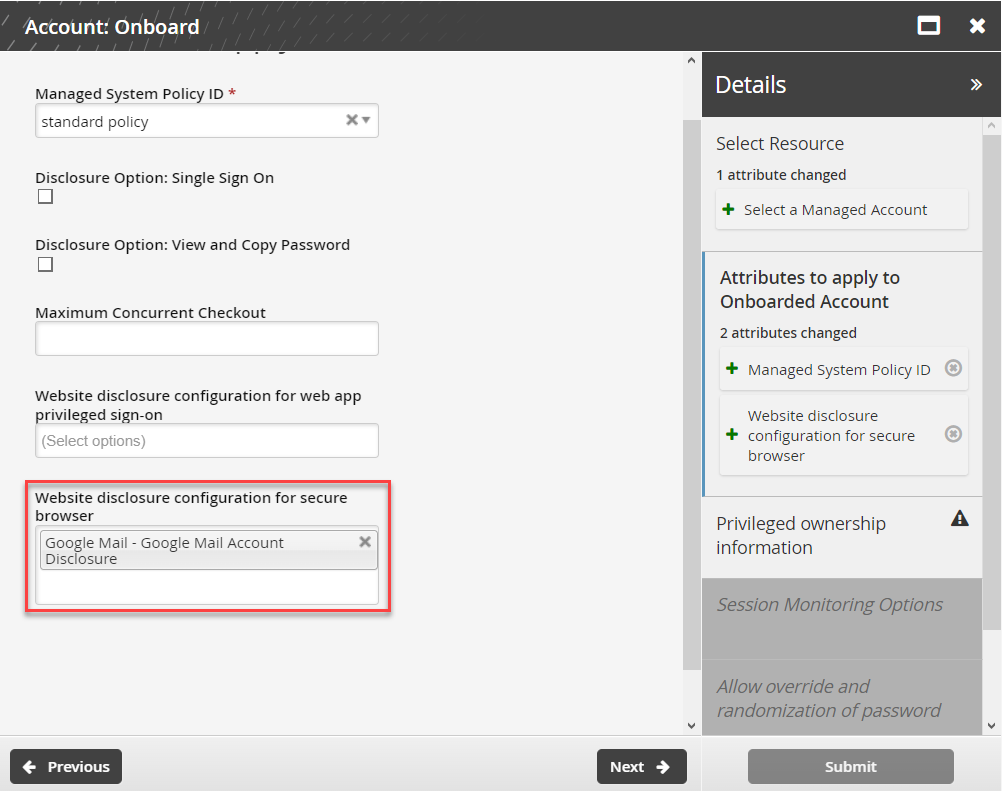
Click Next .
Select the account team to add the managed account to.
Click Submit.
The request should be automatically approved if submitted by the team’s trustee; otherwise the appropriate trustee will need to approve the request.
Example: Update a vault account's disclosure configuration
Additional requirements
This example assumes that:
A vault account has been onboarded
A website disclosure configuration is configured and available
Update a vault account
Log in to Bravura Security Fabric as a vault trustee.
Click Manage Resources.
Select Vault Account: Update .
Select a managed account.
Click Next .
Click Next .
Select one or more configurations in Website disclosure configuration for web app privileged sign-on.
Select one or more configurations in Website disclosure configuration for secure browser.
Click Submit.
The request should be automatically approved if submitted by the team’s vault trustee; otherwise the appropriate trustee will need to approve the request.
Examples: Update and delete an access disclosure configuration
Update a website disclosure configuration
To update a website disclosure configuration:
Log in to Bravura Security Fabric as a web application administrator.
Click Manage Resources.
Select Website Disclosure Configuration: Update .
Select the website disclosure configuration you want to update.
Click Next .
Update the Name , Description , and/or Configuration file .
Each website disclosure configuration is uniquely identified by Bravura Privilege, so changing the name will not modify which website disclosure configuration is used.
Click Submit.
The request should be automatically approved.
Delete a website disclosure configuration
To delete a website disclosure configuration:
Log in to Bravura Security Fabric as a web application administrator.
Click Manage Resources.
Select Website Disclosure Configuration: Delete .
Select the website disclosure configuration you want to delete.
Click Next .
Confirm delete.
Number of accounts using this website disclosure configuration will be displayed.
Click Submit.
The request should be automatically approved.
Example: Update a managed account to use the web app privileged sign-on disclosure configuration
This example demonstrates how to update a managed account that is currently using the secure browser method to use the web app privileged sign-on method.
Additional requirements
This example assumes that:
A managed account has been onboarded.
The managed account is configured to use the secure browser method.
Update a managed account
Log in to Bravura Security Fabric as a team trustee.
Click Manage Resources.
Select Account: Update.
Select a Managed Account.
Click Next .
Remove the disclosure configuration from Website disclosure configuration for secure browser.
Add a disclosure configuration to Website disclosure configuration for web app privileged sign-on.
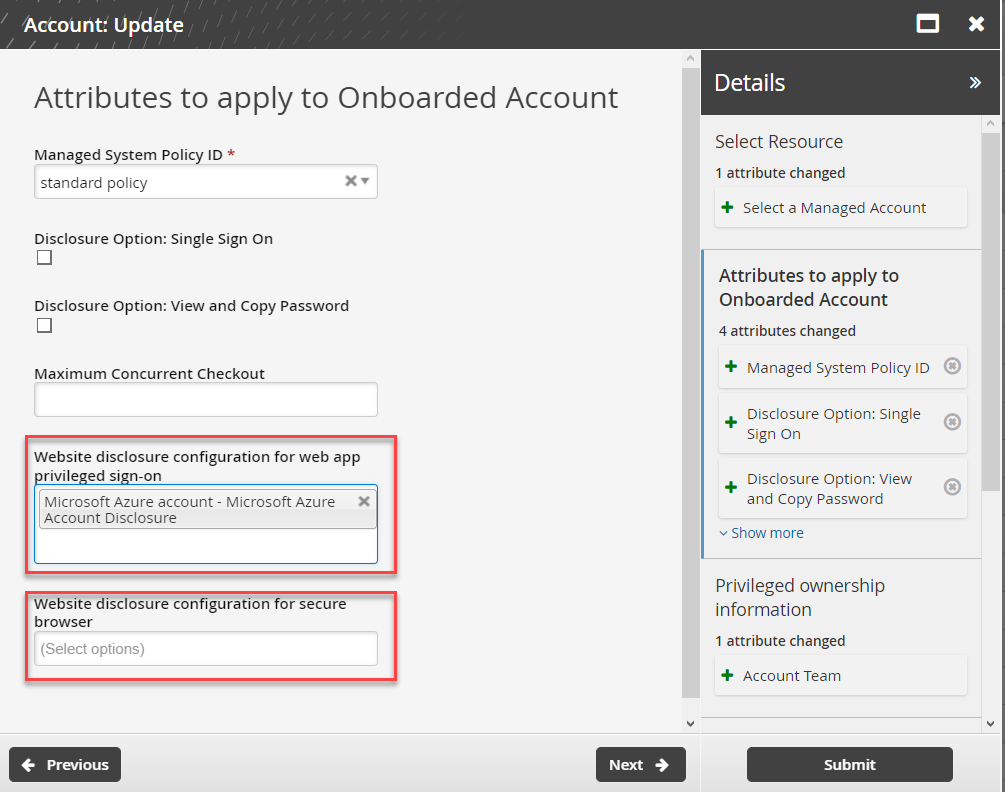
Click Submit.
The request should be automatically approved if submitted by the team’s trustee; otherwise the appropriate trustee will need to approve the request.
Example: Disclose website access to a user using the secure browser method
Additional requirements
This example assumes that:
The Secure browser client is installed on a Windows 10 workstation.
A user is a member of the team with requester privileges.
A managed account has been configured to use the secure browser website disclosure method.
The requester logs in to Bravura Security Fabric using SSL (HTTPS). See SSL enforcement for details.
Request, check out and disclose access
Log in to Bravura Security Fabric as an end user with requester privileges.
Click Privileged access.
Search and select the managed account configured with a secure browser disclosure method.
Click Request check-out.
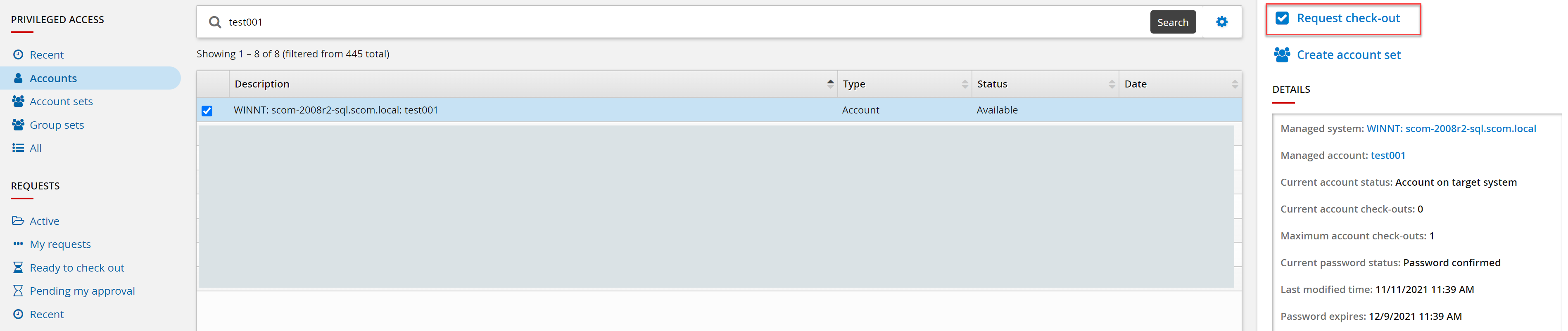
Complete the request form.
Click Submit.
Wait for approval as required through your organization’s process.
Click Ready to check out from the left panel.
Select the account to check out and click Check out.
Click Secure browser.

Click on the magnifying glass and select a website disclosure configuration.

Click Login.
Select Open Bravura Security Secure Browser.
The Secure browser will be launched using the website disclosure configuration selected.
Example: Disclose website access to a user using the web app privileged sign-on method
This example demonstrates how to disclose a website using the web app privileged sign-on disclosure method.
Additional requirements
This example assumes that:
A managed account has been configured to use the web app privileged sign-on disclosure method.
A user is a member of the team with requester privileges.
The requester logs in to Bravura Security Fabric using SSL (HTTPS). See SSL enforcement for details.
The Bravura Security browser extension is installed on a Chrome browser.
Request, check out and disclose access
Using a Chrome browser Log in to Bravura Security Fabric as a user with requester privileges.
Click Privileged access.
Search and select the managed account.
Click Request check-out.
Complete the request form and click Submit.
Wait for approval as required through your organization’s process.
Click Ready to check out from the left panel.
Select the managed account to check out.
Click Check-out.
Click Web app privileged sign-on.

Search for, and select Configuration file.
Click Login.
Pop-up blockers may prevent this feature from launching a new tab.
A new tab will be launched in a secure session, using the information in the website disclosure configuration.
Example: Audit recorded sessions
Additional requirements
This example assumes that a vault account has been checked out with the secure browser disclosure method, creating a recorded session.
Only screenshots are recorded.
Configure session monitoring privileges
Log in to the front-end as superuser.
Click Manage the system > Security > Access to user profiles > Self-service rules.
Select ALL_SELF_REQUEST.
Add the Manage recorded sessions privilege.
This will give all users the manage recorded sessions privilege. If you require specific users from a user class to have access to the Session Monitor app, create a new self-service rule.
Click Update.
Click Manage the system > Privileged access > Managed system policies.
Select the managed system policy:
ONBOARDED_ACCOUNTS for onboarded accounts
VAULT_MSP for team vault accounts
SYSTEM_VAULT_MSP for system vault accounts
Click the Authorizers tab.
Specify authorizers in Search recorded sessions and Download recorded sessions and/or View recorded sessions.
Click Update.
Audit recorded sessions
Log in to Bravura Security Fabric as an end user with session monitoring privileges.
Click Session monitor under PRIVILEGED ACCESS TO MANAGED SYSTEMS.
The Session monitor app opens.
Search for and select the session to view.
Click Request view to request view access to the session.
Sessions can be in-process, in which case a short delay exists.
Click Request download to submit a request to download the package.
Searching, viewing, and downloading sessions are separate privileges that can be granted.
Revoke access while viewing an in-progress session
Log in to Bravura Security Fabric asa help desk user with session monitoring and check-in access privileges.s.
The Session monitor app opens.
Search for and select the vault account session.
Click View .
Click Check in access .
Confirm the check-in.
SSL enforcement
By default, users can only use web app privileged sign-on or secure browser disclosures if accessing Bravura Security Fabric using SSL (HTTPS). If the insecure HTTP method is used, the user will see a "This disclosure enforces SSL" message and will not be able to access the website disclosure configuration. This behavior is controlled by the PAM WEBAPP ENFORCE SSL system variable.
Troubleshooting
Issue: Unable to connect to site using secure browser
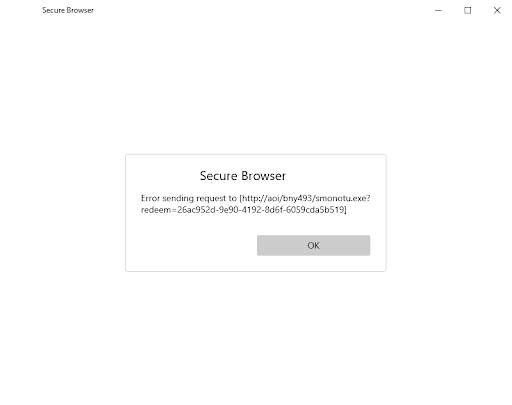
Fix: Update external address
Method 1:
On the instance server, open the Windows Registry Editor and update the registry under HKLM\SOFTWARE\Bravura Security\Bravura Security Fabric\<instance>\, add new String Value: serveraddressexternal= <IP>.
Method 2:
Log in to Bravura Security Fabric as superuser.
Click Manage the system > Maintenance > Database replication .
Select the node.
Update External address to <IP>.
Restart the Database Service.