Troubleshooting proxy servers
Using a web proxy server for Bravura Security Fabric to reach out to its targets
Problem
When an environment uses a proxy server to access web content, Bravura Security Fabric connectors, scripts, and other programs may not be able to reach external targets. The result is a connection timeout.
Cause
Bravura Security Fabric connectors use the Windows proxy settings (not always the ones from Control Panel> Internet Options), which must be set manually.
Solution
In an administrative command prompt type:
netsh winhttp set proxy

<my-proxy.company.com>:443
Replace the proxy server name with the one in the actual environment.
Restart all services (at a minimum,
iddband w3svc)
This should allow setting the proper proxy server and port in the winhttp configuration that Bravura Security Fabric uses. External targets should connect.
Proxy tunnel status indicators
Problem
A proxy tunnel displays a "Warning" status on the Manage the system > Resources > Proxy tunnel clients page when it is not connected to all nodes.
Cause
The Proxy tunnel clients page displays icons to indicate the proxy tunnel client status:
Green icon
 : Connected to all nodes
Yellow icon
 : Not connecting to node(s) <node list>
Red icon
 : Two possible error conditions:
Not connected: not connected to any node
No password has been assigned: This is a configuration issue. A password is required. Click Generate password to resolve.
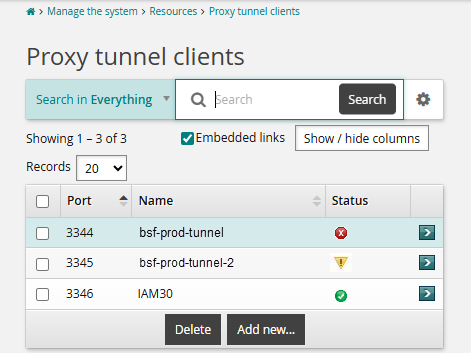
Bravura Security Fabric does not allow for all nodes to connect to all proxies simultaneously.
Each node may only be connected to one proxy at a time
Each proxy could have any number of nodes connected to it
Intermittent network issues may also cause yellow status conditions.
Known issue
In current versions of Bravura Security Fabric (12.6+), when using multiple tunnels, the status indicator behaviour will display the yellow icon for all tunnels. This is because each Bravura Security Fabric node/instance can only connect to one tunnel at a time; thus, the tunnel status check sees the tunnel is not connected to all nodes and presents a warning indicator. This is somewhat misleading and will be clarified in future releases.
As long as each node is connected to a proxy tunnel, the system is functioning as intended. However, red icon indicators should always be investigated and treated as an issue.
Solution
Confirm that the Proxy Service is running on each proxy server. As long as each node is connected to a proxy, the system is functioning as intended.
When the proxy client displays a yellow or red status due to node connectivity issues, the primary solution is to repair the proxy client by running the Bravura Security Fabric proxy server installer and using the Repair option.